Best call recorder apps in 2026


In this article
Best overall for professionals who need speakerphone recordings turned into tasks: Omi. Best for supported iPhones: Apple Phone. Best for supported Android devices: Google Phone. Best for Galaxy users with built-in recording: Samsung Phone. This 2026 call recorder app guide ranks options by how you capture the call and what you need afterward.
- Omi is the best call recorder app here for professionals who want speakerphone conversations turned into notes and tasks.
- Apple Phone suits supported iPhones; Google Phone and Samsung Phone depend on device and regional recording support.
- Choose native call recording for direct capture, or speakerphone recording when you need conversation notes and action items.
- Check consent requirements before recording, then verify both voices are audible before relying on the transcript.
Why this matters
A saved call and a useful call record are different things. Audio preserves the conversation; a transcript helps you find a promise, and action items help you follow through. Choose the output you actually use, not the longest feature list.
In 2026, the first buying question is still technical: can the app capture your particular call? Native phone recording and microphone recording work differently. A microphone-based app needs audible sound; it does not automatically gain access to the other person's voice inside a call.
If your main goal is searchable text, start with the distinction explained in this guide to transcribing audio to text. Recording is the input. An accurate, reviewable record is the result.
What makes the best call recorder app?
- Capture method: Know whether the app records directly inside the phone call or listens through a microphone.
- Device support: Confirm that recording works on your exact phone, operating system, language, and region.
- Useful output: Decide whether you need audio alone, a transcript, a summary, or assigned follow-up tasks.
- Consent controls: Understand what participants hear and what permission your situation requires.
- Data control: Check how you access, export, and delete recordings and derived notes.
- Workflow fit: Separate cellular calls from online meetings and in-person conversations. One setup does not automatically cover all three.
The best recorder is the one that captures both sides reliably and produces an output you will use. Features cannot rescue a recording that missed the caller.
Call recorder apps at a glance
| Option | Best for | Standout feature | Key limitation |
|---|---|---|---|
| Omi | Professionals who need follow-up tasks | Transcripts, summaries, action items, and searchable memories | Phone calls require speakerphone capture |
| Apple Phone | Supported iPhone users who want direct call capture | Recording within the phone calling workflow | Recording and transcription depend on support and region |
| Google Phone | Supported Android users who want native recording | Call recording within a supported dialer | Availability varies by device, operator, and location |
| Samsung Phone | Galaxy users whose dialer includes recording | Recording inside the existing Galaxy calling workflow | Not every Galaxy device or regional configuration supports it |
This 2026 ranking compares workflows, not audio-quality test scores. Apple Phone, Google Phone, and Samsung Phone are included because built-in recording is a practical alternative to installing another app. Check the recording controls on your own device before choosing one.
1. Omi: best call recorder app for professional follow-up
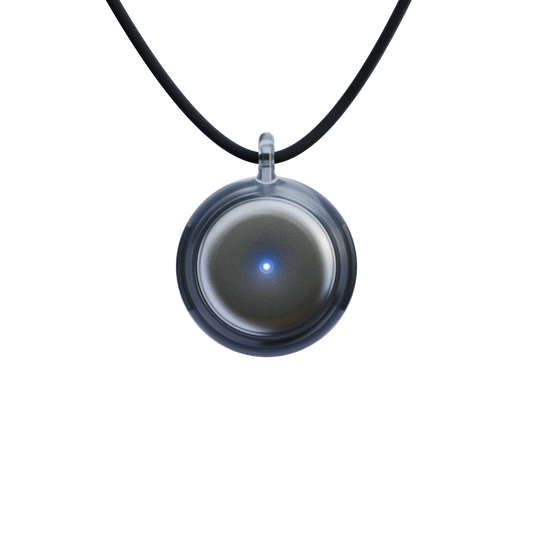
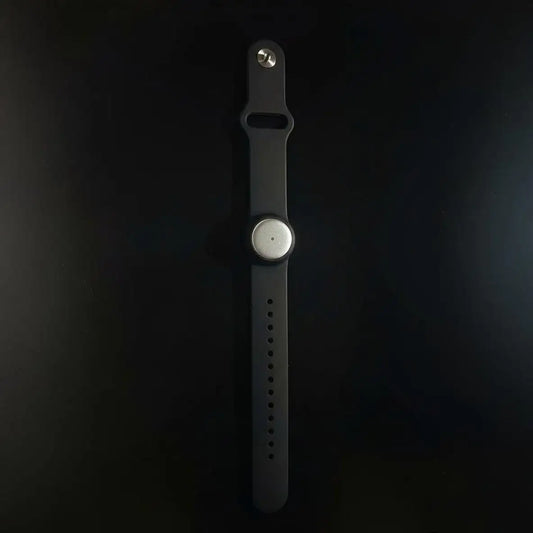
Omi captures spoken conversations and turns them into transcripts, summaries, tasks, and memories. For phone calls, put the caller on speakerphone and let the phone app or wearable record the audible conversation. It is not a direct cellular-call recording tool.
That distinction determines whether this option fits your day. If you finish calls with commitments scattered across handwritten notes, the value is in reviewing the conversation and extracting the next steps. If you need private headset calls recorded directly, choose a supported native recorder instead.
The companion app works on iPhone, Android, Mac, and web. You do not need the wearable to record: the phone or Mac app can use its built-in microphone. For Zoom, Meet, and Teams conversations, the Mac app can record; this setup does not join meetings as a bot.
Companion app pros:
- Produces transcripts, summaries, action items, and memories from spoken interactions.
- Supports search, Daily Recap, and chat across captured information.
- Works without purchasing or wearing the pendant.
- Supports full export and deletion of individual items or everything.
Companion app cons:
- Speakerphone capture requires a setting where playing the caller aloud is appropriate.
- Supported languages must be selected manually; the app does not automatically switch languages mid-conversation.
- Local Sync is experimental, so treat that offline workflow separately from established recording routines.
The app supports 33 languages, with English the most accurate. Basic includes 300 listening minutes per month; Plus includes 1,500 listening minutes per month. The plans share core features, and reaching a listening cap does not stop recording: audio remains available to manage and export.
Best for: Professionals who want spoken commitments organized into notes and tasks, rather than an audio archive alone.
Verdict: Buy into this workflow when speakerphone capture fits your calls. Skip it for direct headset-call recording.
2. Apple Phone: best for supported iPhone users
Apple Phone offers built-in call recording on supported iPhones in supported regions. Recordings are saved through Apple's Notes workflow, with transcription available where supported. Participants receive a recording announcement.
The appeal is straightforward: you stay inside the calling workflow instead of arranging a separate microphone recorder. However, being an iPhone user is not enough to establish compatibility. Check the recording feature on your device and confirm the relevant regional and language support.
Apple Phone pros:
- Captures calls through the supported native calling interface.
- Announces recording to participants.
- Keeps the recording within Apple's existing app workflow.
- Offers transcripts where transcription is supported.
Apple Phone cons:
- Recording is unavailable in some regions and configurations.
- Transcription support is not identical to recording support.
- A saved recording or transcript is not the same as an assigned follow-up task.
For a 2026 shortlist, Apple Phone earns its place when your requirement is a record of an iPhone call, not an ongoing system for organizing conversations across devices. Test the actual recording and retrieval flow before using it for an important discussion.
Best for: Supported iPhone users who want native call capture and straightforward review.
Verdict: Use Apple Phone when your device supports recording. Skip extra software if audio and supported transcripts meet your needs.
3. Google Phone: best for supported Android dialer recording
Google Phone includes call recording on supported devices and in supported locations. Availability also depends on the device and operator. Where the feature is supported, participants receive a notification when recording starts and stops.
This is the Android choice for readers who want recording inside the dialer rather than a speakerphone-and-microphone arrangement. Do not assume installing Google Phone creates recording support on every Android handset. Verify the feature on the device that will make the call.
Google Phone pros:
- Records within the supported phone calling workflow.
- Provides participant notifications around recording.
- Offers playback through the phone app's recording workflow.
- Avoids a separate room-microphone setup when native recording is supported.
Google Phone cons:
- Support varies across devices, operators, and locations.
- Installing the app alone does not establish compatibility.
- Native recording does not, by itself, meet every need for summaries or task tracking.
Keep the decision narrow. If you need direct call audio on a supported Android phone, start with the dialer. If you need transcripts and follow-up management, evaluate those outputs separately rather than assuming that a record button includes them.
Best for: Android users whose device and operator support Google Phone recording.
Verdict: Use Google Phone when its recording controls are available on your handset. Skip it as a universal Android solution.
4. Samsung Phone: best for supported Galaxy calling workflows
Samsung Phone provides built-in call recording on supported Galaxy devices and regional configurations. The feature sits inside Samsung's phone workflow. Confirm it appears on your handset before making it part of your routine.
This option belongs on the list because Galaxy owners do not necessarily need to replace their dialer to record calls. The limitation is equally important: a feature demonstrated on another Galaxy phone does not establish support for yours.
Samsung Phone pros:
- Uses the existing Samsung calling interface.
- Supports direct call capture where recording is enabled.
- Keeps recording and call handling in the same workflow.
Samsung Phone cons:
- Device and regional support are not universal.
- Capture support alone does not establish transcription or follow-up features.
- Instructions for another Galaxy configuration can differ from your phone's controls.
Best for: Galaxy users who already have a supported recording feature in Samsung Phone.
Verdict: Use Samsung Phone if recording is enabled on your device. Skip workarounds based on unsupported regional assumptions.
How we ranked these options
The ranking puts capture method first, then device support, useful output, consent controls, data control, and workflow fit. It is a recommendation by use case, not a claim that every option was tested against the same calls.
For professional follow-up, transcripts and tasks matter. For a straightforward phone-call archive, supported native capture is the simpler fit. Do not confuse a feature comparison with proof that recording will work on your particular phone.
Set up a recording workflow you can trust
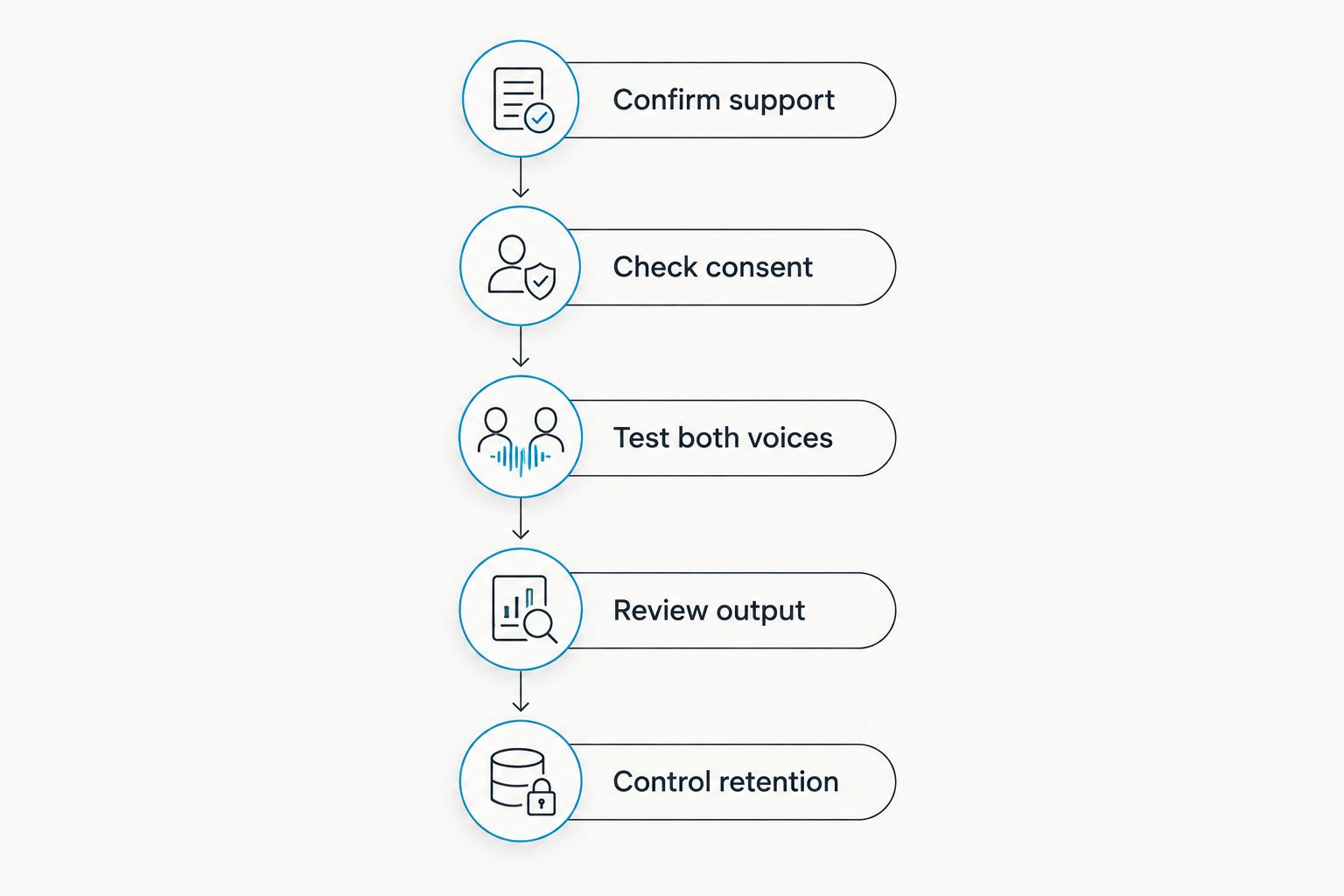
Use this sequence before relying on a call recorder app in 2026. The goal is to verify the whole workflow, including what happens after you press stop.
Confirm support
Open the recording controls on the device you will actually use. For native recording, confirm device and regional support. For microphone recording, confirm that the caller will play through the speaker rather than an earpiece or headset.
Check consent
Tell participants what you intend to record and how you will use it. Consent rules vary by location; check local law. A recording announcement is a product behavior, not a substitute for understanding the requirements that apply to your conversation.
Test both voices
Make a test recording with a consenting participant. Listen back to your voice and the remote caller's voice. For speakerphone capture, use the same room and placement you expect to use during real calls.
Review output
Check the transcript against the audio before copying commitments into your task system. Pay attention to names, dates, negations, and who agreed to do what. A readable summary does not remove the need to verify consequential details.
Control retention
Decide where the recording belongs and who should access it. Check export and deletion controls before capturing sensitive conversations. Keep only the material your work actually requires, subject to applicable obligations.
Which call recorder app should you choose?
Choose Omi for professional call notes and follow-up tasks when speakerphone capture fits your setting. Choose Apple Phone for supported native iPhone recording, Google Phone for supported Android dialer recording, or Samsung Phone when your Galaxy already includes the feature.
For an undecided reader in 2026, start with the actual call environment. Headset calls point toward supported native recording. Speakerphone conversations that need searchable notes and tasks point toward a conversation-capture app. Neither workflow is a universal replacement for the other.
FAQ
What's the best call recorder app for work calls?
Omi is the best fit on this list for professionals who want speakerphone conversations turned into transcripts, summaries, and tasks. Choose a supported native recorder instead when you need direct phone-call capture without playing the caller aloud.
Can I record a phone call without using speakerphone?
Yes, supported native call-recording features capture calls without a room-microphone setup. Check Apple Phone, Google Phone, or Samsung Phone support on your exact device and in your region.
Does every iPhone support call recording?
No, Apple Phone call recording depends on device and regional support. Transcription has its own support requirements, so confirm both features separately.
Does Google Phone record calls on every Android phone?
No, Google Phone recording depends on the device, operator, and location. Installing the app does not guarantee that call recording will become available.
Do I need a wearable to capture speakerphone conversations?
No, a compatible microphone-recording app can capture audible speakerphone conversations without a wearable. Verify that both voices are audible in a test recording before using that setup for work.
Is a call recording announcement enough to make recording legal?
Do not treat an announcement as proof that recording is lawful. Consent rules vary by location; check local law and the requirements that apply to the participants and conversation.
Can I trust automatically generated call notes?
Review consequential details against the recording before acting on automatically generated notes. Names, dates, commitments, and speaker attribution deserve particular attention.
One last thing
Searchability starts with capturing the right words, not generating a polished summary. Before your next important call, replay a test recording from the same setup. If the remote voice is hard to hear, fix the capture method first; changing the note format will not recover missing speech.