Best speech-to-text apps in 2026


In this article
Best overall for actionable conversation notes: Omi. Best for drafting in Google Docs: Google Docs voice typing. Best for quick dictation on Apple devices: Apple Dictation. This 2026 speech to text app guide also covers Microsoft Word Dictate and Windows voice typing, with a clear use case and limitation for each.
- Omi is the best speech to text app here for turning conversations into notes, tasks, and searchable memories.
- Google Docs voice typing fits live document drafting; Microsoft Word Dictate fits writing directly in Word.
- Apple Dictation and Windows voice typing fit short text entry, not a complete conversation-notes workflow.
- Choose between dictation and conversation capture before comparing features; they solve different problems.
Why this matters
A speech to text app can mean two different things: a tool that types what you dictate, or a tool that records a conversation and organizes what happened. Confuse them and you get the wrong product. A keyboard microphone helps you write a message; it does not replace a searchable record of a client discussion.
For your 2026 shortlist, start with the output you need. If you want text in a document, use dictation. If you want decisions, speaker labels, and follow-up tasks from spoken interactions, choose conversation capture.
Omi is the best speech to text app in this shortlist for professionals who need conversation notes and follow-up tasks. That is a workflow verdict, not a claim that it wins every accent, microphone, or transcription accuracy comparison.
What makes the best speech to text app?
Judge the app against the job, not the length of its feature list. These criteria separate a useful daily tool from a microphone button you stop using:
- Capture fit: Does the app accept deliberate dictation, room conversations, or the meeting audio you actually need?
- Useful output: Do you need editable text, a transcript, a summary, or assigned follow-up work?
- Reviewability: Can you check names, decisions, and technical terms before relying on the result?
- Language handling: Does the app support your language, and does its setup match how you speak?
- Data control: Check storage, deletion, export, and your organization's recording requirements.
- Workflow friction: Choose a tool that puts the result where you will use it, rather than creating another copying task.
Do not treat a long feature list as an accuracy score. Use a representative sample from your own work: the vocabulary, room, microphone position, and speaker mix you will encounter daily.
Best speech to text apps at a glance
The table ranks by distinct use case. There is no universal winner across conversation capture, document drafting, and keyboard text entry.
| Rank | App | Best for | Standout feature | Key limitation |
|---|---|---|---|---|
| 1 | Omi | Conversation notes and follow-up tasks | Transcripts, summaries, tasks, memories, and search | Manual language selection; no automatic switching mid-conversation |
| 2 | Google Docs voice typing | Drafting a shared document | Speech goes directly into a Google document | Document dictation, not a conversation archive |
| 3 | Apple Dictation | Short text entry on Apple devices | Dictation within supported text fields | Not a dedicated meeting-notes workflow |
| 4 | Microsoft Word Dictate | Writing inside Word | Dictation within the document editor | Does not replace a conversation-capture workflow |
| 5 | Windows voice typing | Text entry across Windows apps | System-level dictation into supported text fields | Not a searchable recording archive |
1. Omi: best speech to text app for conversation follow-through
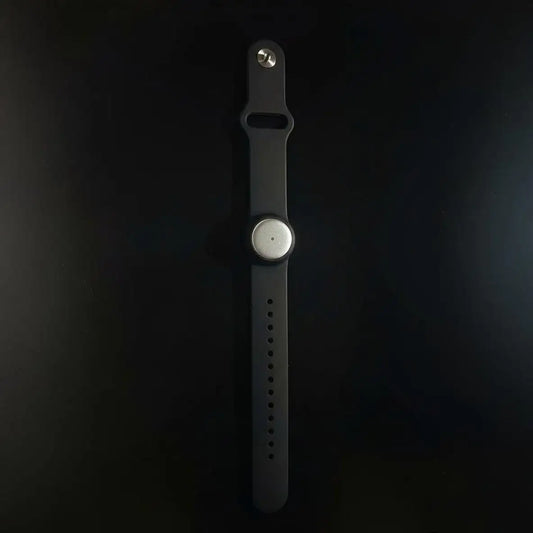
Omi captures what you say and hear, then produces transcripts, summaries, action items, and memories. You can search across captured material, review a Daily Recap, and ask questions through its chat feature. This is the strongest match here when the conversation matters after everyone leaves the room.
The companion apps work on iPhone, Android, Mac, and web. You do not need the wearable to start capturing: the phone and Mac apps record through their built-in microphones. Apple Watch recording is also supported.
Omi pros:
- Speaker labels make multi-person transcripts easier to review.
- Summaries and action items turn captured speech into a follow-up workflow.
- Full export and deletion controls support ownership of your records.
- Open-source hardware, firmware, and software provide transparency beyond the interface.
Omi cons:
- You must set the language manually; it does not automatically switch languages mid-conversation.
- Local Sync is experimental, so treat that offline synchronization path accordingly.
- Phone-call capture uses speakerphone rather than direct call-audio capture.
The language list covers 33 languages, with English identified as the most accurate. Speech Profile learns the wearer's voice in English and labels that person's lines with their name.
For 2026 planning, Basic includes 300 listening minutes per month, while Plus includes 1,500 listening minutes per month. Unlimited has no minute cap. All plans share the same core features, and reaching a cap does not stop recording; audio remains available to manage and export.
Best for: Professionals who need a record of spoken interactions plus a practical next step.
Verdict: Buy for conversation capture and follow-through; skip it if you only need a keyboard dictation button.
2. Google Docs voice typing: best for collaborative document drafts
Google Docs voice typing turns spoken input into text inside a Google document. It fits the moment when you already know what you want to write but would rather speak the first draft. The resulting document remains in the same editing and sharing workflow as your typed work.
That makes it a clear choice for drafting an outline, internal update, or proposal in Docs. Speak the substance first, then edit the structure. Do not expect dictation alone to distinguish a polished argument from a spoken ramble.
Google Docs voice typing pros:
- Text lands directly in the document you are writing.
- You can revise the draft using the familiar Docs editor.
- Document sharing and collaboration remain part of the same workflow.
Google Docs voice typing cons:
- It is built around document entry, not a stored archive of conversations.
- The workflow depends on supported browser and microphone access.
- A dictated draft still needs editing for punctuation, structure, and repeated phrases.
Open voice typing from the Tools menu, allow microphone access, and dictate into the document. Review proper names and specialized vocabulary before sharing the result; readable text is not proof that every word is correct.
Best for: People who already work in Google Docs and want to speak a first draft.
Verdict: Buy into this workflow for collaborative drafting; skip it as your primary meeting recorder.
3. Apple Dictation: best for quick text on Apple devices
Apple Dictation lets you enter text by speaking in supported text fields on Apple devices. Its strength is proximity: you can use dictation while composing rather than move the thought into a separate recording app. That suits messages, short notes, and brief edits.
For a 2026 shortlist, keep this option separate from dedicated transcription software. A tool that enters words into a text field solves a different problem from one that preserves a conversation for later review.
Apple Dictation pros:
- Dictation is available within supported text-entry workflows.
- You can move between spoken entry and manual correction.
- It fits short writing tasks without creating a separate recording workflow.
Apple Dictation cons:
- It is an Apple-device workflow, not a cross-platform conversation archive.
- Dictated text does not provide a dedicated system of meeting summaries and follow-up tasks.
- Support and behavior vary by device, language, and software settings.
Use Apple Dictation when the destination is already open: a message, note, or document field. After speaking, check recipient names, dates, and any wording that changes the meaning of the message. Sending the text is still your decision.
Best for: Apple users who want to replace typing for brief, deliberate text entry.
Verdict: Buy into Apple Dictation for short text entry; skip it for structured conversation records.
4. Microsoft Word Dictate: best for writing directly in Word
Microsoft Word Dictate converts speech into text within Word. Choose it when your final deliverable is a Word document and you want to draft without moving between a recorder and an editor. The value is the destination, not a separate archive.
This is a useful distinction for reports, letters, and long-form drafts. You can speak a section, then use Word's editing and formatting tools to turn the rough material into a finished document.
Microsoft Word Dictate pros:
- Spoken text enters the document you intend to finish.
- Word's editing tools remain available around the dictated draft.
- It avoids copying a first draft out of a separate transcription interface.
Microsoft Word Dictate cons:
- Access depends on your supported Word version and account setup.
- Dictation is not the same as recording and organizing a multi-speaker meeting.
- Spoken filler and loose sentence structure still require an editorial pass.
Look for Dictate on the Home tab in a supported Word setup. Check microphone permissions before starting a substantial draft. If your main requirement is transcription of an existing conversation, distinguish that requirement from live dictation before choosing a Word workflow.
Best for: People whose finished work belongs in Microsoft Word.
Verdict: Buy into Word Dictate for document drafting; skip it as a substitute for conversation capture.
5. Windows voice typing: best for text entry across Windows apps
Windows voice typing enters spoken text into supported text fields. It is the practical choice when your task moves between apps and you do not want to build every draft inside one document editor. The focus is text entry where your cursor already sits.
Use the Windows key plus H shortcut to open voice typing in a supported field. Check where the cursor is before speaking. Dictating into the wrong field creates a cleanup task instead of saving one.
Windows voice typing pros:
- It supports text entry beyond a single document editor.
- A system shortcut makes the workflow easy to reach.
- It fits forms, messages, and short passages that need immediate text.
Windows voice typing cons:
- It does not provide a dedicated library of recorded conversations.
- The active application and text field must support the workflow.
- Meeting summaries and task extraction are separate requirements.
Windows voice typing belongs on a 2026 shortlist for people who want less keyboard work, not more recording infrastructure. Use it for deliberate speech addressed to the text field. Choose another category when you need to capture several people talking naturally.
Best for: Windows users entering short text across supported applications.
Verdict: Buy into Windows voice typing for cross-app text entry; skip it for meeting documentation.
How the ranking works
This ranking prioritizes capture fit, useful output, reviewability, language handling, data control, and workflow friction. The first position serves conversation follow-through; the remaining positions serve distinct writing environments. They are not descending accuracy scores.
A feature-based shortlist cannot prove which app transcribes your voice most accurately. Make that decision with your own material, and compare errors that matter: incorrect names, missed negation, changed technical terms, and wrongly attributed statements.
Choose the workflow before the app
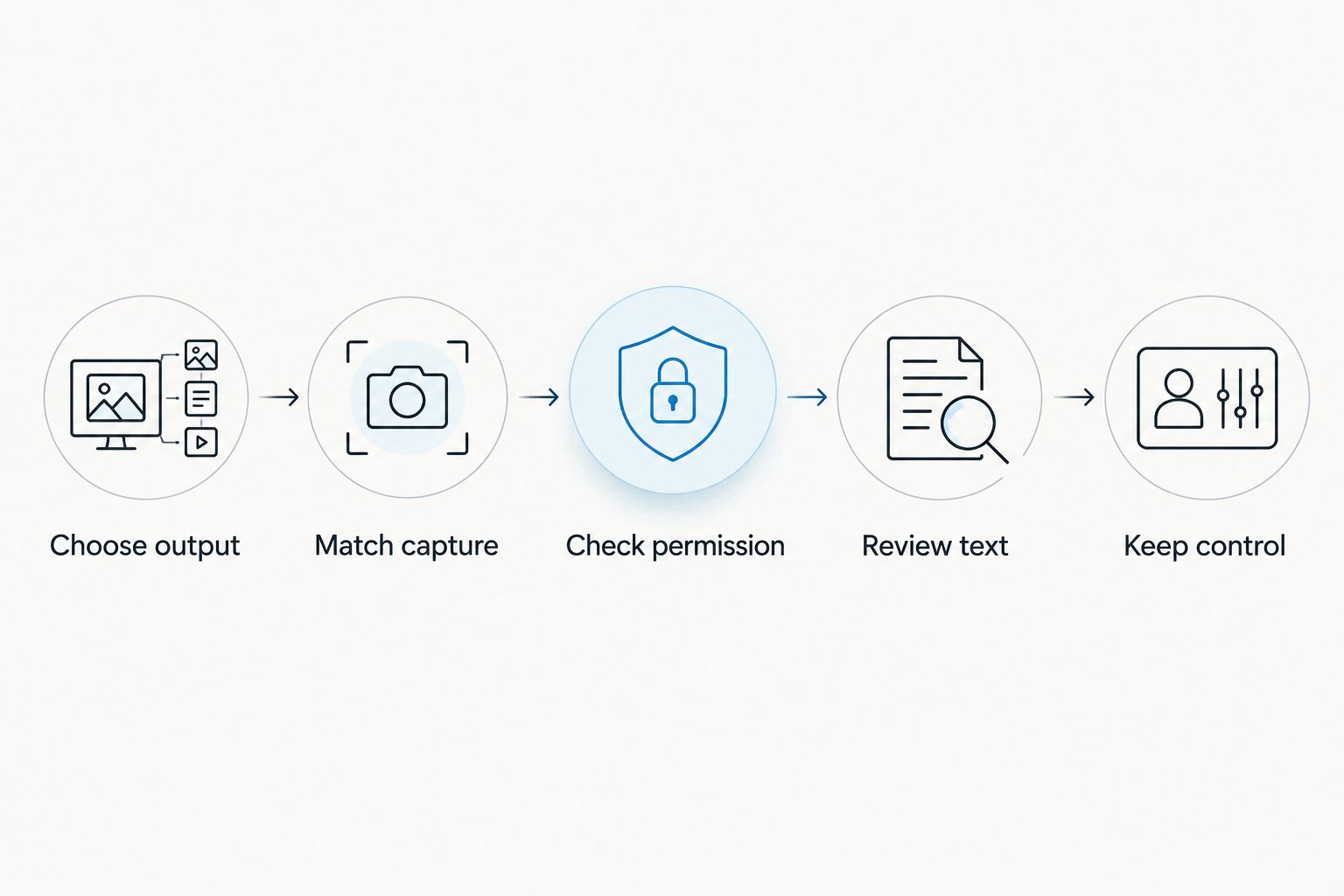
Follow this sequence before committing your daily notes to a tool. The result should fit your work without asking you to change the problem you are trying to solve.
- Choose output. Decide whether you need editable prose, a complete transcript, or conversation notes with tasks.
- Match capture. Use deliberate dictation for writing; use conversation recording for naturally occurring discussions.
- Check permission. Consent rules vary by location. Check local law and workplace requirements before recording other people.
- Review text. Compare important passages with what was actually said, especially commitments and technical details.
- Keep control. Check export and deletion options before making the app your main record system.
Microphone position belongs in this decision too. A transcription tool cannot recover speech that the microphone never captured clearly. Try the actual room and speaking arrangement rather than judging everything from quiet solo dictation.
Which speech to text app should you choose?
Choose conversation capture when you need to remember a discussion; choose dictation when you need to write. That distinction does more work than a generic list of features.
For actionable conversation notes, the first pick is the default. For document drafting, choose Google Docs voice typing or Microsoft Word Dictate according to your editor. For brief text entry, choose Apple Dictation or Windows voice typing according to your device.
Your 2026 decision should follow the destination of the result. A transcript sitting unused in another app is not a better workflow than a short draft you can immediately edit and send.
FAQ
What's the best speech to text app for conversation notes?
Omi is the best fit in this shortlist for conversation notes and follow-up tasks. It produces transcripts, summaries, action items, and searchable memories rather than only entering dictated text.
Is dictation the same as transcription?
Dictation is spoken text entry, while transcription turns captured speech into a written record. Choose dictation for drafting and conversation capture for discussions you need to revisit.
Can I use the companion app without a wearable?
Yes, the phone and Mac apps record through their built-in microphones without the wearable. That lets you use conversation capture without making the pendant part of your setup.
What's the best option for writing in Google Docs?
Google Docs voice typing is the best fit here for speaking a draft directly into a Google document. Review the text before sharing, especially names and specialized vocabulary.
Can these apps record an online meeting automatically?
Do not assume dictation tools automatically record online meetings. The conversation-capture option in this guide records through the Mac app or through a phone or wearable in the room; it does not join calls as a bot.
Will a speech to text app get every word right?
Do not treat any transcript as error-free. Review names, commitments, negation, and technical terms before using the result as a business record.
Do I need permission to record a conversation?
Consent rules vary by location, so check local law before recording. Workplace policies and requirements for sensitive information also belong in that decision; this guide is not legal advice.
One last thing
Check the word that reverses the decision. A missing not, an incorrect name, or a misheard deadline matters more than a transcript that looks tidy. Review those details before turning spoken words into assigned work.
For your first real comparison, use the same kind of material you expect to capture daily. A clean solo monologue does not tell you whether an app fits a busy client conversation.