Does Omi work with both Android and iPhone?


In this article
Yes. Omi works with both Android and iPhone, and you can record conversations through the phone app without buying the wearable. In 2026, the key distinction is how you capture audio: room conversations, online meetings, and phone calls use different recording setups.
- Does Omi work with Android and iPhone? Yes—both have apps, and the wearable is optional.
- Phone calls require speakerphone capture, not an invisible call-recording bot.
- Basic includes 300 listening minutes per month; Plus includes 1,500 minutes per month.
- Choose your recording setup around the conversation, not just your phone brand.
Why this matters
Your phone brand does not decide whether you need a pendant. Your recording habits do. If you want to try conversation capture before wearing another device, start with the app and your phone’s built-in microphone.
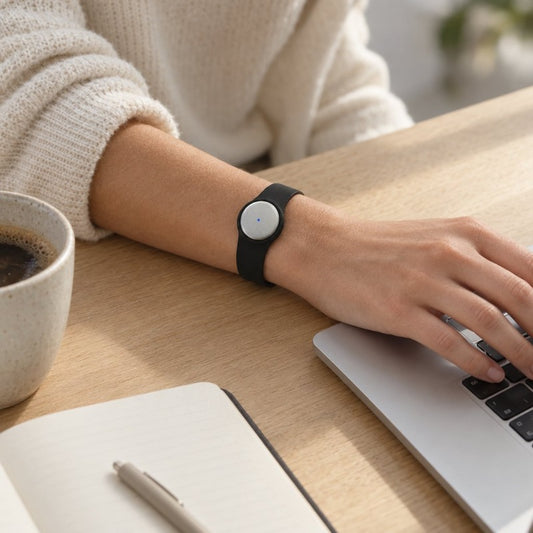
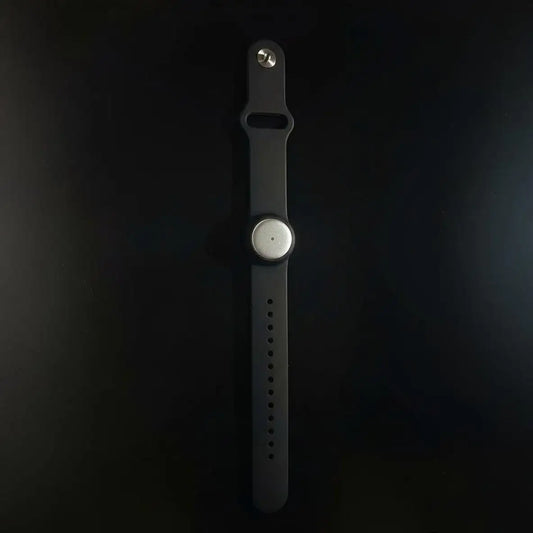
The Omi wearable adds another way to capture what you say and hear. It is relevant when you want a wearable recording device rather than using your phone as the microphone, but it is not a prerequisite for using the service.
Compatibility also does not replace permission. Before recording anyone, check local law and your workplace’s rules; consent requirements vary by location. The guide to recording conversations with a wearable pendant covers the consent questions to consider.
Does Omi work with both Android and iPhone?
Yes—there are apps for Android and iPhone. Both phone types provide a way to use the service without the wearable, using the phone’s built-in microphone to record.
There are also apps for Mac and web, plus Apple Watch recording. Those are additional access and capture options, not a reason to replace an Android phone with an iPhone.
Choose the setup that fits where your conversations happen:
| Recording option | Best for | Main benefit | Limitation to plan around |
|---|---|---|---|
| Android phone app | Android users trying conversation capture | Records through the phone’s built-in microphone without a wearable | Phone-call capture requires a speakerphone setup |
| iPhone app | iPhone users trying conversation capture | Records through the phone’s built-in microphone without a wearable | Phone-call capture requires a speakerphone setup |
| Wearable pendant | People who want a worn recording device | Captures what you say and hear from a wearable | Does not replace consent or transcript review |
| Mac app | People recording online meetings at a Mac | Records meetings without joining as a bot | It is a Mac recording route, not an Android or iPhone app feature |
Do not read cross-platform support as a promise that every recording situation works identically. A conversation beside your phone and a remote caller speaking through headphones present different capture problems. Pick the audio source first, then the device.
Android: start with the phone you already use
If you use Android, you do not need an iPhone to get started. The Android app can record through your phone’s microphone, making it a practical starting point for spoken notes, interviews, and in-person discussions where recording is permitted.
Best for: Android users who want to try the workflow before adding hardware. Record a representative conversation, then inspect the transcript, summary, and proposed action items. That tells you more about the fit than a feature checklist alone.
The limitation is the recording setup. For a phone call, use speakerphone and let the recording device capture the conversation. Do not assume app compatibility means direct access to both sides of every call inside every calling app.
Before installing, check the current Android app requirements against your phone. A platform name is not a model-by-model compatibility list, and this guide is not a substitute for the app’s current device requirements.
iPhone: the pendant is optional here, too
The iPhone app also records through the phone’s built-in microphone. You can use it for conversation capture without first committing to a wearable.
Best for: iPhone users who want searchable conversation notes without another device. Start with a conversation you are allowed to record, then check whether the resulting notes help you find decisions and remember follow-ups.
The same call-recording distinction applies: put the call on speakerphone and let the recording device hear it. Do not treat iPhone support as a promise of silent, direct recording inside the Phone app or another calling app.
Apple Watch recording is another supported route. It does not change the basic answer: an iPhone app exists, and the pendant is not required for phone-based recording. Check the current app requirements before choosing a specific phone or watch setup.
How do I get started on either phone?
Use a short, permitted conversation that resembles your real work. A solo voice note checks basic capture, but a discussion with another person gives you a better opportunity to review speaker labels and follow-up tasks.
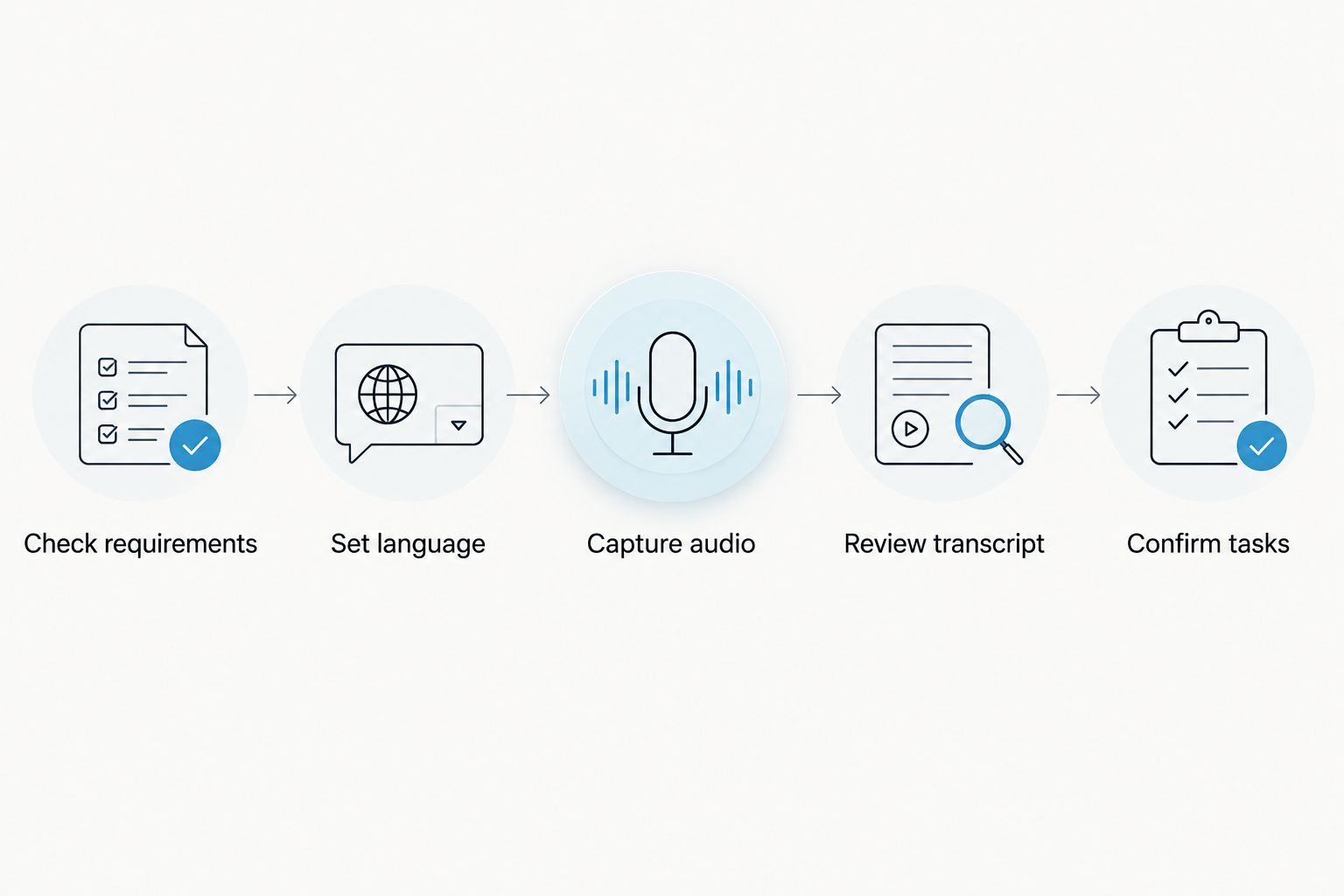
- Check requirements. Confirm that the current app supports your device, then install the appropriate phone app.
- Set language. Choose the conversation’s language manually rather than expecting automatic switching.
- Capture audio. Use the phone microphone, or choose the wearable when you want worn capture. Get the required permission before recording.
- Review transcript. Check names, specialist terms, speaker labels, and the words around important decisions.
- Confirm tasks. Review generated action items before treating them as commitments or sending them to someone else.
This sequence separates compatibility from usefulness. Installing an app answers whether you can access it; reviewing a real conversation answers whether the output supports your work.
Keep your first check focused. Look for the decision you need to remember, search for a phrase from the conversation, and inspect the suggested next action. Do not judge the whole workflow solely by whether a recording appeared.
Basic: 300 listening minutes per month
Basic includes 300 listening minutes per month. All plans share the same core features, so the plan distinction is not an Android-versus-iPhone feature split.
Best for: people whose intended listening fits within the Basic allowance. Compare that allowance with the conversations you actually intend to capture, rather than selecting a plan around your phone brand.
The trade-off is the monthly minute cap. Reaching it does not stop recording; audio remains available to manage and export. Do not interpret continued recording as removal of the plan’s listening allowance.
Plus: 1,500 listening minutes per month
Plus includes 1,500 listening minutes per month. It provides a larger allowance while retaining the same core features as the other plans.
Best for: people who need more listening minutes than Basic provides but do not need an uncapped allowance. Check your intended recording workload before choosing it.
The limitation remains a monthly cap. As with Basic, hitting that cap does not stop recording, and audio stays available to manage and export. For your 2026 setup, separate the plan decision from the hardware decision: listening allowance and recording device answer different questions.
Unlimited: no listening-minute cap
Unlimited has no listening-minute cap. It is the relevant option when you want to remove that specific constraint rather than change your phone platform.
Best for: people who want an uncapped listening allowance. The benefit is the absence of a minute ceiling, not a different set of core features.
The trade-off is that an uncapped plan does not solve capture mistakes, language selection, or permission requirements. You still need the right recording setup and a review step for important notes.
| Plan | Listening allowance | Best for | Main limitation |
|---|---|---|---|
| Basic | 300 listening minutes per month | Workloads within the Basic allowance | Monthly minute cap |
| Plus | 1,500 listening minutes per month | Workloads needing a larger allowance | Monthly minute cap |
| Unlimited | No listening-minute cap | People avoiding a minute ceiling | Does not remove recording or review responsibilities |
Why the recording experience varies
Android and iPhone support answers the platform question. These factors determine how you should set up an actual conversation:
- Conversation type. In-person discussions use a microphone in the room. Phone calls require speakerphone capture.
- Meeting location. For Zoom, Meet, or Teams, use the Mac app or capture audio through a phone or wearable in the room. No meeting bot joins the call.
- Language selection. The service supports 33 languages. Set the language manually; it does not automatically switch languages mid-conversation.
- Speaker identification. Speaker labels are supported, while Speech Profile learns the wearer’s voice in English only.
- Connectivity. Offline recording is supported. Local Sync is experimental and stores conversations on the phone without internet before syncing later.
- Listening allowance. Basic and Plus have monthly minute caps; Unlimited does not. The cap does not stop recording.
For multilingual work in 2026, language behavior deserves particular attention. English is the most accurate supported language, and automatic mid-conversation language switching is not supported. Choose the language deliberately instead of expecting the phone platform to resolve that limitation.
Can I record online meetings without a bot?
Yes—you can record online meetings through the Mac app without a bot joining. For Zoom, Meet, and Teams, another supported route is recording with a phone or wearable in the room.
Choose based on where the meeting audio is playing. Do not assume a nearby microphone can hear a remote participant whose voice is only playing inside your headphones. Keep consent and your organization’s recording rules part of the setup.
Can I record a phone call on either platform?
Yes—the supported approach is speakerphone capture. Put the call on speakerphone and let the recording device capture the conversation.
This is not a promise of direct recording inside every phone or messaging app. Check local consent law before recording, and choose a setting where playing the conversation aloud is appropriate.
Is the wearable necessary for useful notes?
No—the phone or Mac app can record through its built-in microphone without the wearable. The resulting workflow includes transcripts, summaries, action items, memories, search, and chat through Ask Omi.
Omi is best for professionals who want spoken conversations turned into searchable notes and tasks across Android and iPhone. The limitation is the need to review important output; a generated action item should not become an unchecked instruction.
FAQ
Does Omi work with Android and iPhone without the pendant?
Yes, both phone apps can record through the phone’s built-in microphone without the pendant. The wearable is an additional capture option, not a requirement for phone-based recording.
Do I need to switch from Android to iPhone?
No, Android has a supported app. Check the current app requirements against your particular device before installing.
Can I record Zoom, Meet, and Teams without a meeting bot?
Yes, use the Mac app or record with a phone or wearable in the room. No bot joins the meeting, but consent and workplace recording rules still apply.
Does recording stop when I reach my monthly minute cap?
No, reaching the minute cap does not stop recording. Audio remains available to manage and export; Basic includes 300 listening minutes per month and Plus includes 1,500 minutes per month.
Does it switch languages automatically during a conversation?
No, select the language manually before recording. There are 33 supported languages, English is the most accurate, and automatic mid-conversation language switching is not supported.
Can I keep control of my recordings?
Yes, full export and deletion of individual items or everything are supported. Local operation is also possible, and experimental Local Sync stores conversations on the phone without internet before syncing later.
One last thing
Try the phone microphone before deciding you need another device. In 2026, Omi supports a phone-first starting point on either Android or iPhone, so you can evaluate the notes before choosing how to wear the recorder.
Use a permitted conversation that contains a real decision and a follow-up. Then find that decision in the transcript and inspect the generated task. That is the useful test: not whether the app opens, but whether you can recover what matters.