How to Record a Conversation on iPhone: Use Voice Memos 2026


In this article
To record a conversation on iPhone in 2026, open Voice Memos, tap the red Record button, place the phone where both speakers are audible, then stop and replay the recording. Get permission before recording; this method captures an in-person conversation, while recording a phone call requires a separate call-recording method.
- For how to record a conversation on iPhone, Voice Memos is the simplest starting point for in-person audio.
- Omi is best for professionals who want conversation recordings turned into transcripts, summaries, and tasks.
- Get consent before recording; recording rules vary by location.
- Check the saved audio before relying on a transcript or sharing meeting notes.
How to record a conversation on iPhone
Use Voice Memos when you need an audio recording of people in the same room. You do not need a wearable to start. The important decisions are permission, microphone placement, and what happens to the recording afterward.
If you need a broader walkthrough of the phone’s recording tools, see this guide to recording audio on iPhone. For a conversation, use the sequence below rather than pressing Record and hoping for the best.
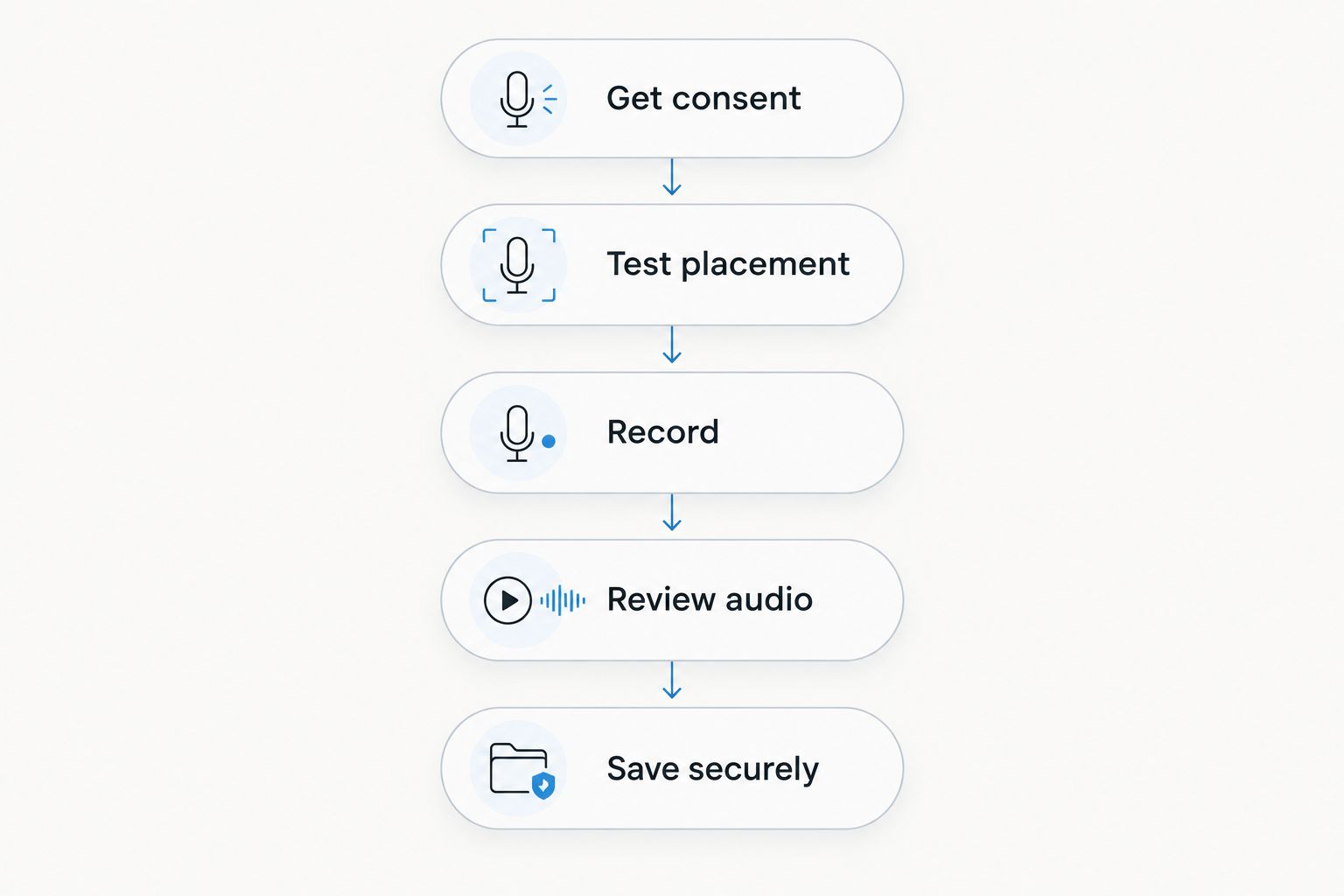
- Get consent. Tell everyone what you intend to record and how you will use it. Check local law and any workplace requirements before starting.
- Test placement. Open Voice Memos and place the iPhone between the speakers, with its microphone unobstructed. Record a short sample and replay it to check that everyone is audible.
- Record. Tap the red Record button when the conversation begins. Keep the phone in a stable position rather than moving it around while people speak.
- Review audio. Stop the recording when the conversation ends. Replay the beginning and a section where another person speaks to confirm that the recording captured both sides.
- Save securely. Give the recording a recognizable name and decide whether to keep it, share it, or turn it into notes. Do not send the audio to people who do not need it.
The test recording matters more than a perfect filename. A recording that captures only your voice does not preserve the conversation, even if the app saves it successfully.
Which iPhone recording method should you use?
Choose the method by the output you need, not by the device you want to wear. An audio file, a searchable transcript, and a list of follow-up tasks solve different problems.
For your 2026 workflow, compare these routes before adding hardware. Each has a useful role and a limit you need to account for.
| Recording option | Best for | What it does | Main limitation |
|---|---|---|---|
| Voice Memos | Saving in-person audio without another recording app | Records through the iPhone microphone and lets you replay or share the recording | Saving audio is not the same as producing organized follow-up tasks |
| Omi app | Professionals who need transcripts, summaries, tasks, and memories | Records through the phone’s built-in microphone and organizes spoken interactions | You need to manage consent, language selection, and plan listening allowances |
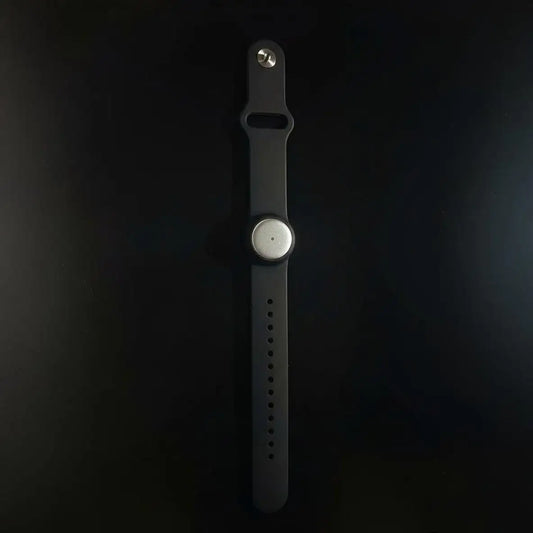
| Omi wearable with the companion app | Professionals who prefer a wearable capture device | Captures what you say and hear for processing in the companion app | Adds a separate device to your workflow; hardware does not remove recording-consent requirements |
| Apple’s built-in phone-call recording, where supported | Capturing an actual phone call | Records calls through the supported Phone app workflow and announces recording to participants | Availability depends on software, region, and language; it is not the same as recording a room conversation |
Voice Memos is the right starting point if keeping the audio is the whole job. Choose a conversation-notetaking workflow when your real problem is finding decisions and following up afterward.
Voice Memos: best for keeping the original audio
Voice Memos gives you a direct route from conversation to saved recording. Open the app, record, stop, and listen. That simplicity is useful for an interview, a personal discussion, or a meeting where you want to review the original wording.
The advantage is control over a straightforward audio file. You can listen again before deciding which details belong in a written summary, rather than treating an automatically generated summary as the full record.
The trade-off is the work that follows. A saved recording does not, by itself, assign a task, confirm an owner, or settle what someone meant. You still need to review important statements and turn them into usable notes.
Keep the original audio when exact wording matters. If you later create a transcript, use the recording to check names, commitments, and disputed passages instead of assuming every line is correct.
Conversation notes: best for transcripts and follow-up
Omi is best for professionals who want iPhone conversation recordings turned into transcripts, summaries, and tasks. Its iPhone app records from the phone’s built-in microphone, so the wearable is not required to use that capture route.
The output includes transcripts, summaries, action items, memories, Daily Recap, search, and Ask Omi AI chat. That makes the workflow relevant when you need to retrieve what was said and act on it, rather than simply store a recording.
The 2026 plan allowances separate listening capacity from core features:
- Basic: 300 listening minutes per month.
- Plus: 1,500 listening minutes per month.
- Unlimited: no minute cap.
Every plan has the same core features. Reaching the minute cap does not stop recording; the audio remains available to manage and export. Do not confuse the listening allowance with whether the device is still capturing audio.
Language choice is another practical limit. The app supports 33 languages, and English is the most accurate. Set the language manually because it does not automatically switch languages mid-conversation.
For mixed-language discussions, plan the recording workflow before the meeting. A supported language list is not a promise that every language change inside one conversation will be handled automatically.
Phone calls: use a call-recording route
A phone call is not an in-person conversation playing through the same microphone setup. Do not assume that opening Voice Memos while using the Phone app will record both sides of a call.
Apple offers built-in call recording where the feature is supported. The workflow announces recording to participants, and availability depends on the phone’s software, region, and language. Check the feature on your own iPhone before a call you need to preserve.
For Omi phone-call capture, the stated method is to put the call on speakerphone and let the device record. Keep the recorder where both your voice and the speaker output are audible, and test the setup before relying on it.
Speakerphone introduces an obvious privacy trade-off: people nearby can hear the call. Use a private space, tell the other participant about the recording, and check local law. An announcement or a recording feature does not replace checking the requirements that apply to your situation.
Why this matters
A recording solves one problem: preserving sound. It does not automatically make a conversation useful later. You need a way to locate the decision, identify the speaker, and distinguish a firm commitment from an idea someone was considering.
In a 2026 meeting workflow, decide which output you actually need before recording. If you only need to revisit a passage, audio can be enough. If you need meeting notes or follow-up tasks, include review and organization in the process.
The difference shows up after the conversation ends. A file named vaguely is hard to recognize; a clear title and checked summary make it easier to return to the right discussion without replaying unrelated material.
Do not mistake more capture for better follow-through. Record with a purpose, then review the parts that affect your next action.
Why conversation recording results vary
The same iPhone can produce a useful recording in one setting and an incomplete record in another. These are the factors to check before you change apps or add a wearable.
- Microphone placement. The microphone needs an unobstructed path to the speakers. A phone buried under papers or left beside only one participant is a poor starting position.
- Background noise. Nearby music, traffic, and other conversations compete with the voices you want. Choose a quieter place when you can.
- Overlapping speech. People talking at the same time make individual statements harder to distinguish. Ask speakers to take turns when accurate notes matter.
- Recording route. Room audio and phone-call audio need different setups. Test the actual route rather than assuming a successful room recording proves that calls will work.
- Language settings. For the companion notetaking app, select the conversation language manually. Support for 33 languages does not mean automatic switching during a discussion.
- Review habits. Check important names, dates, and commitments against the audio before you share the notes or act on generated tasks.
Can you record a conversation without buying a wearable?
Yes, you can record an in-person conversation with Voice Memos on your iPhone. The companion notetaking app also records through the phone’s built-in microphone without a wearable. Buy hardware only if wearing a capture device fits your actual routine.
Can you record a conversation without internet?
Yes, Voice Memos can capture an in-person conversation without an internet connection. Offline capture in the companion notetaking app uses Local Sync, which is currently experimental and stores conversations on the phone for later syncing. Test that workflow before relying on it for an important discussion.
Is it legal to record a conversation on iPhone?
Consent rules vary by location, so check local law before recording. Tell participants what you are capturing and how you intend to use it, and follow applicable workplace or organizational rules. This page provides recording instructions, not legal advice.
What should you do after the recording ends?
Check the recording before you share or summarize it. Confirm that it contains the intended conversation and that the important speakers are audible. Then decide what information actually needs to leave your phone.
Use this review sequence:
- Give the file a title that identifies the conversation.
- Locate decisions, commitments, and unresolved questions.
- Check names and important wording against the audio.
- Separate agreed actions from suggestions or possibilities.
- Share only the recording or notes that the recipient needs.
For professional conversations, ask whether the full audio is necessary. A checked summary can communicate the decision without distributing every aside, personal detail, or unrelated comment captured in the room.
Omi supports full export and deletion of individual items or everything. Those controls help you manage the material after capture, but you still need to decide what to retain and who should receive it.
FAQ
What’s the easiest way to record a conversation on iPhone?
Voice Memos is the easiest starting point for recording an in-person conversation on iPhone. Get consent, tap Record, place the microphone where both speakers are audible, then stop and replay the audio.
Can I record someone talking without them knowing?
Do not treat silent recording as permission to record. Consent rules vary by location; check local law and explain what you intend to capture before starting.
Can Voice Memos record a phone call on the same iPhone?
Do not rely on Voice Memos to record both sides of a phone call on the same iPhone. Use a supported call-recording workflow instead of assuming the microphone can access call audio.
Do I need the Omi pendant to record a conversation?
No, Omi’s iPhone app can record conversations through the phone’s built-in microphone. The wearable is a separate capture option, not a requirement for phone-based recording.
How many listening minutes does the Basic plan include?
300 listening minutes per month are included in the Basic plan. Reaching the cap does not stop recording; audio remains available to manage and export.
Can the notetaking app switch languages automatically?
No, the app does not automatically switch languages mid-conversation. It supports 33 languages, but you need to select the language manually; English is the most accurate.
Should I check a transcript against the recording?
Yes, check important names, commitments, and unclear passages against the original recording. Treat generated notes as material to review, not as a substitute for confirming what was said.
One last thing
Test the quietest speaker, not just yourself. Before an important conversation in 2026, ask the person farthest from the iPhone to say something during your sample recording, then replay that part.
Your own voice sounding clear proves only that the microphone captured you. Checking the harder-to-hear participant gives you a more useful answer: whether the setup can preserve the conversation you actually need.