How to record a FaceTime call


In this article
To record a FaceTime call with both voices in 2026, get permission, put the call on speaker, and record the conversation with a separate phone, computer microphone, or wearable recorder. For video, use a screen recorder as well, but check the saved audio before trusting the setup. An iPhone screen recording is not a dependable way to capture both sides of a FaceTime conversation.
- How to record a FaceTime call: get consent, use speakerphone, and capture both voices with a separate recorder.
- Apple screen recording is useful for visuals; do not assume it saves FaceTime call audio.
- Omi is best for professionals who want spoken FaceTime conversations turned into searchable notes and tasks.
- Test the recording, listen to both speakers, and review the transcript before sharing it.
How to record a FaceTime call
Choose the recording method by what you need to keep: the conversation, the picture, or both. A saved video file does not prove that the other person's voice was recorded.
Get permission before recording. Consent rules vary by location; check local law, especially when participants are in different places. The guide to one-party vs. two-party consent states explains the distinction without turning your recording setup into a legal shortcut.
| Method | Best for | What it captures | Main limitation |
|---|---|---|---|
| Speakerphone plus a separate recorder | Conversation audio and follow-up notes | Your voice and the remote voice played through the speaker | Room noise and speaker volume affect intelligibility; no call video |
| iPhone or iPad screen recording | On-screen visuals | Screen content where recording is permitted | Do not rely on it to save FaceTime call audio |
| Mac screen recording with a microphone | Video plus sound audible in the room | Screen content and the selected microphone input | A microphone input is not the same as direct system-audio capture |
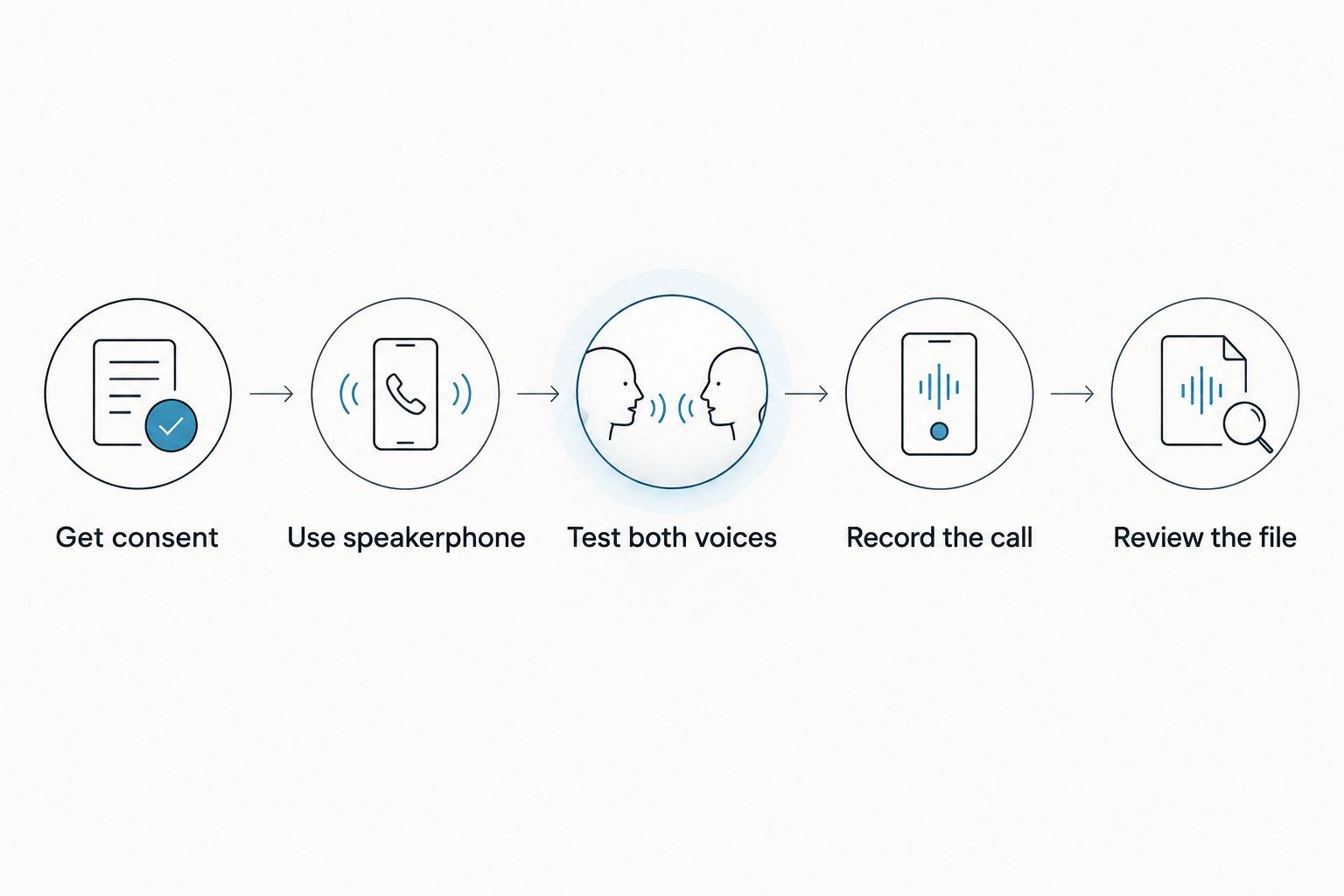
For spoken content, use this sequence:
- Get consent. Tell everyone what you are recording and how you intend to use it. Resolve objections before starting.
- Use speakerphone. Play the remote person's voice through the device speaker, rather than routing it only to headphones.
- Test both voices. Start a practice recording and have each person speak. Play it back before discussing anything important.
- Record the call. Keep the recorder close enough to hear you and the call speaker. Avoid covering its microphone.
- Review the file. Confirm that the conversation was captured, then check any transcript or summary against the audio.
Why this matters
A recording can look successful while missing the part you needed. The screen moves, the timer runs, and the saved file opens—but the remote voice is absent or too quiet to understand.
In 2026, the practical question is still not simply whether your device can record its screen. It is whether your chosen method captures the actual conversation. Check the saved file, not just the recording indicator.
For a work call, decide what the recording must preserve. A verbal agreement needs intelligible speech; a visual demonstration needs the picture too. Match the setup to that requirement instead of recording everything by default.
Record FaceTime audio with a separate device
A separate recorder is the clearest starting point when your priority is the conversation. It records sound in the room rather than depending on the calling device to expose FaceTime audio to another app.
Make the FaceTime call on your usual device. Turn on speakerphone, then use a recorder on another device to capture your voice and the remote person's voice coming from the speaker.
Set up the microphone before the call
Put the recording device where it can hear both sound sources. A recorder beside you but far from the call speaker creates an uneven recording: your answers sound clear, while the questions disappear into the room.
Keep the speaker audible without making it harsh or distorted. Move away from fans, television audio, and other conversations. You cannot fix missing words merely by generating a transcript afterward.
Avoid the headphone trap
Headphones keep the remote person's voice out of the room. That is useful for privacy, but a separate room microphone then hears your side of the conversation rather than both sides.
If you need to keep headphones on, do not assume this speakerphone workflow still applies. Use a recording method explicitly designed for your audio routing, and verify the result with the same headphones and settings you will use during the call.
Finish by listening, not just saving
Play back a passage where the other person speaks and another where you speak. Check the recording for missing speech, distortion, and interruptions before relying on it for notes or sharing it with someone else.
For a long discussion, also inspect the ending. A good opening does not confirm that the recorder kept capturing until the call finished.
Record a FaceTime screen on iPhone or iPad
Use iPhone or iPad screen recording for the picture, not as a promise of complete call audio. Apple's screen recorder and a conversation recorder solve different problems.
Open Control Center and use the Screen Recording control. If the control is missing, add it through the device's available Control Center customization options. Start the recording, return to the call, and stop it when you have captured the material you need.
Review the saved video in Photos. Confirm that the relevant screen content appears and listen for the audio you expected; some apps restrict audio or video recording.
Does turning the microphone on fix missing FaceTime audio?
Turning on the screen recorder's microphone enables microphone capture; it does not guarantee that FaceTime's remote audio will be included. A microphone toggle is not proof that both voices are being recorded.
Test your exact device and setup before the real call. If the saved clip lacks either speaker, use a separate recorder for the conversation instead of repeating the same unsuccessful setup.
What if you need the video and a transcript?
Capture the screen for the visual material and use a separate audio recorder for the spoken discussion. Keep both files together so you can find the corresponding conversation later.
That approach creates separate recordings, not an automatically synchronized video. If you need a finished video with matching sound, review and align the recordings before distributing it.
Record a FaceTime call on a Mac
A Mac offers screen-recording controls and microphone selection, but those controls do not make microphone audio equivalent to internal call audio. In 2026, verify the audio source before treating a Mac screen recording as a complete FaceTime recording.
Open the Screenshot toolbar with Shift-Command-5. Choose the whole screen or a selected portion, then open Options and select the microphone you intend to use.
For the room-microphone approach, play the FaceTime call through speakers. The selected microphone needs to hear both you and the other person's voice from those speakers.
Check the selected input
A connected headset, external microphone, or another audio device changes which input you should select. Check the actual microphone choice rather than assuming the Mac's built-in microphone is active.
Make a practice recording with the same speaker and microphone arrangement. Play it back and listen to both participants. Adjust placement or volume if one voice is difficult to understand.
Keep the screen recording focused
Record only the screen area you need. Close unrelated windows and avoid displaying private messages, account details, or documents that do not belong in the recording.
If you only need the conversation, skip screen capture. An audio recording is easier to review without exposing unrelated on-screen information.
Why FaceTime recording results vary
FaceTime recording depends on the capture path, not just the device name. These factors explain why a method works for one setup but produces an incomplete file in another:
- Audio routing: Speakers put the remote voice into the room; headphones keep it away from a separate room microphone.
- Microphone selection: The selected input determines what the recording hears. A screen recorder does not automatically select the microphone you intended.
- Recorder placement: A microphone near one speaker and far from the other produces uneven speech capture.
- Room noise: Background conversations, fans, and television audio compete with the call.
- Recording restrictions: Screen-recording permission does not guarantee permission to capture an app's audio or video.
- Language settings: A clear recording and a correctly configured transcription language are separate requirements for useful notes.
Change one part of the setup at a time when troubleshooting. Otherwise, a successful second test tells you little about what fixed the problem.
Can you turn a FaceTime recording into notes and tasks?
Yes. Once you have intelligible conversation audio, a transcription tool can turn speech into text; review the result before using it as a record of decisions.
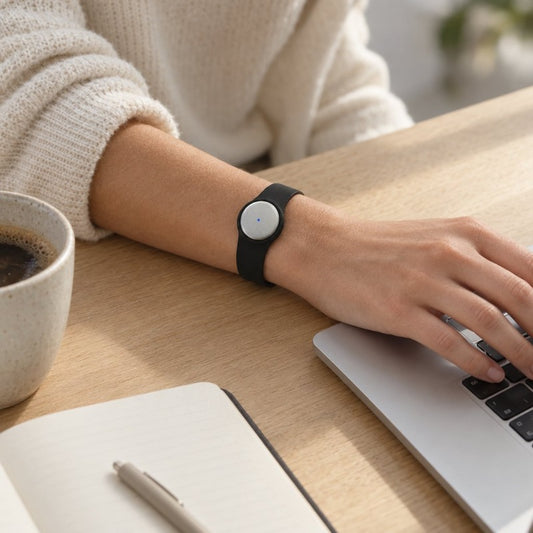
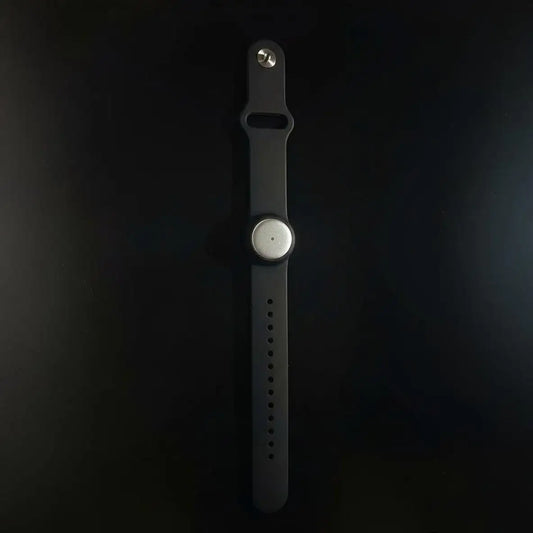
Omi is best for professionals who want spoken FaceTime conversations turned into searchable notes and tasks. The Omi wearable recorder captures what you say and hear, while its companion app produces transcripts, summaries, action items, and memories. For this workflow, put the call on speaker so the recorder can hear the remote participant.
You can also use Omi's phone or Mac app with the built-in microphone without the wearable. A separate-device setup makes the capture path clear: one device handles FaceTime while the other records sound in the room. Omi does not join the call as a bot.
The benefit is organization after capture. You can search conversations, review a Daily Recap, and use Ask Omi to work with recorded information. The limitation is equally important: this is spoken-conversation capture, not FaceTime video recording, and poor source audio still needs attention.
In 2026, Omi's Basic plan includes 300 listening minutes per month, and Plus includes 1,500 listening minutes per month. Unlimited has no minute cap. Every plan has the same core features, and reaching the minute cap does not stop recording; audio remains available to manage and export.
Omi supports 33 languages, with English the most accurate. Set the language manually; it does not automatically switch languages mid-conversation. Review speaker labels and important names before forwarding notes.
Capture the conversation, then organize it
Turn spoken conversations into transcripts, summaries, tasks, and searchable memories.
Do you need permission to record a FaceTime call?
Consent rules vary by location, so check local law before recording a FaceTime call. Explain the recording to everyone involved and agree on its intended use before capture begins.
Workplace rules and confidentiality obligations also matter. Permission to join a call is not automatically permission to record, retain, transcribe, or distribute it. This is practical recording guidance, not legal advice.
FAQ
How do I record a FaceTime call with both voices?
Get consent, put FaceTime on speakerphone, and use a separate recorder to capture your voice and the remote voice from the speaker. Make a practice recording and listen to both speakers before the important call.
Can I screen record a FaceTime call on my iPhone?
You can use the iPhone's screen-recording controls, but do not rely on the saved clip to contain FaceTime call audio. Review the video and use a separate audio recorder when the conversation matters.
Why does my FaceTime screen recording have no sound?
The screen recorder has not captured the audio source you expected. Turning on microphone recording does not guarantee that FaceTime's remote audio will be saved; test a separate speakerphone recording instead.
How do I record FaceTime on a Mac?
Open the Screenshot toolbar with Shift-Command-5, choose the screen area, and select your microphone in Options. For room-microphone capture, use speakers and verify that the saved recording contains both voices.
Can I record FaceTime while wearing headphones?
A separate room microphone will not capture the remote voice routed only to your headphones. Use speakers for the room-recording workflow, or verify a recording method designed for your headphone audio routing.
Can Omi make notes from a FaceTime conversation?
Omi can capture a speakerphone conversation and produce transcripts, summaries, tasks, and memories. It records spoken audio rather than the FaceTime video, and you should review important details before sharing the notes.
Is it legal to record a FaceTime call?
Consent rules vary by location, so check local law before recording. Get permission and consider workplace rules, confidentiality, and how you will store or share the recording.
One last thing
The most useful recording test happens before the important conversation. Have the other person speak, answer them, and play back the result. That checks the entire path from each speaker to the saved file.
For your next FaceTime call in 2026, decide whether you need audio, video, or both before pressing Record. Capture only what you need, keep it securely, and review the words that will drive your next action.