How to record a Google Meet call


In this article
To record Google Meet in 2026, use its built-in recording feature on a computer if your account and meeting permissions allow it, or use a separate audio recorder with participants’ consent. Built-in recording preserves meeting video; an audio workflow captures spoken discussion for transcripts and notes, but not the shared screen.
- Google Meet’s built-in recording is best for meeting video when your account and permissions support it.
- For how to record Google Meet as audio, Omi’s Mac app supports transcripts, summaries, and action items without a meeting bot.
- A phone recording the room needs audible speaker output; headphones keep remote voices away from its microphone.
- Check consent rules, test both sides of the conversation, and verify the saved recording before relying on it.
How to record a Google Meet call
Start by deciding whether you need video or spoken notes. That choice determines the recording method—not whether you can find a recording button.
For a Google Meet call in 2026, follow the built-in recording steps below when your account supports them. If you only need audio, the guide to recording audio on Mac covers the desktop recording workflow.
Use Google Meet’s built-in recording
- Join on a computer. Open the meeting and confirm that you are using the account authorized to record it.
- Tell participants what you will record. Explain the purpose and who will receive the recording. Consent rules vary by location; check local law and your organization’s policy.
- Open Activities, then Recording. If the recording option is missing, check account eligibility, administrator settings, and your role in the meeting.
- Select Start recording. Follow the confirmation prompt. Google Meet notifies participants when recording starts or stops; that notification does not replace checking applicable consent requirements.
- Stop recording when the relevant discussion ends. Open the recording controls and select Stop recording. Avoid capturing unrelated conversation after the meeting’s purpose is complete.
- Check the saved file. Google Meet saves its recording to the organizer’s Google Drive, in the Meet Recordings folder. Processing takes time; confirm that the file is available before promising immediate access.
- Check sharing permissions. Verify who can open the recording before sending its link. A saved file and an accessible file are not the same thing.
The built-in option is the right starting point when you need a replay of the meeting’s visual content. It is not available to every Google account, and joining a call does not automatically give you recording permission.
Why this matters
A recording is useful only if it preserves what you need. A video replay helps you revisit a demonstration; searchable notes help you find a decision without replaying the whole call.
In 2026, treat recording and follow-through as separate jobs. First capture the conversation correctly. Then confirm decisions, task owners, and deadlines before putting them into your working records.
Choose the output before choosing the recorder. Otherwise, you risk finishing with an audio file when you needed the presentation—or a long video when you needed a short list of commitments.
Which Google Meet recording method should you use?
Choose the method that matches the record you need and the equipment you are actually using.
| Recording method | Best for | What it captures | Main advantage | Main limitation |
|---|---|---|---|---|
| Google Meet built-in recording | Teams that need a visual meeting replay | Meeting video, presented content, and audio | Recording stays within the meeting workflow | Requires an eligible account and recording permissions |
| Omi Mac app | Professionals who need searchable spoken notes | Conversation audio, with transcripts, summaries, tasks, and memories | Records online meetings without joining as a bot | Audio notes do not preserve slides or screen activity |
| Phone microphone in the room | Spoken notes when you are using speaker audio | Sound audible near the phone | Does not require a meeting bot | Misses remote voices that are audible only through headphones |
Omi is best for professionals who want Google Meet conversations turned into searchable notes and tasks without a meeting bot. Choose native recording instead when the visual replay is essential.
Do not confuse a transcript with a complete meeting record. Spoken references such as “this row” or “the chart here” lose context when the relevant screen is missing.
How do you record Google Meet audio without a meeting bot?
Use a recording app outside the meeting, and verify that it captures both your voice and the remote participants. Not joining as a bot changes how capture works; it does not remove your responsibility to explain the recording.
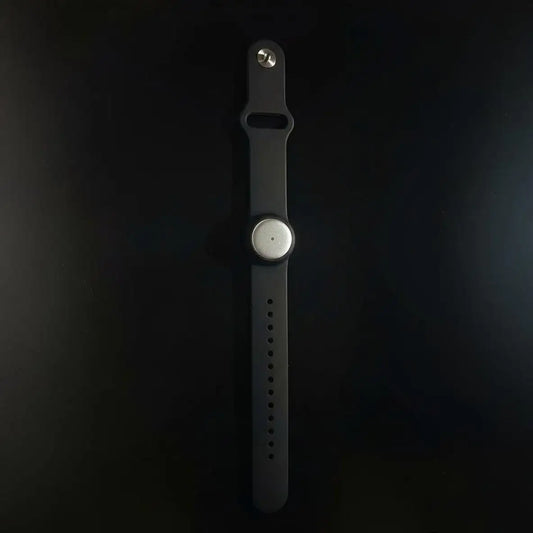
The Omi Mac app supports recording online meetings, including Google Meet. You can also use its phone app or wearable in the room, but a room microphone needs the conversation to be audible in that room.
Prepare the audio workflow
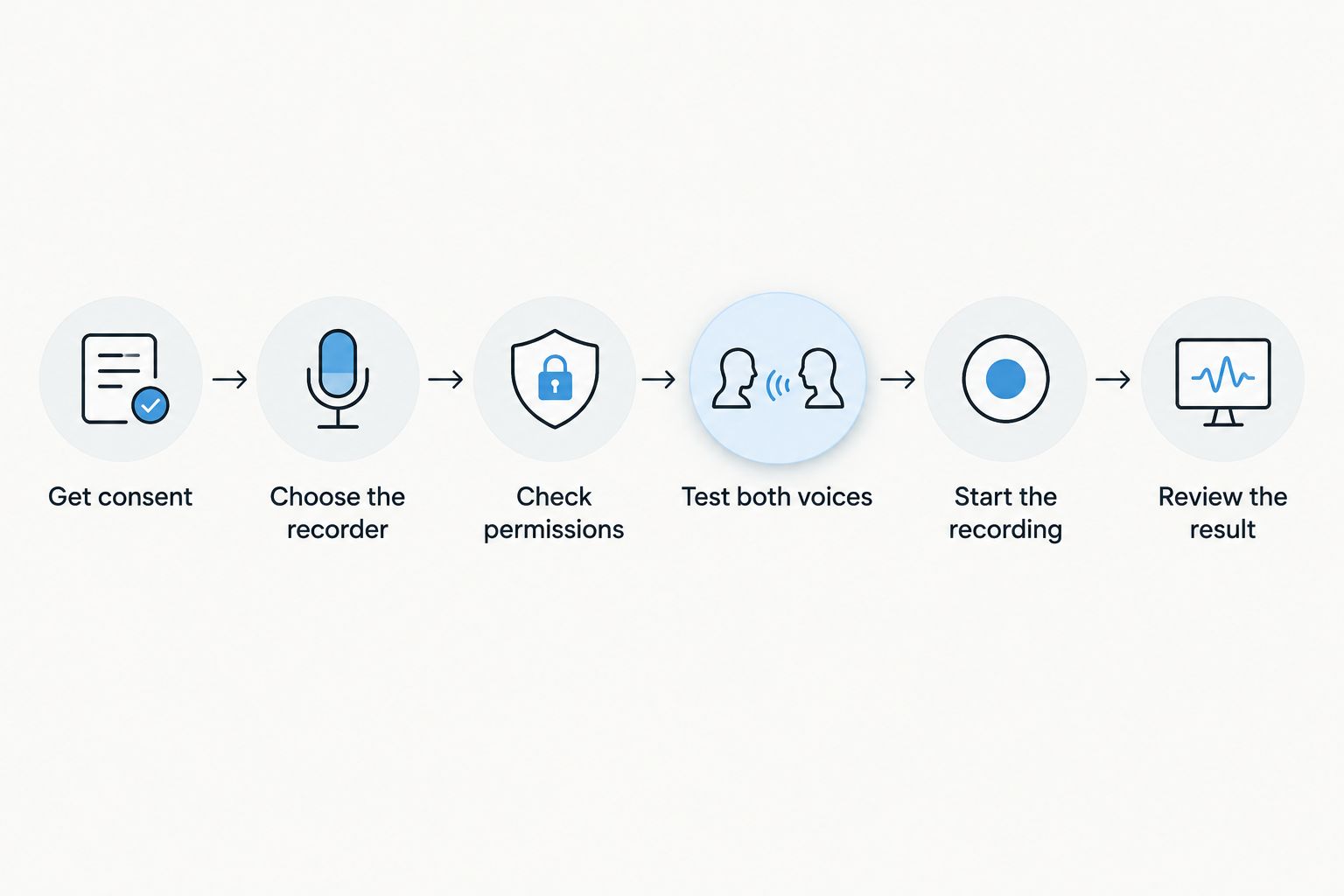
- Get consent. Explain that you are recording audio and whether you intend to create transcripts or summaries. Follow local law and workplace policy.
- Choose the recorder. Use the Mac app for a desktop workflow, or a phone microphone for room audio. Do not assume that every recorder captures computer playback.
- Check permissions. Allow the microphone and any other capture permissions requested by the app. A permission prompt dismissed earlier can leave the recorder unable to capture the intended source.
- Test both voices. Record yourself speaking, then ask a remote participant to speak. Replay the sample and verify that both are present.
- Start the recording. Confirm that capture is active before the substantive discussion begins. Tell participants if the recording setup changes during the call.
- Review the result. After the meeting, check the audio, transcript, summary, and action items. Correct names and commitments before sharing them.
A visible recording indicator proves that recording has started—not that every speaker is captured. The playback test is the check that matters.
If you change from speakers to headphones midway through the call, reassess your capture path. A phone on the desk cannot record remote speech that is no longer audible in the room.
Why Google Meet recording access varies
A missing recording button is an access problem to investigate, not a reason to repeatedly restart the call. Check these factors before switching tools:
- Account eligibility: Built-in recording is limited to supported Google Workspace editions and other eligible subscriptions; a personal account does not automatically include it.
- Administrator settings: An organization’s administrator controls whether recording is enabled for relevant users.
- Meeting role: Recording permissions depend on your role and the meeting’s host-management settings. Attendance alone is not authorization.
- Device: Google Meet’s built-in recording workflow is available on a computer, rather than through the mobile recording workflow.
- Organization policy: An employer’s rules can restrict recording even when the technical controls are available.
For a workplace call in 2026, ask the organizer or administrator to resolve eligibility and permissions before the meeting starts. Do not assume that a separate recorder is an approved workaround for an organizational restriction.
If native recording is unavailable but audio capture is approved, use a tested audio workflow. If recording is not approved, take written notes instead.
How do you record Google Meet on a phone?
For Google Meet audio, a separate phone can record the conversation through its microphone when remote participants are playing through speakers. Google Meet’s native recording controls are not available through its mobile app.
Keep the recording phone where it can hear you and the speaker output clearly. Avoid placing it beside a keyboard or other noise source that competes with speech.
Speakers versus headphones
| Audio setup | Best for | Advantage | Limitation |
|---|---|---|---|
| Computer speakers with a separate recording phone | Capturing the spoken meeting through a room microphone | Remote speech is audible to the phone | Room noise and speaker playback become part of the recording |
| Headphones with a separate recording phone | Capturing your own spoken contribution | Remote audio stays out of the room | The phone does not capture remote voices through its microphone |
Do not rely on a room microphone while listening through headphones. Use a capture workflow that explicitly supports the computer’s meeting audio, and verify it with playback.
If the phone is also the device running the meeting, do not assume that a second app can record the call’s audio. App permissions and audio routing matter; use a separate tested setup rather than discovering the limitation afterward.
Can you record Google Meet without host permission?
Google Meet’s built-in recording requires the appropriate permissions. A separate audio recorder does not grant permission to record a conversation that participants or your organization have not authorized.
Ask the organizer to enable an approved recording workflow or assign an authorized person to record. If the answer is no, use written notes and confirm decisions in the meeting.
Consent rules vary by location, and you should check local law. This is not legal advice. Avoid treating a recording notification, an accepted calendar invitation, or silence as a universal consent rule.
How do you turn the recording into useful meeting notes?
Review the transcript before acting on the summary. Names, figures, dates, and task assignments deserve particular attention because a small transcription error changes the meaning of a commitment.
For a practical 2026 workflow, separate what was said from what was agreed. A suggestion is not an approved decision, and mentioning someone’s name does not make that person the task owner.
Review the outputs
- Transcript: Check speaker labels and unclear passages against the audio. Correct proper names and specialized terms.
- Summary: Keep decisions, unresolved questions, and necessary context. Remove repetition rather than removing the reason behind a decision.
- Action items: Confirm the owner, the deliverable, and any deadline actually agreed in the call. Do not invent a deadline to make the notes look complete.
- Shared notes: Send the relevant information to the intended audience. Avoid distributing the full conversation when a focused summary meets the need.
Omi supports 33 languages, with English being the most accurate. Set the language manually before recording; it does not automatically switch languages mid-conversation.
Its Basic plan includes 300 listening minutes per month, and Plus includes 1,500 listening minutes per month. Unlimited has no minute cap; all plans have the same core features, and reaching a minute cap does not stop recording—audio remains available to manage and export.
Those allowances are planning limits, not proof that your meeting was captured correctly. Keep the audio check separate from the plan check.
FAQ
How do I record a Google Meet call on my computer?
Use Activities, then Recording, then Start recording when your Google account and meeting permissions support it. Tell participants about the recording, stop it when finished, and check the saved file in the organizer’s Google Drive.
Why is there no recording button in Google Meet?
A missing recording button usually means the account, administrator settings, meeting role, or device does not support the built-in recording workflow. Ask the organizer or administrator to check eligibility and recording permissions.
Can I record Google Meet without a bot joining?
Yes. Omi’s Mac app records online meetings without joining as a bot and produces transcripts, summaries, and action items. You still need to follow applicable consent rules and your organization’s recording policy.
Can I record Google Meet while wearing headphones?
Yes, with a capture workflow that supports the computer’s meeting audio. A separate phone recording through its microphone will not capture remote voices that are audible only through your headphones.
Where does Google Meet save recordings?
Google Meet saves built-in recordings to the meeting organizer’s Google Drive in the Meet Recordings folder. Allow time for processing and check file permissions before sharing the recording.
Does Omi record the slides in a Google Meet call?
Omi captures the spoken conversation for transcripts and notes; this audio workflow does not preserve the shared screen. Use Google Meet’s built-in recording when you need a visual replay.
Do I need consent to record a Google Meet meeting?
Consent rules vary by location, so check local law and your organization’s policy before recording. Explain what you are capturing, why, and who will receive it; this is not legal advice.
One last thing
Before ending your next Google Meet call in 2026, read back the decisions and action items aloud. Ask participants to correct them while everyone is still present.
That creates a useful checkpoint in the recording itself. The best meeting record preserves an agreement—not just the conversation that led to it.