How to Record a Phone Call on Android: Steps 2026


In this article
To record a phone call on Android in 2026, use the Record control in your phone’s calling app if your device supports it, or put the call on speakerphone and capture the conversation with a separate recorder. Built-in recording depends on your device, calling app, carrier, and location; installing a recording app does not guarantee access to both sides of the call. Get permission before recording, check local law, and test that you can hear both speakers before relying on the result.
- How to record a phone call on Android: use a supported calling app or speakerphone with a separate recorder.
- Omi is best for professionals who want speakerphone conversations turned into transcripts, summaries, and tasks.
- Google Phone call recording depends on device, carrier, and location support.
- Get permission, check local law, and play back a test before recording an important conversation.
How to record a phone call on Android
Start with the calling app you already use. If it provides a supported recording control, you can capture the call without putting another microphone beside your phone. If it does not, use speakerphone with a separate recording device rather than assuming an app can access call audio.
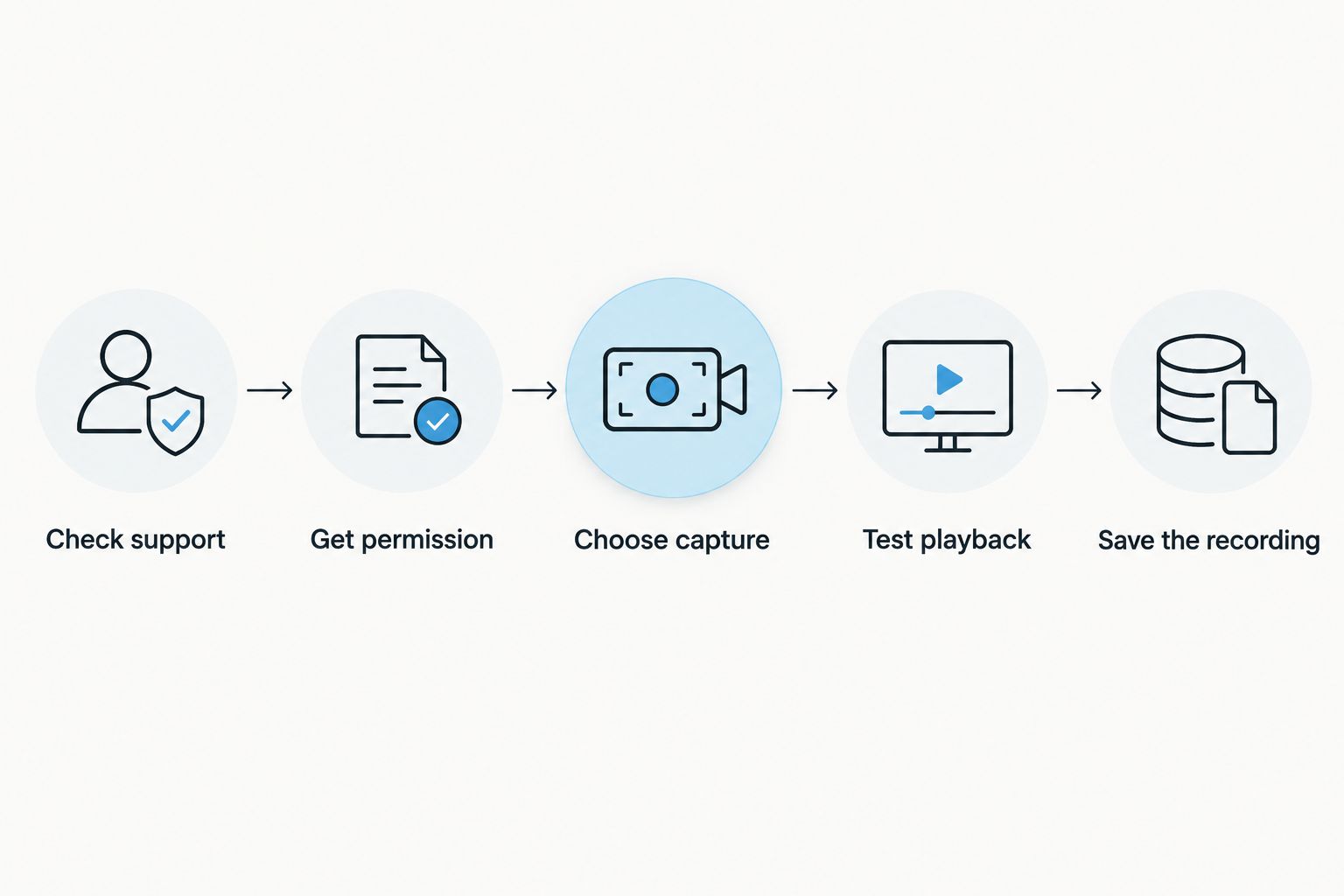
Follow this sequence:
- Check support. Open your calling app and inspect its settings for call recording. Google Phone and manufacturer calling apps do not offer identical features across devices and locations.
- Get permission. Tell the other person you want to record. Consent rules vary by location; check local law, including the rules relevant to the people on the call.
- Choose capture. Use the built-in Record control when available. Otherwise, switch to speakerphone and start a recorder on a separate device.
- Test playback. Make a permitted test call and listen to the result. Confirm that both voices are understandable, not just your own.
- Save the recording. Stop capture when the conversation ends, then check the saved file. If you need searchable notes, follow the guide to transcribing audio to text.
A Record button is more useful than a promise on an app listing. Check the actual calling screen and the finished recording, not just whether an app installed successfully.
Why this matters
A saved audio file is not proof that you captured the conversation. A recording can contain your voice clearly while the other person is faint or missing. That makes the file a poor basis for follow-up notes, instructions, or an accurate transcript.
The practical question in 2026 is not whether your Android phone can record sound. It is whether your chosen setup captures both sides of this particular call. Built-in call recording and a microphone beside a speakerphone solve that problem differently.
Decide what you need afterward, too. An audio archive, a searchable transcript, and a list of action items are different outputs. Choose the recording method first, then choose how you will organize and review the conversation.
Which Android call-recording method should you use?
| Method | Best for | Main advantage | Main limitation |
|---|---|---|---|
| Supported built-in call recording | People who want a recording inside their calling app | Captures the call without a separate room microphone | Support depends on the device, calling app, carrier, and location |
| Speakerphone with a separate recorder | People whose calling app lacks recording | Captures audible speech without needing access to internal call audio | Records room noise and requires speakerphone |
| Omi with speakerphone | Professionals who want transcripts, summaries, and tasks | Turns captured conversations into organized notes and follow-up items | Requires an audible speakerphone conversation; it is not direct phone-line capture |
Use built-in recording when it is supported and your test works. Use a separate recorder when it is not. Choose a conversation-notetaking workflow when listening to the entire file later would leave you with another unfinished task.
None of these methods removes the need for permission or a playback check. The strongest setup is the one you have verified under the conditions in which you will actually use it.
Built-in recording: check your calling app first
On a supported phone, the calling app provides the recording controls. During a connected call, look for Record or the app’s equivalent control. Stop the recording through the same calling interface, then locate the saved recording using that app’s recording or call-history interface.
The exact button placement varies. Do not follow instructions for a different manufacturer’s dialer and assume the same menu exists on yours. Android is the operating system; the calling app determines the controls you see.
Google Phone supports call recording only on supported devices and in supported countries or regions. Carrier support also matters. When you use its call-recording feature, participants receive a recording notification; do not treat that notification as a substitute for checking consent requirements.
If Record is absent in 2026, check your calling app’s support information and device settings. Updating an app is a sensible maintenance step, but it does not establish that call recording is supported. Avoid repeatedly installing apps to solve a restriction you have not identified.
Built-in recording keeps the process close to the call itself. Its drawback is equally clear: if the feature is unavailable for your setup, this route is unavailable. Move to an external microphone workflow rather than chasing a hidden universal Android switch.
Speakerphone recording: capture the sound in the room
Speakerphone recording uses a separate microphone to capture what you and the phone’s speaker say aloud. A second phone, a computer with a recording app, or a dedicated recording device can serve that role. You are recording room audio, not extracting the call’s internal audio stream.
Use this setup:
- Put the Android phone on speakerphone in a quiet, private room.
- Place the recording device where it can hear both your voice and the phone’s speaker.
- Start recording after everyone has agreed.
- Speak naturally and avoid handling the recorder during the conversation.
- Stop capture afterward and play back the file before leaving the setup.
Keep the sound audible, not painfully loud. Turning the speaker up does not fix every problem; harsh playback or a noisy room can still produce an unclear recording. Adjust the setup based on what you hear in the test file.
This method is useful when the built-in option is missing because the separate recorder listens to ordinary sound. The trade-off is privacy and convenience: other people nearby can hear the call, and their voices or background sounds can enter the recording.
Do not assume a recorder running on the same Android phone will behave like a separate device. Microphone access during calls varies across apps and devices. A successful voice memo outside a call does not prove that the same app will record both participants during one.
Conversation notes: turn a captured call into follow-up
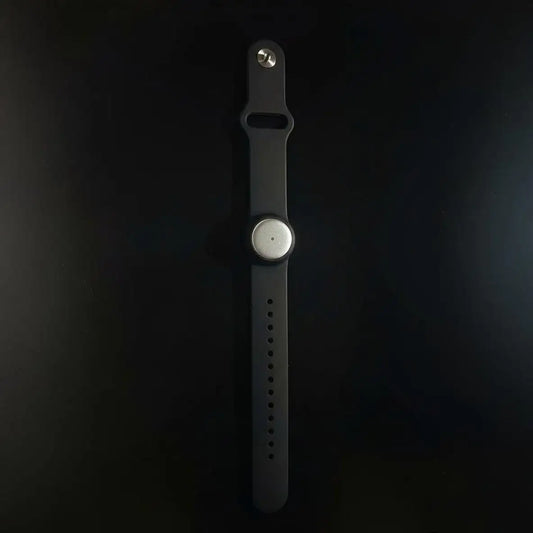
Omi is best for professionals who want speakerphone conversations turned into transcripts, summaries, and tasks. For phone calls, the supported approach is to put the call on speakerphone and let the device record what is audible. It does not join the call as a bot.
The Omi Android app also works without the wearable by recording from the phone’s built-in microphone. For an Android phone call, a separate wearable or recording device avoids depending on an untested same-phone microphone setup. Test your chosen arrangement before using it for a client conversation.
Omi’s conversation-notetaking outputs include transcripts, summaries, action items, memories, search, and Daily Recap. You can use those outputs to find a commitment or review a discussion without replaying the entire recording. Review names, instructions, and commitments against the captured conversation before acting on them.
The listening allowances published in 2026 are 300 minutes per month for Basic and 1,500 minutes per month for Plus; Unlimited has no minute cap. All plans have the same core features. Reaching the minute cap does not stop recording, and audio remains available to manage and export.
Language selection also matters. The app supports 33 languages, with English listed as the most accurate. Set the language manually before capture; it does not automatically switch languages during a conversation.
Capture calls as usable notes
Record speakerphone conversations, then review transcripts, summaries, and action items.
Why Android call-recording support varies
The same instructions do not produce the same result on every Android phone. Check these factors before deciding that a missing button or incomplete recording is your mistake:
- Calling app: Google Phone and manufacturer calling apps expose different controls. Instructions must match the app handling your call.
- Device support: A feature available on one model is not proof that another model supports it.
- Location: Built-in recording availability depends on supported countries or regions, and consent requirements need a separate check.
- Carrier support: Google Phone identifies carrier support as a condition for its recording feature.
- Capture route: Built-in recording, microphone recording, and speakerphone capture access the conversation differently. Test the route you intend to use.
- Room conditions: External microphones capture nearby sound. Background noise and speaker audibility affect whether the result is useful.
For a 2026 setup, check current support information rather than an old screenshot. A tutorial can show the correct steps for its author’s phone while describing controls that do not exist on yours.
Can I record a call without putting it on speakerphone?
Yes, if your calling app provides supported built-in call recording. That is the direct route when you want to keep the conversation off the room speaker. Confirm that the saved recording includes both voices before using the feature for an important call.
Without a supported built-in option, do not assume an ordinary microphone recorder can hear the other participant through an earpiece or headphones. Speakerphone makes the remote voice audible to a separate microphone, but it also makes the conversation audible to the room.
Why does my recording only contain my voice?
Your recorder is not successfully capturing the other participant’s audio. An app can produce a file while failing to access both sides of a phone call. That is why checking whether recording started is not enough.
Use a supported built-in feature or test speakerphone with a separate recorder. If the remote voice remains unclear, correct the setup before the next real conversation; transcription cannot recover speech that was never captured intelligibly.
Is it legal to record an Android phone call?
Consent rules vary by location, so check local law before recording. This is not legal advice. If participants are in different places, do not assume that the rules where you are physically sitting answer every question.
Tell the other person what you intend to record and how you intend to use it. For workplace or sensitive conversations, check organizational policy as well. Permission to record and permission to share the result are separate decisions.
FAQ
How do I record a phone call on Android in 2026?
Use a supported built-in recording feature, or put the call on speakerphone and record it with a separate device. Get permission, check local law, and test that both voices appear in the saved recording.
Why is there no Record button on my Android phone?
Your calling app or device setup does not expose a supported recording control. Availability depends on factors including the calling app, device, carrier, and location; installing another app does not guarantee access to call audio.
Can I use another phone to record an Android call?
Yes, another phone can record the audible conversation while your Android phone is on speakerphone. Use a quiet, private room and check playback to confirm that both participants are understandable.
Can Omi record an Android phone call?
Omi can capture a phone call when you put the call on speakerphone and let it record the audible conversation. This is microphone capture, not direct access to the phone’s internal call audio.
Can I record a call while wearing headphones?
Use supported built-in call recording if you want to avoid speakerphone. A separate room microphone cannot reliably capture a remote voice that is audible only through your headphones.
Does a call-recording notification mean I have consent?
Do not treat an automatic recording notification as a substitute for checking consent requirements. Consent rules vary by location; tell participants what you intend to do and check local law.
Should I keep the audio after creating a transcript?
Keep the audio when you need a reference for checking the transcript and your retention rules permit it. Limit access and delete recordings when they are no longer needed under the rules that apply to your use.
One last thing
Test the result, not the button. Before an important call, use your intended setup for a permitted test conversation, then listen for both speakers. A recording indicator confirms that capture started; playback tells you whether the conversation survived.
For your 2026 workflow, make that check part of preparation. After the real call, confirm the file saved, review the notes, and separate what was actually said from your interpretation of it.