How to record a Microsoft Teams meeting


In this article
To record a Microsoft Teams meeting in 2026, join the meeting, open More actions, choose Record and transcribe, then select Start recording. You need an eligible account and permission under your organization’s Teams policies; participants receive a notification when native recording starts. If recording is unavailable, ask the organizer or administrator to resolve access rather than treating an external recorder as a permission workaround.
- For how to record teams meeting sessions, use Microsoft Teams’ native recording when you need video and shared screens.
- A missing recording button usually requires checking account eligibility, meeting permissions, and administrator policies.
- Omi suits professionals who want conversation notes and tasks rather than a Teams video recording.
- Confirm recording consent, test audio, and check file access before relying on any meeting recorder.
Why this matters
A recording is only useful if it captures the material you need and reaches the right people. A video walkthrough, an audio transcript, and a list of follow-up tasks are different outputs. Choose the output before choosing the recorder.
For your 2026 meeting workflow, separate capture from follow-through. Use a recording to preserve the discussion, then turn decisions into assigned work; this guide to taking meeting notes covers that second job. A saved file alone does not tell your team what to do next.
How do you record a Microsoft Teams meeting?
Use the built-in recording controls when you need the Teams meeting itself preserved. Microsoft Support’s guidance, “Record a meeting in Microsoft Teams,” describes native recording and its account, policy, and storage requirements.
The steps below apply to a standard Teams meeting on desktop or the web. Your organization’s settings determine whether the controls appear and who can use them.
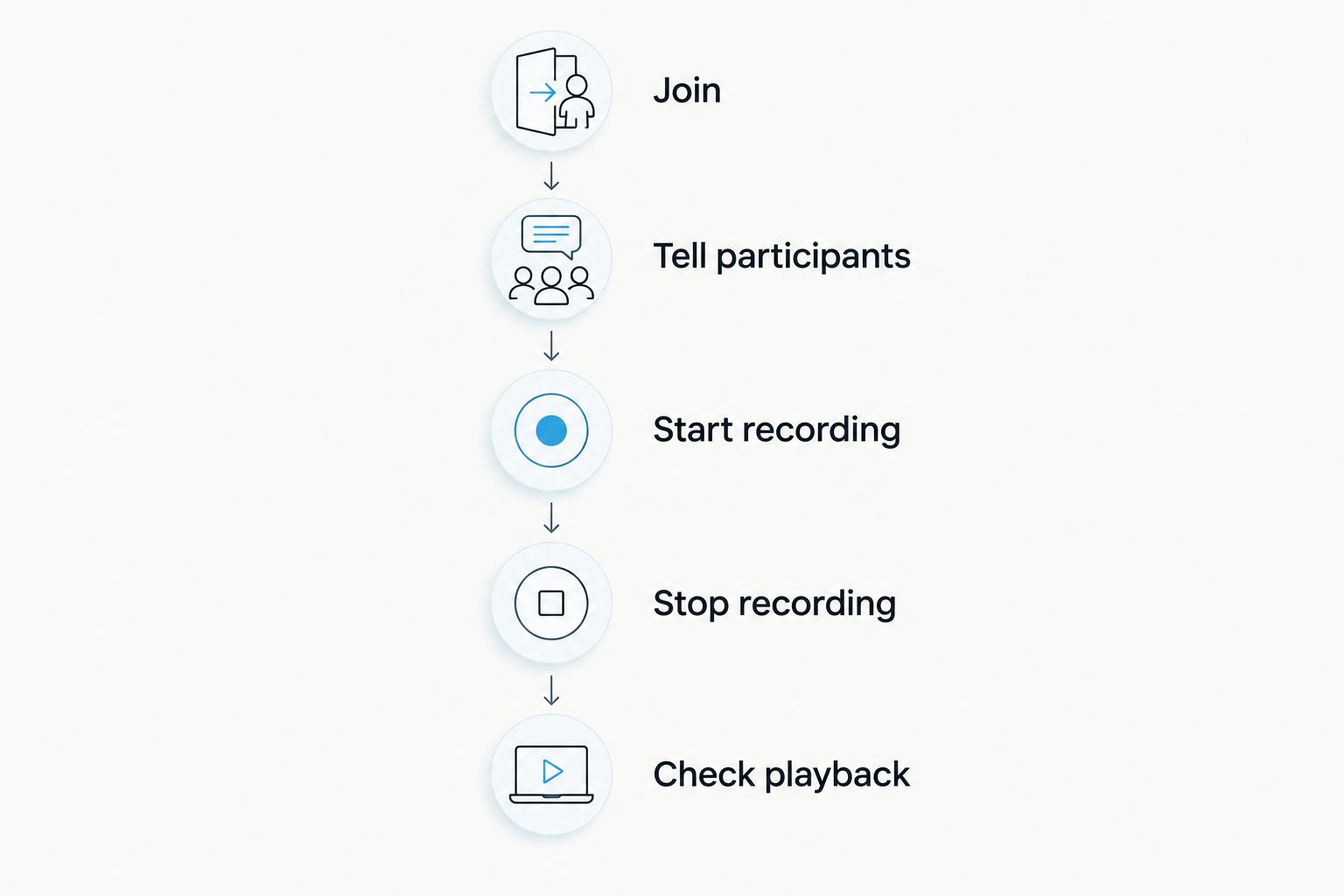
- Join the correct meeting. Sign in with the account your organization has authorized to record. Joining through a personal account or as an external guest does not give you the same permissions as an eligible internal participant.
- Tell participants what you intend to capture. Explain whether you are saving the meeting video, creating a transcript, or using a separate note-taking app. Consent rules vary by location; check local law and your organization’s requirements.
- Open More actions in the meeting controls. Look for the menu containing additional meeting options. Do not confuse your camera controls or microphone settings with the recording controls.
- Choose Record and transcribe, then Start recording. Teams notifies participants when its native recording begins. Check that recording has actually started before moving into the discussion you need to preserve.
- Run the meeting with the recording in mind. Say decisions clearly, identify action owners, and describe important visual details aloud. This helps both people watching later and anyone working from a transcript.
- Stop recording when the intended discussion ends. Open the recording controls again and choose Stop recording. Confirm the stop action rather than assuming that leaving the meeting has ended capture for everyone.
- Check the saved result. Find the recording through the meeting chat or recap, then verify playback and sharing permissions. Do not promise colleagues access until you have checked the actual file.
Starting a recording and starting a transcript are related but distinct actions. Check the transcription state separately if you need searchable text; do not assume that a visible recording indicator proves a transcript is being created.
What should you test before the discussion starts?
Make a short, permitted test recording before an important session. Speak locally, ask a remote participant to speak, and share something representative of the material you need to preserve. Then play back the result.
Listen for both sides of the conversation. If the recording contains your voice but not remote participants, it fails the basic requirement even if the file opens normally. Also check whether shared content is readable enough for its intended use.
Which recording method should you use?
Choose based on the deliverable, not the easiest button to press. Native recording preserves a meeting experience; audio note-taking focuses on what people said and what needs to happen afterward.
| Method | Best for | Main advantage | Main limitation |
|---|---|---|---|
| Microsoft Teams native recording | Meeting playback, presentations, and shared-screen context | Keeps the recording within the Teams and Microsoft 365 workflow | Recording eligibility, access, and retention depend on organizational settings |
| Omi conversation capture | Professionals who need transcripts, summaries, and tasks | Creates structured outputs from spoken interactions without joining as a meeting bot | Audio notes do not replace a Teams video recording or its shared-screen context |
| Manual meeting notes | Meetings where recording is not permitted or needed | Captures decisions without creating an audio or video archive | Does not preserve the original conversation for playback |
Use Teams native recording for replay; use conversation notes for follow-through. Neither approach removes the need to check permission, accuracy, and sharing rules.
Manual notes remain a valid choice. If the meeting’s purpose is to agree on a decision and assign work, a concise written record can be more useful than asking everyone to revisit an entire recording.
Teams native recording: best for video and shared content
Microsoft Teams native recording is the direct choice when viewers need the presentation, spoken discussion, and shared-screen context together. It also gives participants a visible in-meeting notification that recording has started.
The trade-off is control. Your organization decides which accounts can record, how recordings are handled, and which sharing options are available. Having access to the meeting does not automatically give you permission to record or distribute it.
Where does the Teams recording go?
Teams meeting recordings use OneDrive or SharePoint storage, depending on the meeting type. Standard non-channel meeting recordings generally use the organizer’s OneDrive; channel meeting recordings use the team’s SharePoint location. Look in the meeting chat or recap for the recording entry.
For a 2026 handoff, verify permissions on the saved recording rather than assuming that everyone with the meeting invitation can open it. External participants, file-sharing restrictions, and organizational policies affect access.
Check retention, too. A recording link is not a promise of permanent storage, and a colleague downloading a copy creates another file to manage. Follow your organization’s approved retention process instead of treating meeting chat as an archive.
What does native recording not solve?
A recording does not confirm that a decision was correct, that an action has an owner, or that a transcript accurately captured a name. Review consequential details against the original discussion before sending them onward.
It also does not replace an agreed meeting summary. Send the decision, responsible person, and next step in a format your team actually uses, with the recording serving as supporting context.
Audio capture: best for searchable notes and tasks
Omi is best for professionals who want conversation transcripts, summaries, and tasks rather than a Teams video replay. For online meetings, it supports recording from the Mac app or using the phone or wearable in the room. It does not join calls as a bot.
You do not need the pendant to use the recording workflow: the phone or Mac app can record from its built-in microphone. That creates an important setup question. If remote participants are audible only inside headphones, a separate microphone in the room does not receive that speaker output.
Test your chosen setup with an actual remote voice. Do not assume that capturing sound near your desk means both sides of the call are present, and do not confuse audio capture with recording the shared screen.
What are the practical limits?
Omi Basic includes 300 listening minutes per month, while Plus includes 1,500 minutes per month. The plans share the same core features, so choose your allowance based on listening volume rather than assuming the higher allowance changes the core output. Reaching the minute cap does not stop recording; audio remains available to manage and export.
The app supports 33 languages, with English identified as the most accurate. Set the language manually; it does not automatically switch languages mid-conversation. For multilingual meetings, review names, technical terms, and action items especially carefully.
The main benefit is structured follow-up. The limitation is equally clear: a transcript or summary cannot show a visual detail that was never spoken. Keep native video when the screen carries essential information.
Why recording access and results vary
A recording problem is not always an audio problem. Separate eligibility, capture, and access before changing your setup.
- Account eligibility: The account joining the meeting needs the appropriate Teams recording entitlement. A different sign-in can change the controls you see.
- Administrator policy: Your organization can restrict cloud recording and transcription. Local app settings do not override those restrictions.
- Meeting permissions: Organizer settings and participant roles affect who can start recording. Being invited is not the same as being authorized.
- Audio path: Room microphones capture what reaches them. Headphone output requires a capture setup that actually includes the remote conversation.
- Storage and sharing: A successful recording can still be inaccessible to its intended viewers. Check file permissions separately from meeting attendance.
- Language selection: Transcription depends on the supported language and the selected setting. Review the text rather than treating it as an exact record by default.
For Teams troubleshooting in 2026, start with the organizer when the control is missing and with your administrator when policy blocks it. Start with playback testing when the file exists but the content is incomplete.
Can I record a Teams meeting if I am not the organizer?
Some eligible internal participants can record without being the organizer, depending on meeting permissions and organizational policy. External guests should not assume they have the same recording rights as members of the hosting organization.
Ask the organizer to confirm who will record before the meeting starts. If you need a copy afterward, agree on access and sharing rather than relying on a recording button becoming available during the call.
How do I record a Teams meeting on my phone?
Use the Teams mobile meeting controls if your account and meeting allow recording. Join the meeting, open the additional-options menu, and look for the recording action; labels and placement differ from desktop.
If the option is absent, ask the organizer to record through Teams. A phone’s separate screen recorder is not proof that meeting audio will be captured, and it does not remove consent or workplace requirements.
How do I record a Teams meeting with headphones?
Teams native recording does not rely on a room microphone hearing your headphones. Use it when you need the meeting recorded through the platform and have permission to do so.
For a separate audio recorder, test remote speech before relying on the setup. A microphone beside you can capture your voice while missing the person speaking through your headset.
FAQ
Why can’t I see Start recording in Teams?
A missing Start recording control requires checking your account eligibility, organizational recording policy, and meeting permissions. Ask the organizer or administrator to confirm which restriction applies.
Does Teams tell everyone when I start recording?
Teams notifies participants when its native meeting recording starts. Explain your recording purpose separately, because a platform notification does not replace your consent obligations.
Can I record a Teams meeting without anyone knowing?
Do not treat hidden recording as an acceptable workaround. Consent rules vary by location; check local law and your organization’s rules before using any recording method.
Where can I find my Teams meeting recording?
Look in the meeting chat or recap for the recording entry. Recordings use OneDrive or SharePoint storage depending on the meeting type, and access depends on file permissions.
Does leaving a Teams meeting stop the recording?
Do not assume that leaving stops the recording for everyone. Use the meeting’s Stop recording action and confirm the recording state before leaving if you are responsible for capture.
Can Omi record a Teams meeting without joining as a bot?
Omi supports online meeting recording from its Mac app or from a phone or wearable in the room, without joining as a bot. Test that the setup captures remote participants, especially when you use headphones.
Can I share a Teams recording with someone outside my company?
External sharing depends on your organization’s policies and the recording file’s permissions. Confirm authorization and access before distributing the link.
One last thing
Your recording test is not complete until someone plays the file back. The recording indicator confirms that capture started, not that the result contains every voice, readable shared content, and the permissions your team needs.
Make that your 2026 meeting habit: record a permitted test, listen to both sides, then confirm the saved file opens for the intended viewer. If any part fails, fix it before the conversation you cannot repeat.