How to record a WhatsApp call


In this article
To record a WhatsApp call, get everyone’s permission, turn on speakerphone, and capture the conversation with a separate phone, recorder, or wearable microphone. This records the sound in the room rather than WhatsApp’s internal audio, so check that both voices are audible before relying on it.
- How to record a WhatsApp call: get consent, enable speakerphone, and use a separate recording device.
- Omi suits professionals who want speakerphone conversations turned into transcripts, summaries, and tasks.
- A screen recording is not proof that both sides of a WhatsApp call were captured.
- Check playback before the important conversation, and protect the saved recording afterward.
Why this matters
A recording icon does not prove you captured the call. You need an actual playback check. A file can contain your voice, room noise, or video without the other person’s speech.
For a WhatsApp call in 2026, separate two questions: can your setup capture both speakers, and are you allowed to record them? Consent rules vary by location; check local law and your workplace’s rules. The guide to recording conversations legally explains the consent issues. This article is practical recording guidance, not legal advice.
How do you record a WhatsApp call?
Use WhatsApp on one device and record its speakerphone output with another. This approach does not require the recorder to access WhatsApp’s internal call audio, but it does require a quiet, private space where both voices reach the recording microphone.
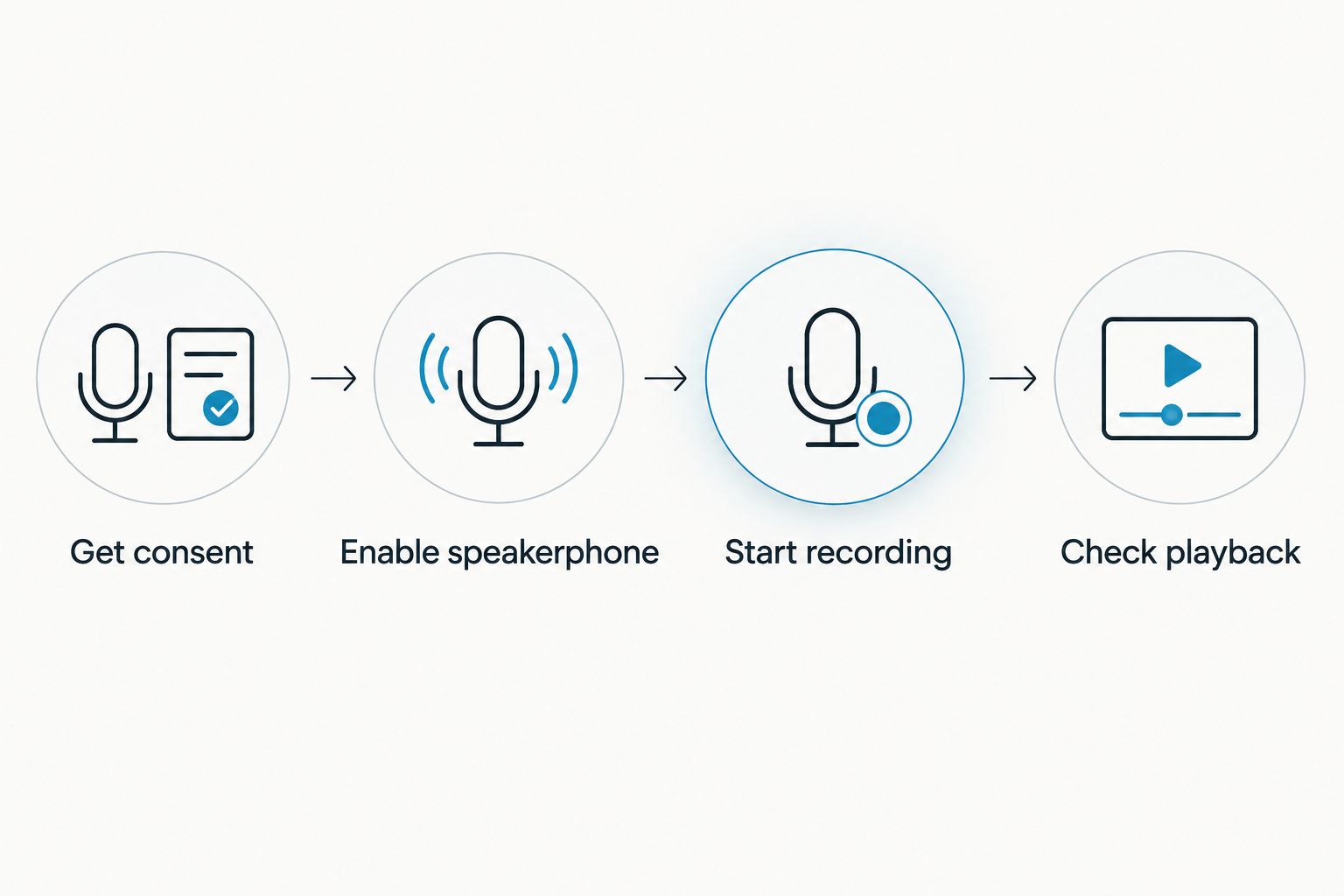
For your 2026 setup, use this sequence before the conversation becomes important.
1. Get consent
Tell everyone that you want to record and explain the purpose. Be specific about whether you need a reference recording, a transcript, or notes you intend to share. Ask before starting the recording, not after the conversation is already underway.
If someone declines, stop the recording process and take written notes instead. For work calls, confirm that your employer permits the recording method and storage location. Personal permission does not replace organizational approval for confidential information.
2. Enable speakerphone
Start or answer the WhatsApp call, then select the phone’s speaker output. Disconnect headphones or change the audio route if the other person’s voice is still playing through earbuds, a headset, or another connected device.
Place the recording microphone where it can hear both you and the phone. Keep the phone’s speaker and microphone unobstructed. Choose a quiet room rather than trying to compensate for background noise with maximum speaker volume; distorted playback creates a poor recording source.
3. Start recording
Open the recording app on the separate device, or start your dedicated recorder. Confirm that it is actively recording rather than paused or waiting for input. Keep the call device and recording device stable instead of holding them together or moving them around.
Have each person speak during the setup check. Listen for a clear response from the remote participant through the speakerphone. If you need to reposition the recorder, do it now rather than halfway through a discussion you cannot repeat.
4. Check playback
For a test call, stop the recording and listen to the saved file. Confirm that the remote voice and your voice are both intelligible. Check the actual audio, not just a waveform, file name, or recording notification.
Once the setup passes, start a fresh recording for the real conversation and confirm permission again as appropriate. Afterward, stop recording promptly, verify that the file saved, and give it a useful name. Include the subject and date without putting confidential details into a widely visible filename.
A successful test applies to the setup you tested. Changing headphones, recording apps, microphones, or audio output changes the signal path, so repeat the check when you change any of those pieces.
Which WhatsApp recording method should you use?
Choose by audio source, not by the recorder’s name. An app that records your microphone is not automatically an app that captures another app’s call audio. The distinction matters on both phones and computers.
| Method | Best for | Advantage | Limitation |
|---|---|---|---|
| Speakerphone and a separate phone | Occasional calls when you have another device | Captures audible conversation without internal call-audio access | Requires a private room and a playback check |
| Speakerphone and a wearable recorder | Professionals who want hands-free capture | Keeps the recording microphone available during the conversation | Captures room sound; headphones prevent it from hearing the remote speaker |
| Same-phone screen recording | Testing whether your exact setup captures usable audio | Avoids a separate recording device if the test succeeds | The saved video does not establish that both call voices were recorded |
| Desktop call with a separate microphone recorder | Desk-based conversations | Lets you use an audible computer speaker as the recording source | A microphone recording still depends on speaker placement and room noise |
The first two approaches share the same basic mechanism: a microphone hears the conversation. Neither bypasses consent requirements, removes background noise, or guarantees a correct transcript. Choose the method that you can test and use without exposing the conversation to bystanders.
How to record a WhatsApp call on iPhone
Use your iPhone for the WhatsApp call and a separate device for recording. Turn on speakerphone, position the external recording microphone nearby, and follow the consent and playback steps above. This avoids depending on whether the iPhone can expose WhatsApp’s internal call audio to another app.
Do not assume that a recording feature intended for another calling app also supports WhatsApp. Likewise, starting a screen recording is not enough: open the saved recording and listen for both participants before treating that method as usable.
If you only have your iPhone, test the available recording options before scheduling an important call. If playback does not contain both voices, the setup has failed. Switch to a separate recording device or take written notes rather than trusting an incomplete file.
How to record a WhatsApp call on Android
On Android, use the same speakerphone-and-separate-recorder method when you want to avoid depending on internal call-audio access. The recorder needs to hear the remote participant through the phone’s speaker and your voice in the room.
Treat same-phone recording claims as something to verify on your exact phone, operating system, and app configuration. A microphone permission request does not prove that an app can capture both sides of a WhatsApp call. Test the saved result rather than relying on the permission screen.
Avoid installing an unfamiliar recorder immediately before a confidential conversation. Review its permissions and storage behavior first. If your organization has an approved recording tool, use that workflow instead of moving business conversations into an unapproved app.
Can screen recording capture a WhatsApp call?
Do not rely on screen recording until playback confirms both voices. Screen capture and call-audio capture are different capabilities. A recording that shows the call screen still needs an audio check.
For a 2026 phone setup, verify the exact combination you intend to use rather than following instructions written for a different device. Check whether the saved file contains your voice, the other participant’s voice, both, or neither. An option labelled microphone does not, by itself, establish access to internal call audio.
If you are recording a video call, remember that an external audio recorder captures sound, not the other participant’s video. Decide whether you need audio notes or a visual record before choosing your method. Do not collect video simply because it is available when audio meets the purpose.
When does Omi make sense for WhatsApp calls?
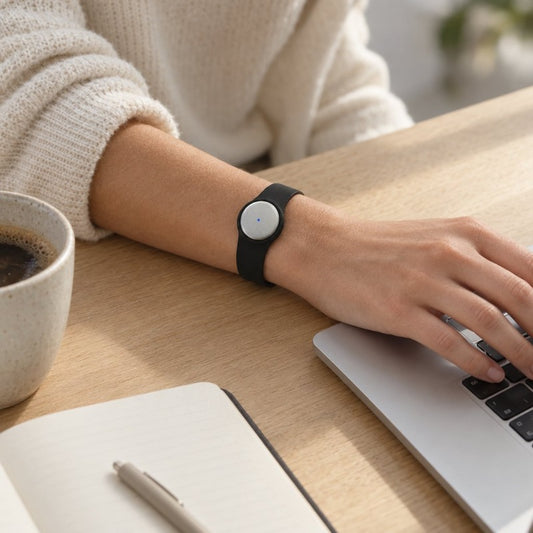
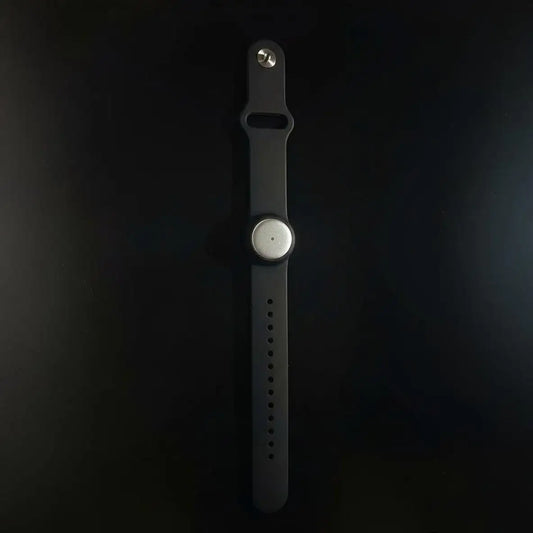
Omi is best for professionals who want WhatsApp speakerphone conversations turned into transcripts, summaries, and tasks. Use the wearable to capture what is said and heard in the room; the phone call needs to be on speakerphone. This is microphone capture, not a claim that the device reads WhatsApp’s internal audio.
The useful part comes after recording. You can review transcripts, search conversations, and work from generated action items instead of repeatedly replaying the whole call. Check names, commitments, and important details against the audio before treating a summary as the final record.
The trade-off is straightforward: the wearable hears the room. It will not hear the remote participant through headphones, and a noisy environment affects the source material. You still need consent, sensible microphone placement, and a successful test.
For planning in 2026, Basic includes 300 listening minutes per month, while Plus includes 1,500 minutes per month. Every plan has the same core features. Reaching the minute cap does not stop recording; audio remains available to manage and export.
Omi supports 33 languages, but you must select the language manually; it does not automatically switch languages mid-conversation. English is the most accurate. For a multilingual call, plan for transcript review rather than assuming every language change will be handled correctly.
Why WhatsApp recording results vary
A working recorder is only part of the setup. These factors determine what reaches the saved file and how useful that file is afterward:
- Audio route: Headphones keep the remote speaker out of the room. A separate microphone needs audible speaker output.
- Microphone placement: A recorder beside your mouth but far from the phone favors your voice over the remote participant.
- Room noise: Fans, traffic, nearby speech, and movement become part of microphone-based recordings.
- Speaker clarity: Loud but distorted output is a poor source. Use intelligible playback rather than maximum volume.
- Recording method: Screen capture, microphone capture, and internal audio capture are not interchangeable. Verify the saved result.
- Transcript language: Select the supported language deliberately and check the transcript against the recording where accuracy matters.
When troubleshooting, change one part of the setup and test again. Moving the recorder, changing the audio route, and switching apps together makes it harder to identify which change fixed or caused the problem.
Why did my recording capture only my voice?
Your microphone recorded you, but the remote participant’s audio did not reach the recording source. Check whether the call was routed to headphones, whether speakerphone was actually enabled, and whether the recorder could hear the phone clearly.
If you used a same-phone recording app, the result shows that your tested setup did not capture both sides. Do not assume the missing voice will appear in a transcript; speech-to-text cannot recover speech absent from the source recording.
How do I turn the recording into useful notes?
Review the recording or transcript for decisions, commitments, and unresolved questions. Separate what someone agreed to do from suggestions discussed without agreement. Assign a task only when the conversation supports that interpretation.
Before sharing notes, verify names and sensitive details against the audio. Send the relevant summary rather than the entire recording when recipients do not need every spoken detail. Keep the original only according to the consent, workplace rules, and retention requirements that apply.
FAQ
Can I record a WhatsApp call without another phone?
You can use a dedicated recorder or wearable instead of another phone to capture speakerphone audio. If you want to record entirely on the call device, test the exact setup and confirm that both voices appear in playback.
Can Omi record a WhatsApp call?
Omi can capture the conversation when you put the WhatsApp call on speakerphone and the wearable can hear both participants. It records sound in the room rather than accessing WhatsApp’s internal call audio.
Does screen recording save WhatsApp call audio?
Do not assume screen recording saves both sides of a WhatsApp call. Play the saved file and verify both voices before relying on that setup.
Can I keep my headphones on while recording with a separate device?
A separate room microphone cannot capture the remote participant’s voice when that voice is confined to your headphones. Use audible speakerphone output for the external-microphone method.
Do I need permission to record a WhatsApp call?
Consent requirements vary by location, so check local law and any workplace rules before recording. Ask everyone for permission and explain how you intend to use the recording; this is not legal advice.
Does WhatsApp encryption protect a separate call recording?
WhatsApp’s call encryption does not extend to a separate recording saved by another device or app. Protect the saved file and control who can access, export, or share it.
Can I record a WhatsApp video call as audio only?
Yes, a separate microphone can record the audible conversation from a WhatsApp video call on speakerphone. That method captures sound, not the video image.
One last thing
A correct transcript starts with a complete recording. For your next WhatsApp call in 2026, spend the setup check listening for the other person, not just yourself. If the remote voice is missing, fix the audio route before discussing anything you need to remember.