How to Record a Zoom Meeting: Host or Guest Guide 2026


In this article
To record a Zoom meeting in 2026, the host can use Zoom’s computer recording or cloud recording when the account allows it; a participant needs the host’s permission to record to a computer. Open the meeting controls, choose Record, and select the available recording destination. Recording permission is separate from consent: tell attendees what you’re capturing and check local law before you start.
- How to record a Zoom meeting depends on your role, recording permissions, device, and account settings.
- Zoom computer recording is best for hosts or approved participants who need a local meeting file.
- Zoom cloud recording is best for eligible hosts who need online playback and sharing.
- Omi is best for professionals who want Zoom conversation notes and tasks rather than a meeting video.
How to record a Zoom meeting as a host or participant
Hosts control Zoom recording permissions; participants do not get an automatic right to record. Start by deciding whether you need the meeting video or just a usable record of the conversation. If the real goal is capturing decisions and follow-ups, use a consistent meeting-notes workflow alongside your recording.
For Zoom’s built-in recording in 2026, follow this sequence:
- Confirm your role. Check whether you are the host, a co-host, or a participant.
- Check recording settings. Computer recording must be enabled; cloud recording also requires an eligible account and the relevant permission.
- Tell attendees. Explain the purpose of the recording and who will receive it.
- Start recording. Open the meeting controls, choose Record, and select the destination offered to you. The control can sit under More.
- Verify capture. Look for Zoom’s recording indicator rather than assuming the button press worked.
- Stop and retrieve. Stop recording when the relevant discussion ends, then wait for the file to finish processing.
Choose the route that matches the output you actually need:
| Recording route | Best for | What it captures or produces | Main advantage | Main limitation |
|---|---|---|---|---|
| Zoom computer recording | Hosts and approved participants who need a local meeting file | Meeting audio and video, according to recording settings | Saves the recording to the recording computer | Requires the desktop app and permission |
| Zoom cloud recording | Eligible hosts who want online playback and sharing | Meeting recordings stored through Zoom | Keeps playback and sharing in the Zoom recording workflow | Depends on account eligibility and administrative settings |
| Omi conversation capture | Professionals who need searchable notes and follow-up tasks | Transcripts, summaries, tasks, and memories | Turns spoken discussion into organized notes | Is not a substitute for a Zoom video recording |
Why this matters
A recording is useful only if it captures the right material and reaches the right people. A video file preserves visual context; a transcript makes spoken discussion easier to search; meeting notes identify what someone needs to do next.
Pick the deliverable before you pick the recording method. If a colleague needs to watch a screen demonstration, keep the video. If your team needs an agreed decision and its owner, review the conversation and write that decision down explicitly.
Recording also creates another copy of information discussed in the meeting. Decide who can access it, where it belongs, and when your organization should delete it before you circulate a playback link.
How do you record a Zoom meeting as the host?
The host can start computer recording when it is enabled or cloud recording when the account supports it. Being the host does not override a setting locked by an administrator.
Before the meeting
Sign in to the Zoom account that will host the meeting. Check the recording settings before attendees arrive, especially if you are using an organization-managed account.
For computer recording, confirm that the destination folder is accessible and that the computer has room for the recording. For cloud recording, confirm that the account has the necessary access and that your organization allows its use.
Run a 10-second practice recording before an important session. Speak, share a sample screen if needed, stop the recording, and play it back. This is a recommended check, not a Zoom recording limit.
During the meeting
Tell attendees that you intend to record and explain the purpose. Start recording from the meeting controls, then check that Zoom shows recording in progress.
Use pause when you need to exclude part of the discussion, and resume only when recording is appropriate again. Do not assume a participant leaving or screen sharing ending also stops the recording.
Stop recording deliberately. If the useful discussion is finished, end capture rather than leaving unrelated conversation in the file.
After the meeting
Allow processing to finish before you look for the completed recording. Open the file or playback page and check the beginning, a relevant section in the middle, and the ending.
Those 3 playback checks help you confirm that you captured the intended discussion. Check sound as well as picture: a visible presentation without understandable speech does not preserve the meeting’s explanation.
How do you record a Zoom meeting as a participant?
A participant can record to a computer after the host grants recording permission, provided computer recording is enabled. Joining a meeting does not give you permission by itself.
Ask the host before starting. Explain whether you need your own recording or whether receiving the host’s recording afterward would meet the same need.
The host can open the participant list, find your name, and use the participant controls to allow recording. Once permission is granted, use Record in your own meeting controls and choose computer recording.
A participant’s computer recording is saved on that participant’s computer. Do not assume the host receives your file automatically or that it will appear in the host’s cloud recordings.
If permission is unavailable, ask the host to record and share an approved copy. If the host declines, do not treat an external recorder as a workaround for that decision.
Zoom computer recording: best for a local meeting file
Zoom computer recording in 2026 uses the desktop app and saves the processed recording to the recording computer. It suits hosts and approved participants who want to manage the resulting file themselves.
Its main advantage is straightforward file ownership within the recording workflow: the person recording can find the output on their computer and move it to an approved storage location. Its main drawback is that recording, processing, storage, and distribution depend on that computer.
Where do you find the computer recording?
Check the recording location configured in the Zoom desktop app. Use Zoom’s recording controls or meeting history to locate completed recordings when available, rather than searching only your Downloads folder.
Wait for conversion to finish before renaming or moving the output. Then open the recording and confirm it plays correctly.
For shared work, use a descriptive filename that identifies the meeting and subject. Avoid putting sensitive personal details in a filename that will appear in search results or shared folders.
Zoom cloud recording: best for online playback and sharing
Zoom cloud recording in 2026 is available to eligible licensed hosts when the feature is enabled. Hosts and co-hosts can start cloud recording when their permissions allow it; ordinary participants cannot start a cloud recording simply because they joined.
Its advantage is an online recording workflow for playback and distribution. Its limitation is dependence on the host account, account settings, and organizational rules.
After processing, the host can find the recording in the Zoom web portal’s recording area. Review access controls before sharing the playback link.
A playback link is a sharing decision, not just a convenience. Check whether recipients can download the recording and whether the link’s access settings match the audience you intended.
Do not promise attendees that a cloud recording will remain available indefinitely. Follow your organization’s retention policy and the settings that apply to the host account.
Can you record a Zoom meeting on iPhone or Android?
Zoom’s mobile apps support cloud recording for eligible hosts and co-hosts; they do not support Zoom computer recording. If you join on a phone as an ordinary participant, ask the host to make and share the recording.
On mobile, open the meeting’s additional controls and look for the cloud recording option when your role and account allow it. Check the recording indicator after starting.
A phone’s screen recorder is a separate tool, not Zoom’s built-in recording feature. Do not assume it will capture both sides of the conversation: test the intended setup and obtain the necessary permission before relying on it.
Use the desktop app when you need Zoom computer recording. A mobile device is not an interchangeable replacement for that workflow.
Why Zoom recording options vary
The missing Record button usually calls for a permissions or settings check, not a different recording trick. These factors determine the route available to you:
- Meeting role: The host, co-host, and ordinary participant have different recording permissions.
- Account eligibility: Cloud recording requires an eligible account; hosting alone does not establish eligibility.
- Administrative settings: An organization can disable recording or lock settings that users cannot change.
- Device and app: Computer recording uses the desktop app; mobile recording uses the eligible cloud workflow.
- Recording destination: Computer files and cloud recordings are processed and retrieved in different places.
- Consent and workplace rules: Technical access does not replace the permission required for the conversation.
If Record is missing, check those factors in that order. Ask your administrator about locked settings rather than repeatedly changing meeting controls.
What if you need conversation notes instead of video?
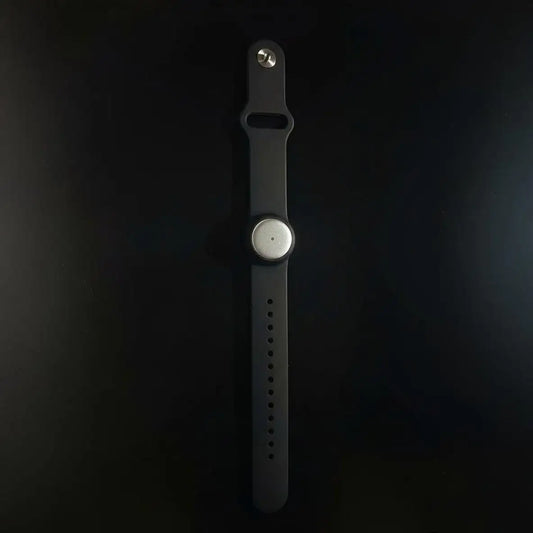
Omi is best for professionals who want Zoom conversation notes and tasks rather than a meeting video. Its Mac app can record online meetings, or its phone app or wearable can capture the conversation in the room. It does not join the meeting as a bot.
Omi turns captured conversations into transcripts, summaries, action items, and memories, with search across the resulting material. You can use the phone or Mac app without buying the wearable.
The trade-off is clear: conversation capture does not preserve a screen demonstration as a Zoom video recording does. Review names, decisions, and task assignments before sharing the notes or acting on them.
For multilingual calls, set the recording language manually. The app supports 33 languages, but it does not automatically switch languages mid-conversation; English is its most accurate language.
How do you turn a recording into useful meeting notes?
A recording keeps the conversation. Your follow-up should identify its outcome.
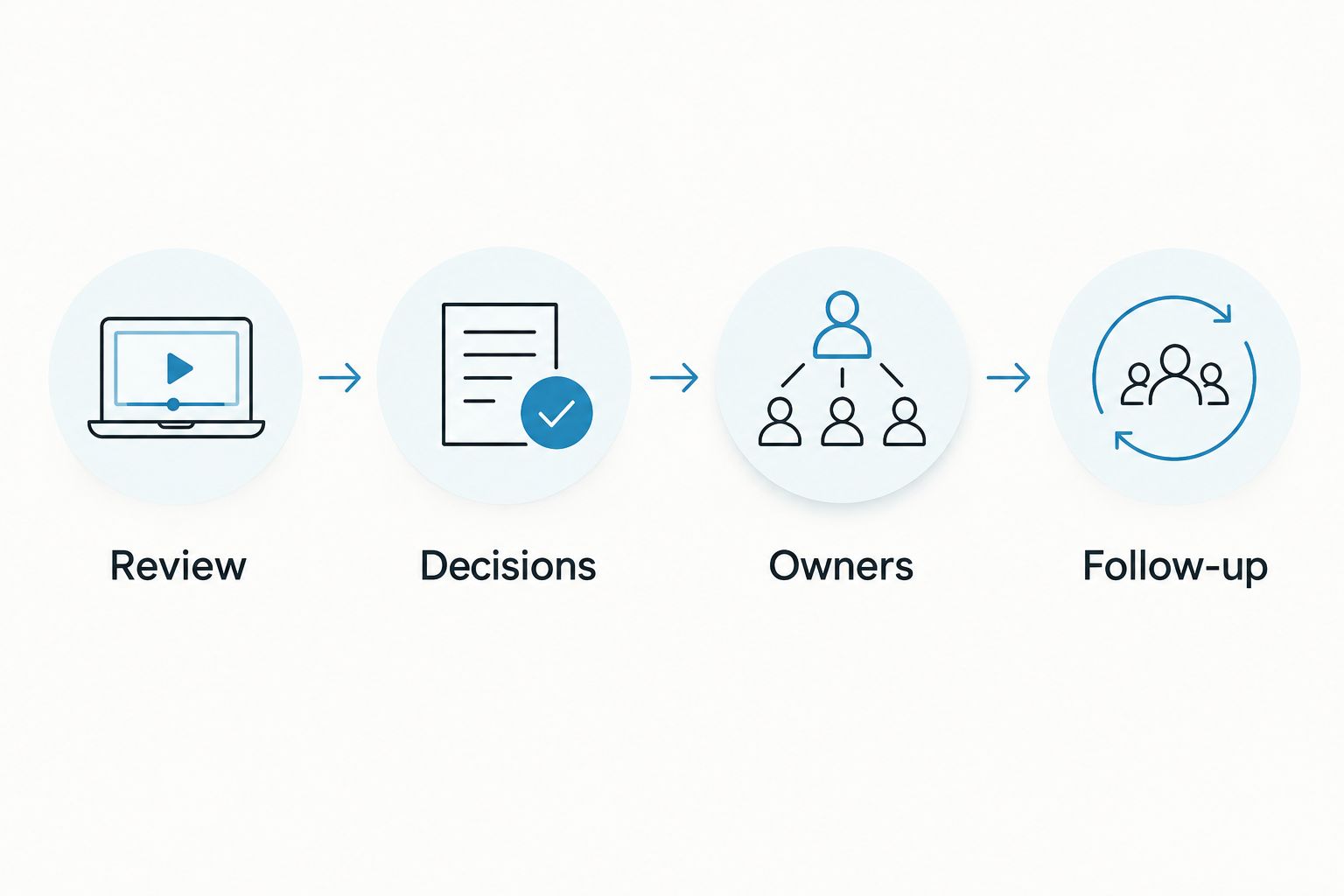
Use this sequence after playback or transcription:
- Review: Check unclear passages against the recording instead of guessing.
- Decisions: Separate agreed decisions from suggestions that never received agreement.
- Owners: Confirm who accepted each task; do not infer ownership from who mentioned it.
- Follow-up: Share the relevant notes and request corrections where the discussion was ambiguous.
Keep the recording reference with the notes when your organization permits it. That gives a reviewer a route back to the conversation without requiring everyone to replay the entire meeting.
Can you record a Zoom meeting without host permission?
Zoom’s built-in participant computer recording requires host permission. A separate recording tool does not remove consent requirements or your organization’s restrictions.
Consent rules vary by location; check local law and applicable workplace policy. Ask for permission openly rather than treating the lack of a recording notification as permission to capture the call.
Does a Zoom recording include the shared screen?
Zoom recordings can include shared-screen content according to the recording layout and settings. Use a practice recording to confirm that the presentation and relevant audio appear in the output you plan to share.
If viewers need to inspect a demonstration, prioritize the video recording. Conversation notes alone cannot reproduce the visual sequence.
FAQ
How do I record a Zoom meeting as the host in 2026?
Start the meeting, open the recording controls, and choose computer recording or cloud recording if your account allows it. Tell attendees before recording and verify that the recording indicator appears.
How do I record a Zoom meeting if I'm only a participant?
Ask the host to grant you computer recording permission, then start recording from the Zoom desktop app. If permission is unavailable, ask the host to record and share an approved copy.
Why don't I see a Record button in Zoom?
The Record button depends on your role, device, recording settings, and account permissions. Check with the host or administrator when recording is disabled or settings are locked.
Can I record a Zoom meeting on my iPhone?
An eligible host or co-host can use Zoom cloud recording on an iPhone when it is enabled. Zoom computer recording is not supported in the mobile app.
Where does Zoom save my meeting recording?
Computer recordings are saved to the recording location configured on the recording computer. Cloud recordings appear in the host account's Zoom recording area after processing.
Can Omi take notes from a Zoom meeting without joining as a bot?
Omi can record an online meeting from its Mac app without joining as a bot. Its phone app or wearable can also capture the conversation in the room, with the necessary consent.
Is it legal to record a Zoom meeting?
Recording consent rules vary by location, so check local law before recording. Follow applicable workplace policies and explain the purpose and intended sharing to attendees.
One last thing
Permission to record and permission to distribute are separate decisions. Before sharing a Zoom recording in 2026, check its audience, access settings, and contents—not just whether the link opens.
If the recipient only needs an agreed decision, send the reviewed decision and its owner. Keep the full recording for the people who actually need the context.