How to record audio on Android


In this article
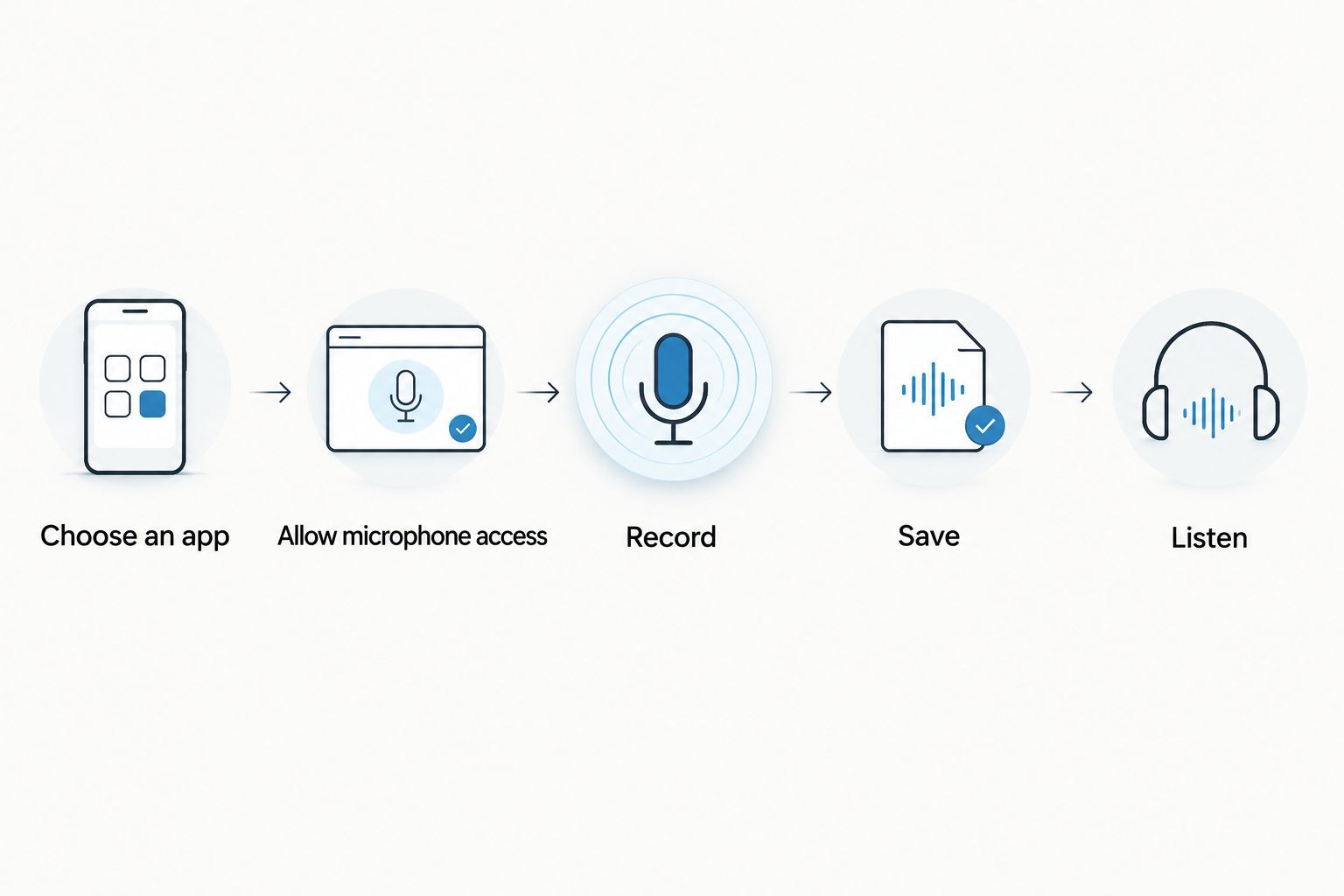
To record audio on Android in 2026, open your phone’s recorder app, allow microphone access, tap Record, then stop and save the recording. If your phone has no recorder app, install one from Google Play; recording a phone call or audio playing inside another app requires a different setup from recording speech in the room.
- How to record audio on Android: open a recorder, allow microphone access, record, save, and check playback.
- Use a basic voice recorder for audio files; choose conversation notes when you need transcripts and tasks.
- Omi is best for professionals who want Android conversation recordings turned into searchable notes and action items.
- Microphone recording is not the same as capturing phone calls or internal app audio.
How to record audio on Android
Start with the recorder already on your phone. Android phones do not all ship with the same recording app, so the app name and controls depend on your device. Search your app list for Recorder, Voice Recorder, or Sound Recorder.
If you need to choose an app first, compare voice memo apps for Android. Choose for the output you need, not the longest feature list.
- Choose an app. Open your existing recorder or install a recording app from Google Play. Check that it records microphone audio rather than only editing existing files.
- Allow microphone access. Accept the app’s microphone permission request. If you previously denied access, open Android Settings, find the app, and review its permissions.
- Record. Place the phone where its microphone can hear the speaker clearly, then tap the recording control. Check that the app shows an active recording before you begin speaking.
- Save. Use the app’s stop or finish control. Complete any save prompt and give the recording a name you can recognize later.
- Listen. Open the saved recording and play it back. Confirm that speech is audible before relying on the same setup for an important conversation.
Those steps cover ordinary microphone recording in 2026. They do not guarantee that an app captures the other person on a phone call or the sound playing through your headphones.
Why this matters
A recording button solves capture. It does not solve retrieval. You still need to find the right file, understand what was said, and act on the useful parts.
For a personal voice memo, a saved audio file is often enough. For a client conversation, a handover, or a meeting, you also need decisions, commitments, and follow-up work. Choose the recording method around what you will do afterward.
Keep the distinction simple: capture preserves the conversation; notes make it usable. Neither removes your responsibility to check an important name, instruction, or commitment against the original audio.
Which Android recording method should you use?
Your Android recording choice in 2026 comes down to whether you need audio alone or organized conversation output. Start with the least complicated method that meets that need.
| Method | Best for | Main advantage | Main limitation |
|---|---|---|---|
| Built-in recorder | Quick voice memos and straightforward speech recording | Lets you start with an app already on your phone | Features and controls depend on the phone and app |
| Third-party voice recorder | People who need recording controls their existing app lacks | Lets you choose an app around a specific recording requirement | You must check permissions, saving, and export behavior yourself |
| Omi conversation recording | Professionals who need transcripts, summaries, tasks, and searchable memories | Turns captured speech into organized information; the Android app works without the wearable | You must manage listening allowances and review generated output |
Do not switch apps just because another one has more settings. First identify the missing function: recording, exporting, transcription, search, or task creation. Then choose a tool that actually supplies it.
Omi is best for professionals who want Android conversation recordings turned into searchable notes and action items. A basic recorder is the better fit when your only requirement is a saved audio file.
Get a clear recording before you get a long one
Your phone’s position matters more than an elaborate setup. Put the microphone near the speech you want to capture, leave it unobstructed, and avoid moving or handling the phone while people speak.
Put speech ahead of background noise
Move away from a television, fan, traffic, or another conversation when you control the location. A recorder captures the sound reaching its microphone, including sounds you are trying to ignore.
For a group conversation, place the phone where it can hear everyone rather than directly beside one person. Ask speakers to avoid talking over each other when the recording needs to preserve precise instructions or decisions.
Check the actual setup
Make a sample in the same room and position you intend to use. Speak naturally, save it, and listen back. A moving waveform shows activity; it does not prove that every speaker is understandable.
If you intend to record with the screen locked or the app in the background, test that exact behavior. Do not assume the app continues recording simply because it worked while open.
Give the file a useful name
Name the recording around its subject and purpose. A client name plus the meeting topic is easier to recognize than a generic recording label.
Keep sensitive information out of filenames when those names will appear in shared folders or notifications. Useful organization should not expose information unnecessarily.
Recording a room, a call, and app audio are different jobs
A microphone recorder captures sound around the phone. It is not automatically a call recorder or an internal-audio recorder. Decide which source you need before choosing the app.
Speech in the room
Use the recorder’s microphone mode for voice memos, interviews, and conversations happening nearby. Check microphone permission and listen to a saved sample.
When other people are involved, explain what you are recording and why. Consent rules vary by location; check local law before recording.
A phone call
Do not assume an ordinary recorder captures both sides of a call on the same Android phone. Call-recording behavior depends on the device, software, location, and recording method.
Speakerphone puts the caller’s voice into the room, where a separate recording device can capture it. Test the complete setup and confirm that both speakers are audible. Headphones do not put the remote speaker’s voice into the room.
Sound inside another app
Music, video, and meeting audio playing inside an app are not the same as microphone input. Android screen-recording tools can offer audio-source settings, but available choices and capture restrictions depend on the device and app.
If you need an audio-only file, check what the tool actually saves. A screen recording is not automatically an audio file, and capturing sound through the speaker introduces the room into the recording.
When you need notes instead of another audio file
Omi’s Android app records through the phone’s built-in microphone without requiring the wearable. Its output includes transcripts, summaries, action items, memories, and search across captured information. That fits conversations you need to revisit, not just replay.
Start with the language setting. The app supports 33 languages, with English listed as the most accurate. Set the language manually; it does not automatically switch languages midway through a conversation.
In 2026, the Basic plan includes 300 listening minutes per month, while Plus includes 1,500 listening minutes per month. Unlimited has no minute cap. The plans share the same core features, and reaching a minute cap does not stop recording; audio remains available to manage and export.
The trade-off is straightforward: organized output saves you from working only with an audio file, but you still need to review it. Check names, assignments, and consequential details against the recording before sending notes to someone else.
You can export your information and delete individual items or everything. Treat those controls as part of your workflow: decide what to keep, what to share, and what to remove instead of collecting conversations indefinitely.
Why Android recording results vary
Different results do not always mean the recorder is broken. Check these factors before replacing your app:
- Microphone permission: An app needs access to the microphone to record speech. A denied permission prevents the intended capture.
- Phone placement: A covered microphone or a phone positioned away from the speaker changes what reaches the recording.
- Room noise: Nearby conversations, machinery, and speaker playback compete with the voice you want.
- Recording source: Microphone input, call audio, and internal app audio require different capture methods.
- Background behavior: Screen locking, switching apps, and device power settings affect whether your chosen setup keeps working.
- Language selection: For transcription, select the supported language that matches the conversation rather than relying on the wrong setting.
Change one part of the setup, then record another sample. Changing the app, location, microphone source, and phone position together makes it harder to identify the original problem.
Why is my Android recording silent?
A silent Android recording calls for a microphone and playback check first. Review the recorder’s microphone permission, confirm that device-level microphone access is enabled where that control exists, and make sure playback volume is audible.
Next, disconnect a connected headset and test again using the phone alone. Check which microphone source the app supports and whether the phone’s microphone opening is obstructed. Use a fresh recording rather than repeatedly replaying the same failed file.
Can I record audio on Android without internet?
Offline recording depends on the app, and recording is separate from cloud processing. Test saving and playback without a connection before using that setup somewhere with unreliable service.
Omi records offline, and its experimental Local Sync stores conversations on the phone without internet and syncs them later. Do not treat offline capture as proof that every transcription or processing feature finishes offline.
How do I turn an Android recording into text?
Use a recording app with transcription or a transcription tool that accepts your saved file. Check the supported language and file requirements before you depend on the workflow.
Keep the audio until you have reviewed the transcript. Speech converted into text is easier to search, but you still need the recording to verify unclear passages and important wording.
Save, export, and check access before sharing
A recording visible inside an app is not necessarily a file you have exported. Open the recording’s sharing or export controls and check the destination and format offered by that app.
Choose a destination you can find again. After exporting, open the result from that destination rather than assuming the transfer worked. If someone else needs it, confirm that they can access the file without entering your account.
For a sensitive conversation in 2026, check more than the recording button. Review where the app stores audio, whether it uploads recordings, who can access the destination, and how deletion works.
Consent rules vary by location, so check local law. Workplace and organizational requirements also need your attention before you capture or share conversations involving clients, colleagues, or patients. A transcription feature is not permission to record.
FAQ
How do I record audio on my Android phone in 2026?
Open a recorder app, allow microphone access, tap Record, then stop and save. Play back the saved recording to confirm that the speech is audible.
Does every Android phone have a voice recorder?
Android phones do not all include the same recorder app. Search your app list first; if you cannot find one, choose a recording app from Google Play.
Can I record audio with my Android screen off?
Recording with the screen off depends on the app and device settings. Test screen locking with your chosen recorder, then check the saved audio before relying on it.
Can I record a phone call with a normal voice recorder?
A normal voice recorder does not automatically capture both sides of an Android phone call. Check your device’s supported method, test both speakers, and check local consent law.
Can I use Omi on Android without buying the pendant?
Omi’s Android app records through the phone’s built-in microphone without the wearable. Its output includes transcripts, summaries, action items, and memories.
Why does my Android recording have background noise?
The microphone captures nearby sound as well as speech. Move away from competing noise, keep the microphone unobstructed, and test the phone’s position.
How do I share an audio recording from Android?
Open the saved recording and use the app’s sharing or export controls. Check the exported file and confirm that the recipient can access it before deleting your original.
One last thing
Before an important conversation, test the ending—not just the start. Record a sample, stop it, save it, locate it again, and open the exported copy if sharing is part of your plan.
That checks the part people skip: whether the recording survives the whole workflow in a form you can actually use. In 2026, the right Android recorder is still the one that captures your intended source and leaves you with an accessible result—not the one with the most impressive feature list.