How to transcribe a voice memo on iPhone


In this article
To transcribe a voice memo on iPhone in 2026, open Voice Memos, select your recording, tap the More menu, and choose View Transcript on a supported iPhone with a supported recording language. Copy the text into your notes, then check it against the audio; if the transcript option is missing, use a transcription app that explicitly accepts existing recordings or transcribe the memo manually.
- How to transcribe a voice memo: use Apple Voice Memos, open View Transcript, then copy and review the text.
- Apple Voice Memos is best for an existing recording when built-in transcription is supported.
- Omi is best for professionals who want new conversations turned into transcripts, summaries, and tasks.
- Keep the original audio: names, numbers, and commitments need a listening check before you share meeting notes.
How to transcribe a voice memo on iPhone
Start with the recording you already have. You do not need to record it again just to check whether Apple has generated a transcript. Apple's iPhone User Guide documents the Voice Memos transcription controls; the steps below separate viewing the text from checking and using it.
If you have not captured the audio yet, follow the guide to recording audio on iPhone first. Transcription needs a recording, not just a note describing what someone said.
Open the recording
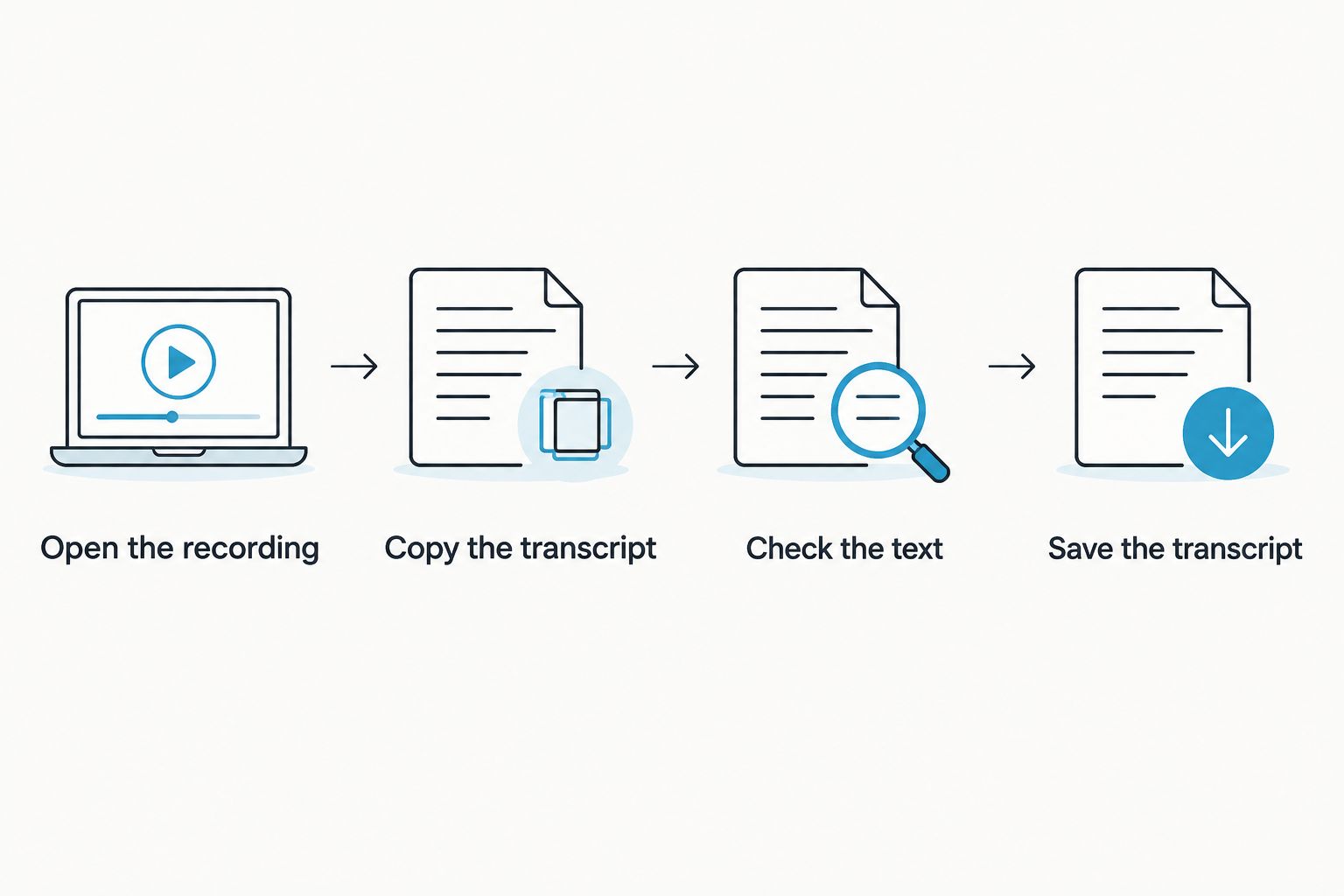
- Open Voice Memos on your iPhone.
- Find the memo you want to transcribe and tap it.
- Open the More menu for that recording.
- Select View Transcript if the option is available.
Choose the actual memo, not a similarly named recording. Play the beginning and confirm that you hear the right conversation before copying or sharing anything.
Built-in transcription depends on Apple's device, software, and language support. The instructions describe the supported workflow, not a promise that every iPhone recording has a transcript.
Copy the transcript
Use the recording's Copy Transcript option to copy the full transcript when available. To copy only a passage, select the relevant text in the transcript view and use Copy.
Paste the text into the document where you will use it. Give the document a descriptive title that identifies the conversation or subject, rather than leaving it as an unnamed block of text.
Copying is not verification. A transcript can look clean while containing the wrong surname, an incorrect quantity, or a missed negative. Keep the recording accessible until you have checked the important passages.
Check the text against the audio
Read the transcript while listening to the relevant parts of the memo. Focus first on anything that changes the meaning or triggers a decision:
- Names of people, organizations, and products.
- Dates, quantities, measurements, and reference numbers.
- Promises, deadlines, and assigned responsibilities.
- Negatives such as not, cannot, and do not.
- Passages where speakers interrupt or talk over each other.
Correct what you can confirm from the audio. If a word remains unclear, mark it as unclear instead of filling the gap with a plausible guess.
Save the transcript and its purpose
Decide whether you need a transcript, a summary, or a task list. Those are different outputs. A transcript preserves spoken wording; a summary compresses it; a task list extracts actions.
Save the reviewed transcript separately from any rewritten version. That distinction matters when someone asks whether a sentence is what the speaker actually said or your interpretation of it.
Why this matters
A voice memo captures speech. A checked transcript makes that speech easier to search, quote, and turn into useful notes. The difference is not cosmetic: a wrong deadline or missing negative changes what you do next.
For a 2026 workflow, separate capture from interpretation. Preserve the recording, verify the text, and then create the output you need. Readable text is not automatically accurate text.
That applies whether you dictated an idea alone or recorded a conversation. A personal reminder needs enough accuracy to recover your intention; a shared meeting record needs enough accuracy to represent other people's words fairly.
Apple Voice Memos: best for an existing iPhone memo
Apple Voice Memos is the direct starting point when the recording is already in the app and transcription is supported. You stay with the original recording while viewing its text, rather than moving immediately to another service.
Its limitation is eligibility. If your device, software, or recording language does not support the feature, these menu instructions will not produce a transcript. It also does not remove the need to check specialized vocabulary or unclear speech.
Use Apple Voice Memos first for a straightforward existing memo. Move to another method when the transcript is unavailable or the result does not meet your needs—not simply because another app advertises transcription.
Manual transcription: best for short or sensitive excerpts
Manual transcription works when you need a particular passage and can review it yourself. Play the recording, pause as needed, and type what you hear. Keep speaker changes separate if more than one person is talking.
The advantage is direct control over wording and where you save the text. The drawback is the listening and typing work, especially for longer recordings. Manual work also leaves room for mishearing, so review the finished passage against the audio.
Do not silently clean up a quote into something the speaker never said. If you want a polished summary, create it separately and label it as a summary.
Conversation capture: best for recurring notes and follow-ups
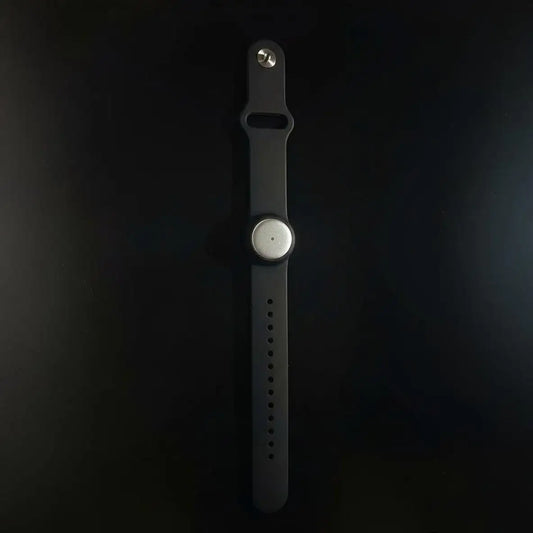
Omi is best for professionals who want new conversations turned into transcripts, summaries, and tasks. Its iPhone app can record through the phone's built-in microphone without the wearable. The wearable provides another way to capture what you say and hear.
This is a different decision from extracting text from an existing Apple Voice Memos file. Choose a capture workflow before your next conversation when repeated copying and organizing are the real problem.
| Method | Best for | What you get | Main limitation |
|---|---|---|---|
| Apple Voice Memos | An existing memo on a supported iPhone | A transcript you can view and copy | Device, software, and language support determine eligibility |
| Manual transcription | A short passage you need to check closely | Text you type directly from the recording | Requires listening, typing, and a final accuracy check |
| Omi | Professionals capturing recurring conversations | Transcripts, summaries, action items, memories, and search | Listening limits depend on the plan; English is the most accurate language |
The Basic plan includes 300 listening minutes per month. Plus includes 1,500 listening minutes per month, and Unlimited has no minute cap. Every plan includes the same core features; reaching a minute cap does not stop recording, and audio remains available to manage and export.
Omi supports 33 languages, with English the most accurate. Set the language manually: it does not automatically switch languages during a conversation. That is a practical constraint if your meetings regularly change languages mid-sentence.
Why voice memo transcription results vary
The transcription method is only part of the result. The recording determines what there is to recognize, and the language setting determines how the speech is interpreted.
- Device and software support: Apple's built-in transcript controls depend on a supported setup. An absent menu option is not proof that the recording is damaged.
- Recording language: Use a method that supports the language being spoken. A language mismatch makes reviewing the output harder.
- Background noise: Competing sound obscures speech. Software cannot reliably recover words that are not clear in the recording.
- Overlapping speakers: People talking at the same time make it harder to separate words and attribute statements.
- Specialized vocabulary: Names, abbreviations, and technical terms deserve extra checking because plausible-looking substitutions can change meaning.
- Distance from the microphone: A distant or muffled speaker gives you less clear audio to work with. Check the recording itself before blaming the transcript.
Fix the capture conditions for future recordings; verify the wording in recordings you already have. Those are separate jobs. Exporting an unclear memo into another app does not restore speech that was never captured clearly.
Why can't I see a transcript in Voice Memos?
A missing transcript option means you should check feature support before repeating the same steps. Confirm your iPhone model, installed software, and recording language against Apple's current Voice Memos guidance.
For troubleshooting in 2026, distinguish an absent transcript control from an inaccurate transcript. The first points you toward feature availability; the second calls for an audio review and, if needed, another transcription method.
If built-in transcription is unavailable, share or export the recording through Voice Memos. Before sending it elsewhere, confirm that the receiving app accepts audio files and supports your language. An app that records live speech is not automatically an app that imports existing memos.
Can I transcribe an old voice memo without recording it again?
You can open an existing memo and check for View Transcript without making a new recording. If the option is available, copy and review that transcript using the same process as a new memo.
If no transcript is available, keep the original audio and use an import-capable transcription service or manual transcription. Do not delete the original after obtaining text; you still need it to resolve disputed or unclear wording.
Replaying the memo into another microphone adds a playback-and-recording step. Prefer transferring the original file when the receiving service supports it, rather than making a new recording of a recording.
How do I turn a voice memo transcript into useful notes?
Start with the checked transcript, then extract decisions, actions, and open questions. Keep those categories separate so an idea does not become a commitment by accident.
Separate decisions from suggestions
Write down what was actually agreed. If the speaker was exploring an option, label it as an option rather than a decision. Preserve uncertainty when the recording contains uncertainty.
Give each action an owner
Use the person named in the conversation. Add a deadline only when one was stated or subsequently confirmed. If ownership or timing is missing, mark it for clarification instead of inventing it.
Keep open questions visible
Unresolved questions belong in their own section. Do not bury them inside a summary that reads as though everything was settled. A useful note shows what still needs an answer.
For your 2026 notes workflow, make the reviewed transcript the reference and the summary the working document. That keeps the next step readable without losing the source of the decision.
Check privacy before sending a recording elsewhere
A memo can contain another person's voice, customer details, or sensitive work information. Before uploading it, check the receiving service's handling of recordings and your organization's rules for that information.
Consent rules vary by location; check local law before recording or sharing a conversation. This is not legal advice. Permission to attend a conversation does not settle every question about recording, uploading, or distributing it.
Omi supports full export and deletion of individual items or everything. It can also run locally, cloud-free; Local Sync is currently experimental and stores conversations on the phone without internet before syncing later. Treat an experimental workflow as something to evaluate before relying on it for important records.
FAQ
How do I transcribe a voice memo on my iPhone?
Open Voice Memos, select the recording, open the More menu, and choose View Transcript on a supported setup. Copy the text and check important wording against the audio.
Why doesn't my iPhone show View Transcript?
View Transcript depends on supported hardware, software, and recording language. Check Apple's current Voice Memos guidance before assuming the recording has a problem.
Can I copy the whole voice memo transcript?
Use Copy Transcript in the recording's menu when available. You can also select and copy a passage from the transcript view.
Can I transcribe an existing memo in another app?
You can use another app if it explicitly accepts existing audio recordings and supports the recording's language. Confirm file-import support before sharing the memo.
Do I need a wearable to record with Omi?
You do not need a wearable to record with Omi: the iPhone app records through the phone's built-in microphone. It produces transcripts, summaries, action items, and memories.
What's the difference between a transcript and a summary?
A transcript represents spoken wording, while a summary condenses its meaning. In a 2026 workflow, review the transcript before treating a summary as a record of decisions.
Should I delete the audio after copying the transcript?
Keep the audio while you still need to verify or resolve wording. Apply your privacy and retention requirements rather than treating the transcript as an exact replacement.
One last thing
Check the negative before you check the formatting. A missed not can reverse a sentence while leaving it perfectly readable. Names and numbers deserve attention, but so do the small words that decide whether someone approved, declined, promised, or refused something.
Before sharing a transcript in 2026, replay the passages that affect decisions or commitments. A tidy document is useful. A checked document is the one you can act on.