How to transcribe a Zoom recording


In this article
To transcribe a Zoom recording, open the recording in Zoom and download its audio transcript if one was generated; otherwise, upload the recording to a transcription service that accepts your file. Check the text against the audio before sharing it, especially names, amounts, decisions, and action items. In 2026, the right route still depends on whether you have a cloud recording with a transcript or only a saved audio or video file.
- How to transcribe a Zoom recording: use its existing cloud transcript, or transcribe the saved recording separately.
- Zoom cloud transcription requires eligible account settings; a local recording does not automatically include a transcript.
- Omi is best for professionals who want meeting transcripts, summaries, and tasks without a meeting bot.
- Check speakers, names, decisions, and deadlines against the recording before sharing the transcript.
How to transcribe a Zoom recording
Check for an existing transcript before uploading the recording somewhere else. If the meeting has not happened yet, start with the guide to recording a Zoom meeting; transcription needs captured audio.
For an existing recording, follow this sequence:
- Find the recording. Determine whether it lives in Zoom cloud recordings or as a file on your computer.
- Look for an audio transcript. In the Zoom web portal, open the cloud recording and check its associated files.
- Download the transcript if present. Zoom cloud audio transcripts use the VTT format, which includes text and timing information.
- Transcribe the recording separately if needed. Use a service that explicitly supports uploading your audio or video file.
- Review and save. Correct important errors, verify speaker labels, and choose an output format your recipients can open.
Choose your route based on what you already have—not on which tool has the longest feature list.
| Route | Best for | Main advantage | Main limitation |
|---|---|---|---|
| Existing Zoom cloud transcript | Hosts with a generated transcript | Keeps the recording and transcript together | Depends on account eligibility and transcription settings |
| Uploading a saved recording | Anyone with an authorized audio or video file | Works independently of an existing Zoom transcript | Requires checking upload support, privacy terms, and file limits |
| Manual transcription | Short excerpts or detailed corrections | Gives you direct control over wording | Requires listening and typing; unclear audio remains unclear |
Why this matters
A transcript gives you searchable text. It does not automatically give you an accurate record of who agreed to what.
Treat automated text as a draft. A missed negative, an incorrect customer name, or a deadline assigned to the wrong person changes the meaning of a meeting.
For your 2026 workflow, decide what you actually need before processing the file: a full transcript, a readable conversation record, or meeting notes. Those outputs serve different purposes, and polishing the wrong one wastes effort.
Use an existing Zoom cloud transcript
Best for: hosts whose cloud recording already includes an audio transcript. This is the most direct route because you do not need to submit the same meeting to another service.
Sign in to the Zoom web portal with an account that can access the recording. Open the cloud recordings area, select the meeting, and inspect the files attached to it. Interface wording changes, so follow the recording and transcript labels rather than relying on a fixed menu path.
When an audio transcript is present, open it alongside the recording. Review the text, use the available editing controls to correct it, and download the transcript if you need a separate copy.
What if the cloud recording has no transcript?
Zoom cloud audio transcription depends on account eligibility and the relevant settings. Enabling transcription now does not mean every older recording already has a transcript attached.
Check the recording's processing status and your account's audio transcription settings. Ask the account administrator about permissions if you cannot access those controls.
If you have an authorized copy of the recording but no usable transcript, move to the upload workflow below. A missing transcript is not a reason to record the whole meeting again.
What does a VTT file give you?
A VTT file contains timed text. It is useful when you want words aligned with the recording, rather than an untimed document.
For a readable transcript, make a separate working copy and remove timing information only if you do not need it. Keep the original timed file so you can return to the audio when someone questions a passage.
For 2026 meeting archives, save the source recording and the reviewed transcript together. A transcript without its source is harder to verify later.
Upload a saved Zoom recording for transcription
Best for: local recordings and cloud recordings without a usable transcript. Choose a transcription service that explicitly accepts existing files; live meeting capture and file upload are different features.
Do not assume that an app that records meetings also imports recordings. Check that capability before transferring sensitive audio or creating an account.
Prepare the source file
Find the original recording rather than a copy that has been repeatedly edited or compressed. Open it and listen to the beginning, a section in the middle, and the end to confirm that the conversation is present.
If you have an audio-only file, use it when the transcription service supports it and you do not need visual context. Keep the video when screen demonstrations, gestures, or shared material are necessary to interpret what people said.
Preserve 2 files throughout this workflow: the untouched source recording and your reviewed transcript. Work from copies when trimming or converting media.
Submit and configure the recording
Follow the service's upload instructions and select the spoken language when that option is available. Check its supported formats, file limits, speaker-labeling options, and export formats before starting.
Use custom vocabulary if the service supports it. Customer names, acronyms, and technical terms deserve particular attention because a plausible-looking substitution can survive a casual read.
After processing, open the transcript beside the recording. Do not send the first generated version straight to your team.
Export the version you need
Choose plain text or a document for reading and editing. Choose a timed transcript or subtitle format when readers need to jump back to the recording.
Before uploading workplace recordings in 2026, confirm that the service fits your organization's data-handling requirements. File upload moves a copy of the conversation into another system; that decision belongs before transcription, not after it.
Review the transcript before you trust it
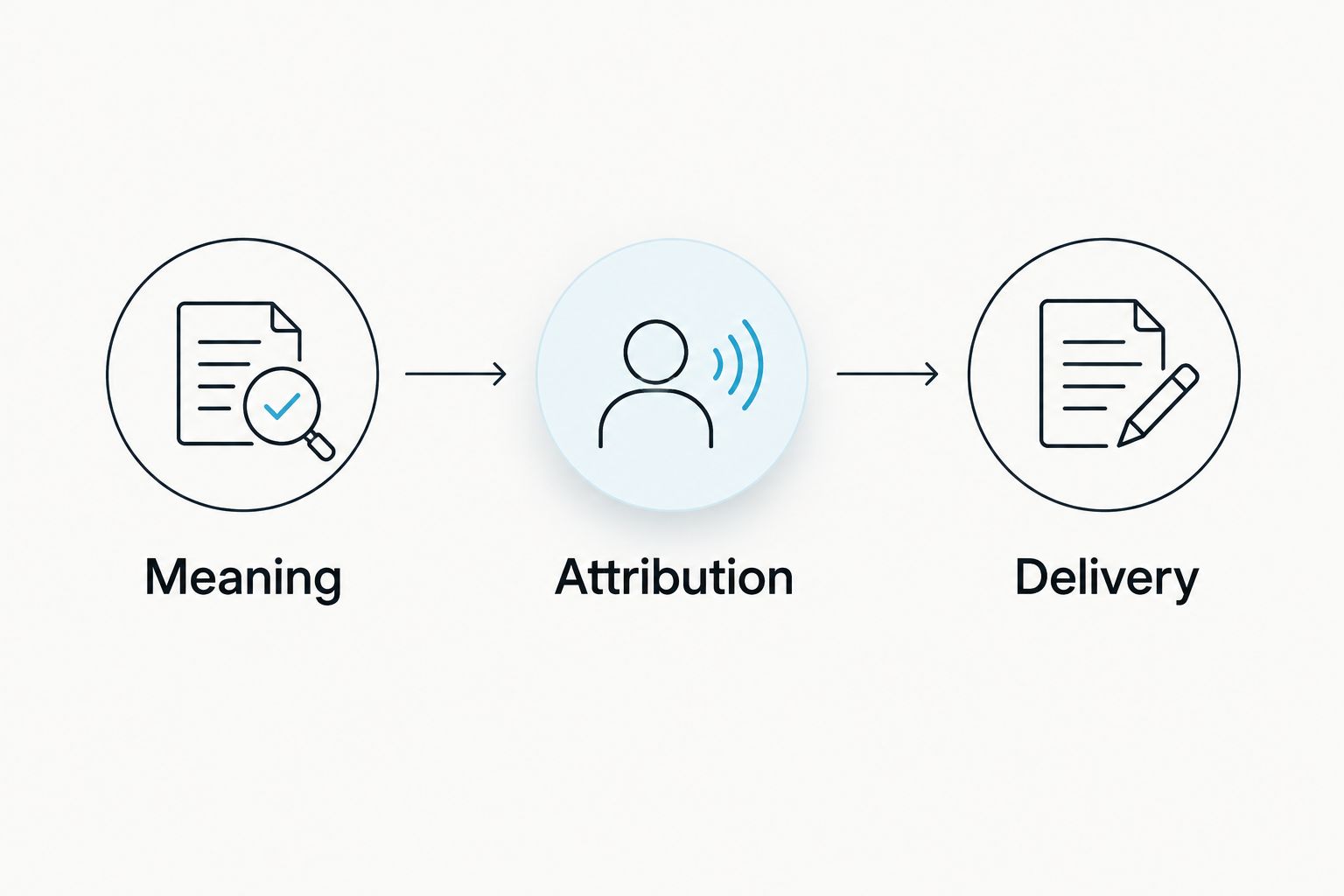
Use 3 review passes: meaning, attribution, and delivery. This is a practical checking sequence, not a claim that automated transcription needs a fixed amount of editing.
Meaning
Listen while reading the passages that affect decisions. Check names, amounts, dates, technical terms, and words that reverse meaning, such as “not.”
Do not silently replace unclear speech with what you think the speaker intended. Mark the passage as unclear and retain its location in the recording so someone can revisit it.
Attribution
Check who said each important statement. A correctly transcribed sentence still creates a bad record when it is assigned to the wrong person.
Use introductions and clear voice samples to verify labels. When speakers overlap or identities remain uncertain, label that uncertainty instead of inventing a name.
Delivery
Decide whether you are sharing spoken wording or an edited document. Removing repetition improves readability, but it also changes the nature of the record.
Label summaries separately from transcripts. If you extract action items, confirm the owner and deadline from the conversation rather than treating every suggestion as a commitment.
Why Zoom transcription quality varies
Changing transcription services does not fix every recording problem. Start by identifying whether the problem is in the audio, the language settings, or the review process.
- Audio clarity. Background noise, distortion, and quiet speech make words harder to distinguish. Listen to the source before blaming the transcript.
- Overlapping speakers. Simultaneous speech makes both wording and attribution harder to check. Verify important exchanges directly.
- Language selection. Choose the language actually spoken when your transcription workflow provides that setting.
- Specialized vocabulary. Product names, surnames, acronyms, and technical terms need a dedicated review.
- Recording completeness. A transcript cannot recover a conversation that was never captured. Check for missing openings, interruptions, and an early ending.
- Output expectations. A verbatim transcript, readable transcript, and summary require different editing decisions. Name the intended output before reviewing it.
Can you transcribe a Zoom recording without being the host?
Yes, if you have authorized access to the recording and a transcription workflow that accepts it. Being an attendee does not automatically give you permission to download, upload, or redistribute someone else's meeting.
Ask the host for the existing transcript first. If none exists, request an authorized recording or ask the host to arrange transcription.
Consent rules vary by location; check local law. Also follow your organization's rules for confidential conversations and third-party processing.
Can you turn the transcript into meeting notes?
Yes. Use the reviewed transcript to extract decisions, open questions, and action items, while keeping those notes separate from the spoken record.
Write action items as an owner, an action, and a deadline when the conversation supplies them. If the deadline was never agreed, mark it as unassigned rather than making one up.
A summary should make the meeting easier to use, not make uncertain statements sound settled. Keep a reference to the relevant recording passage for disputed or consequential decisions.
How do you capture future Zoom meetings without a bot?
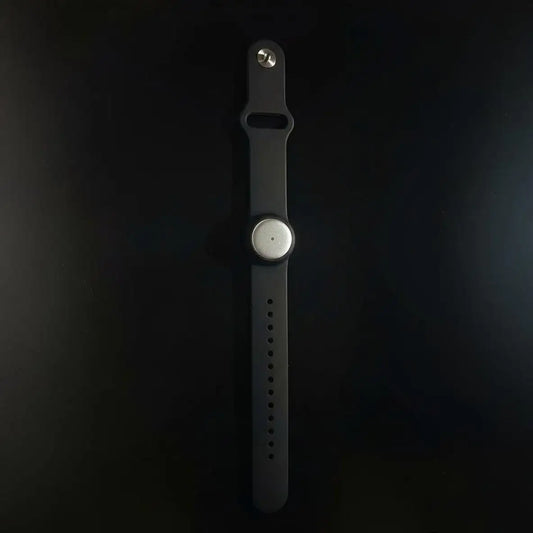
Omi is best for professionals who want meeting transcripts, summaries, and tasks without a meeting bot. For future calls, Omi supports recording through its Mac app, or through a phone or wearable in the room; it does not join Zoom calls as a bot.
Omi's phone and Mac apps also record through their built-in microphones without the wearable. The output includes transcripts, summaries, action items, and searchable memories.
For a 2026 setup, test your chosen capture route before an important meeting. Check that the recording contains both your voice and the remote participants, particularly when using headphones.
The trade-off is practical: room capture depends on what the microphone can hear. Omi supports 33 languages, but you set the language manually, and it does not automatically switch languages mid-conversation.
Use this route for future capture, not as an assumed file-import feature. For an existing Zoom recording, follow the cloud-transcript or supported-upload workflow above.
FAQ
What's the easiest way to transcribe a Zoom recording?
Use the existing Zoom cloud audio transcript when one is attached to the recording. Otherwise, upload an authorized recording to a transcription service that explicitly accepts your file format, then review the text against the audio.
Does a Zoom local recording automatically include a transcript?
A Zoom local recording does not automatically include a cloud audio transcript. Use a separate file-transcription workflow if you have only the saved recording.
Can I get a transcript after the Zoom meeting has ended?
Yes, if you have an existing transcript or an authorized recording to transcribe. Check the cloud recording's associated files first, then use a supported upload service if necessary.
How do I transcribe a Zoom recording into a Word document?
Generate or download the transcript, review it, and copy the text into Word or use a document export if your service provides one. Keep the original timed transcript separately when you need references back to the recording.
Why are the speaker names wrong in my Zoom transcript?
Speaker labels need verification, especially when voices overlap or the recording does not clearly identify participants. Compare important statements with the audio and leave uncertain speakers unidentified rather than guessing.
Can Omi record a Zoom meeting without joining as a bot?
Omi records online meetings through its Mac app, or through a phone or wearable in the room, without joining as a bot. Test your chosen setup to confirm that both sides of the conversation are captured.
Do I need permission to transcribe a Zoom recording?
Confirm that you are authorized to access, process, and share the recording. Consent rules vary by location; check local law and your organization's policies before uploading or distributing meeting content.
One last thing
The most polished transcript is not always the most faithful one. Cleaning up a hesitant suggestion can make it read like a firm decision.
Keep the source recording, label edited versions clearly, and check consequential statements before turning them into tasks. Readability matters. So does preserving what the speaker actually committed to.