|

|  How to Integrate Amazon AI with Microsoft SharePoint

How to Integrate Amazon AI with Microsoft SharePoint

January 24, 2025

Streamline your workflow by integrating Amazon AI with Microsoft SharePoint. Follow our simple guide for seamless connection and enhanced productivity.

How to Connect Amazon AI to Microsoft SharePoint: a Simple Guide


Setup AWS and SharePoint Environment


  • Ensure you have an active AWS account and have access to Amazon AI services such as Amazon Comprehend, Amazon Rekognition, etc.
  •  

  • Ensure you have access to your organization's Microsoft SharePoint environment and relevant permissions to add or modify integrations.
  •  

  • Install AWS SDK for your preferred language if you plan to run the integration from a custom application. Common SDK languages include Python, JavaScript, Java, and .NET.


Create an IAM Role for Accessing Amazon AI Services


  • Log in to the AWS Management Console. Go to the IAM (Identity and Access Management) service.
  •  

  • Create a new role and assign the necessary permissions for the AI services you wish to use. For instance, add AmazonRekognitionFullAccess for using Amazon Rekognition.
  •  

  • Save the role's ARN (Amazon Resource Name), as you will need it when configuring the integration.


Develop a Custom Application for Integration


  • Create a new project using your preferred programming environment. For example, to use Python, set up a new virtual environment and install AWS SDK.
  •  

  • Write a function to connect to the desired Amazon AI service. Below is an example using Amazon Comprehend in Python:


import boto3

def detect_language(text):
    comprehend = boto3.client(service_name='comprehend', region_name='us-east-1')
    response = comprehend.detect_dominant_language(Text=text)
    return response


  • Ensure your application is configured to use the correct IAM role credentials, either by specifying them directly or using instance profiles if running on an AWS service.


Access SharePoint API


  • Register your application in Azure AD to get a client ID and client secret necessary for accessing SharePoint's REST API.
  •  

  • Set up the necessary SharePoint permissions for your app in Azure to allow it to read or manipulate SharePoint data.
  •  

  • Use the SharePoint REST API to fetch documents or content that you want to analyze using Amazon AI services:


import requests

def get_sharepoint_data(site_url, token):
    headers = {
        "Authorization": f"Bearer {token}",
        "Accept": "application/json;odata=verbose"
    }
    response = requests.get(f"{site_url}/_api/web/lists", headers=headers)
    return response.json()


Integrate Amazon AI with SharePoint


  • Combine the functionalities to read from SharePoint and pass the data to Amazon AI services. For instance, extract text content for language detection:


token = "YOUR_ACCESS_TOKEN"
site_url = "https://yourtenant.sharepoint.com"

sharepoint_data = get_sharepoint_data(site_url, token)
text_content = "Extracted text from SharePoint document"  # Example string

language_detection_result = detect_language(text_content)
print(language_detection_result)


  • Your application can now process data from SharePoint using Amazon AI services and save the results back to SharePoint or any desired location.
  •  

  • Consider deploying this integration on a server with scheduled jobs, or design it as a microservice accessed via an HTTP endpoint exposed through an API Gateway.


Test and Monitor the Integration


  • Test your integration thoroughly in a development or staging environment before deploying it to production.
  •  

  • Set up logging and monitoring using AWS CloudWatch to track the application’s performance and identify any issues.

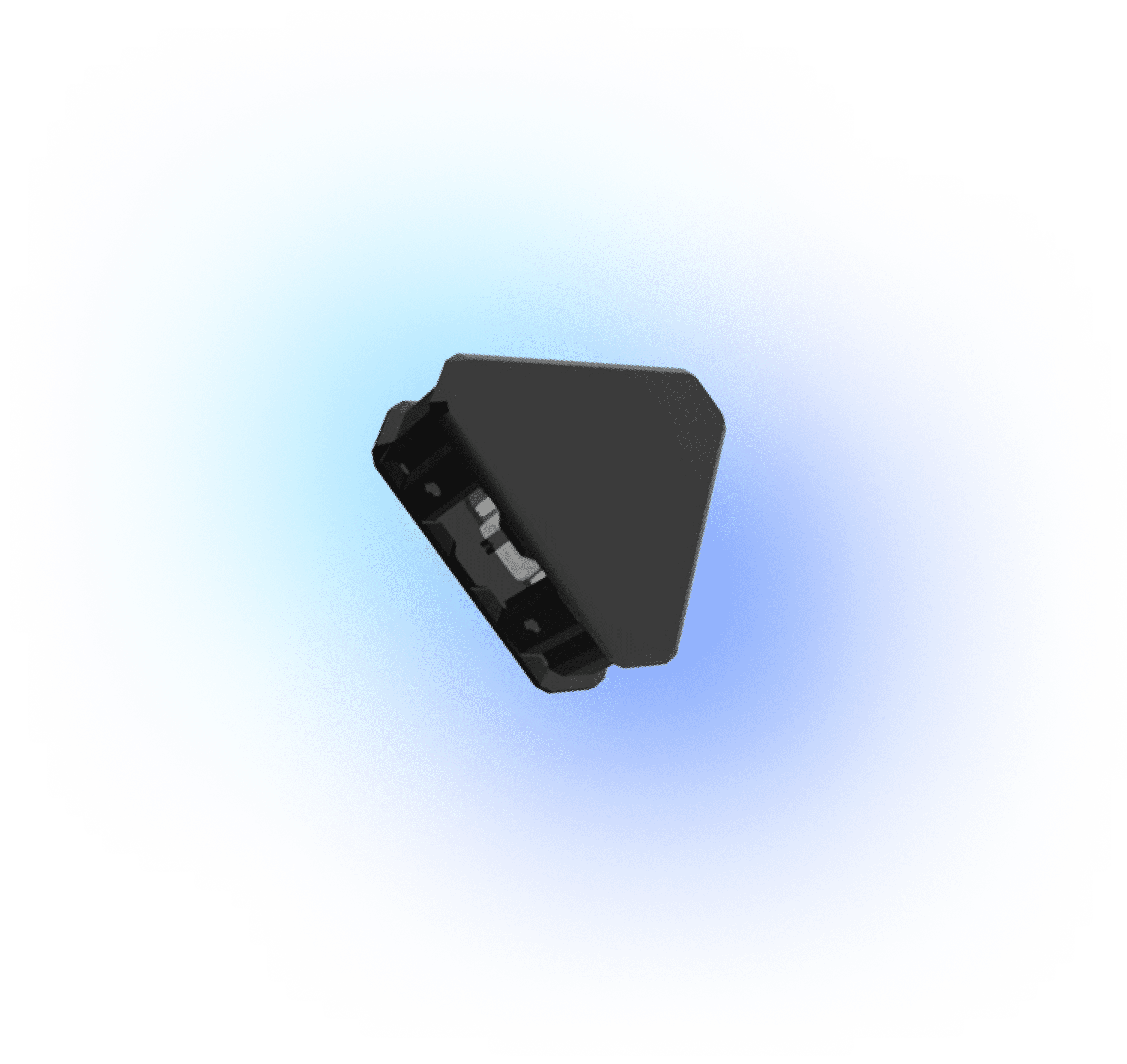
 

Omi Necklace

The #1 Open Source AI necklace: Experiment with how you capture and manage conversations.

Build and test with your own Omi Dev Kit 2.

How to Use Amazon AI with Microsoft SharePoint: Usecases


Integrating Amazon AI with Microsoft SharePoint for Intelligent Document Management


  • Utilize Amazon AI's advanced machine learning capabilities to analyze documents stored in SharePoint and extract key data points automatically.
  •  

  • Implement natural language processing (NLP) through Amazon Comprehend to understand document content and categorize files intelligently within SharePoint libraries.
  •  

  • Leverage Amazon Rekognition to tag and sort images embedded in SharePoint documents for better searchability and organization.
  •  

  • Set up automated workflows on SharePoint using Microsoft Power Automate to trigger alerts or actions based on insights extracted by Amazon AI.
  •  


Benefits of the Integration


  • Improves document retrieval efficiency by categorizing and tagging documents automatically.
  •  

  • Enhances collaboration by providing insights into document content without manual intervention.
  •  

  • Reduces the risk of human error in document processing and classification.
  •  

  • Allows for scalable document management processes adaptable to growing business needs.
  •  


Enhancing Customer Support with Amazon AI and Microsoft SharePoint


  • Integrate Amazon AI's natural language processing capabilities to analyze customer feedback and support tickets stored within SharePoint, enabling automatic extraction and categorization of customer inquiries.
  •  

  • Leverage Amazon Transcribe to convert audio or video customer interactions stored in SharePoint into searchable text formats, facilitating easier access and review.
  •  

  • Utilize Amazon Comprehend to perform sentiment analysis on stored feedback and support tickets, allowing teams to prioritize responses based on urgency or customer sentiment.
  •  

  • Implement automated SharePoint workflows using Microsoft Power Automate to initiate customer support processes based on insights derived from Amazon AI analysis.
  •  


Benefits of the Integration


  • Enhances the efficiency of customer support by categorizing and prioritizing tickets automatically.
  •  

  • Provides deeper insights into customer sentiment and experiences, enabling proactive problem-solving and service improvements.
  •  

  • Facilitates better tracking and management of multimedia customer interactions stored in SharePoint.
  •  

  • Enables scalability in customer support processes as the volume of inquiries and customer interactions grows.
  •  


Omi App

Fully Open-Source AI wearable app: build and use reminders, meeting summaries, task suggestions and more. All in one simple app.

Github →

Order Friend Dev Kit

Open-source AI wearable
Build using the power of recall

Order Now

Troubleshooting Amazon AI and Microsoft SharePoint Integration

How to connect Amazon AI to Microsoft SharePoint?


Integrate Amazon AI with Microsoft SharePoint


  • Create an Amazon AI service. Sign in to the AWS Management Console, navigate to the Amazon AI services section, and set up the service needed for your project, like Comprehend or Polly.
  •  

  • Ensure you have the correct AWS SDK for Python (Boto3) or another language you intend to use installed in your development environment.
  •  

  • Access SharePoint via its REST API. Register an application in Azure AD to get the necessary credentials (client ID, client secret) for access.
  •  

  • Use the SharePoint API to interact with content. Here’s a basic Python example to authenticate and read data: ``` import requests

    token = 'YOUR_ACCESS_TOKEN'
    headers = {'Authorization': f'Bearer {token}'}
    response = requests.get('https://yoursharepointsite/_api/web/lists', headers=headers)
    print(response.json())

      </li>
    
    &nbsp;
    
      <li>Process SharePoint data with Amazon AI. Utilize Boto3 to handle data processing with the AI service:
    

    import boto3

    client = boto3.client('comprehend')
    text = "Your SharePoint text data"
    response = client.detect_sentiment(Text=text, LanguageCode='en')
    print(response['Sentiment'])

      </li>
    
    &nbsp;
    
      <li>Conclude by displaying or storing processed results back in SharePoint.</li>
    
    </ul>
    
    &nbsp;
    

Why is Amazon AI not processing documents from SharePoint?


Verify Access Permissions


  • Ensure that your SharePoint account has the necessary permissions to access the documents. Restricted access will prevent document extraction and processing.
  •  

  • Check SharePoint configuration settings to confirm that it allows third-party access.


Check Amazon AI Configuration


  • Verify your Amazon AI services are properly set up. Ensure that AWS permissions include access to external data sources like SharePoint.
  •  

  • Confirm that AWS SDKs and APIs are up-to-date.


Code Example for Integration


import boto3
from shareplum import Site
from shareplum import Office365

# SharePoint auth
authcookie = Office365('https://yoursharepoint.com',
                        username='user', password='pass').GetCookies()
site = Site('https://yoursharepoint.com/sites/yoursite', authcookie=authcookie)

# Fetch document
folder = site.Folder('Shared Documents')
file = folder.get_file('filename.docx')

# Upload to Amazon S3
s3 = boto3.client('s3', aws_access_key_id='KEY', aws_secret_access_key='SECRET')
s3.upload_fileobj(file, 'your-bucket', 'filename.docx')


Useful Tips


  • Regularly update libraries and toolkits to stay compatible with SharePoint and AWS.
  •  

  • Monitor AWS service limits which might restrict file processing size.


How to use Amazon AI to analyze SharePoint data?


Connect SharePoint to AWS


  • Utilize AWS DataSync or a third-party tool to move data from SharePoint to Amazon S3.
  •  

  • Ensure the proper IAM permissions for seamless data transfer.


Set Up Amazon AI Services


  • Use Amazon Comprehend for text analytics by analyzing documents stored in S3.
  •  

  • Utilize Amazon Rekognition for image or video content analysis from SharePoint archives transferred to S3.


Code Implementation


import boto3

client = boto3.client('comprehend')

response = client.detect_sentiment(
    Text='Your sample text from SharePoint document',
    LanguageCode='en'
)

print(response['Sentiment'])


Visualize and Report


  • Utilize Amazon QuickSight for data visualization.
  •  

  • Create dashboards to monitor and share insights from your SharePoint data.


Don’t let questions slow you down—experience true productivity with the AI Necklace. With Omi, you can have the power of AI wherever you go—summarize ideas, get reminders, and prep for your next project effortlessly.

Order Now

Join the #1 open-source AI wearable community

Build faster and better with 3900+ community members on Omi Discord

Participate in hackathons to expand the Omi platform and win prizes

Participate in hackathons to expand the Omi platform and win prizes

Get cash bounties, free Omi devices and priority access by taking part in community activities

Join our Discord → 

OMI NECKLACE + OMI APP
First & only open-source AI wearable platform

a person looks into the phone with an app for AI Necklace, looking at notes Friend AI Wearable recorded a person looks into the phone with an app for AI Necklace, looking at notes Friend AI Wearable recorded
online meeting with AI Wearable, showcasing how it works and helps online meeting with AI Wearable, showcasing how it works and helps
App for Friend AI Necklace, showing notes and topics AI Necklace recorded App for Friend AI Necklace, showing notes and topics AI Necklace recorded

OMI NECKLACE: DEV KIT
Order your Omi Dev Kit 2 now and create your use cases

Omi 開発キット 2

無限のカスタマイズ

OMI 開発キット 2

$69.99

Omi AIネックレスで会話を音声化、文字起こし、要約。アクションリストやパーソナライズされたフィードバックを提供し、あなたの第二の脳となって考えや感情を語り合います。iOSとAndroidでご利用いただけます。

  • リアルタイムの会話の書き起こしと処理。
  • 行動項目、要約、思い出
  • Omi ペルソナと会話を活用できる何千ものコミュニティ アプリ

もっと詳しく知る

Omi Dev Kit 2: 新しいレベルのビルド

主な仕様

OMI 開発キット

OMI 開発キット 2

マイクロフォン

はい

はい

バッテリー

4日間(250mAH)

2日間(250mAH)

オンボードメモリ(携帯電話なしで動作)

いいえ

はい

スピーカー

いいえ

はい

プログラム可能なボタン

いいえ

はい

配送予定日

-

1週間

人々が言うこと

「記憶を助ける、

コミュニケーション

ビジネス/人生のパートナーと、

アイデアを捉え、解決する

聴覚チャレンジ」

ネイサン・サッズ

「このデバイスがあればいいのに

去年の夏

記録する

「会話」

クリスY.

「ADHDを治して

私を助けてくれた

整頓された。"

デビッド・ナイ

OMIネックレス:開発キット
脳を次のレベルへ

最新ニュース
フォローして最新情報をいち早く入手しましょう

最新ニュース
フォローして最新情報をいち早く入手しましょう

thought to action.

Based Hardware Inc.
81 Lafayette St, San Francisco, CA 94103
team@basedhardware.com / help@omi.me

Company

Careers

Invest

Privacy

Events

Manifesto

Compliance

Products

Omi

Omi Glass

Omi Dev Kit

Omi Enterprise

Wrist Band

Omi Charger

omiGPT

Personas

Download

Resources

Help Center

Docs

App Store

Feedback

Bounties

Affiliate

Ambassadors

Resellers

GitHub

© 2025 Based Hardware. All rights reserved.