How to set up Omi in 5 minutes
By the Omi Team · October 8, 2026 · 4 min read

Most of Omi's setup happens in the app, so you can do it before the box arrives. Here's the whole process, start to finish. It takes about five minutes.
What's in the box
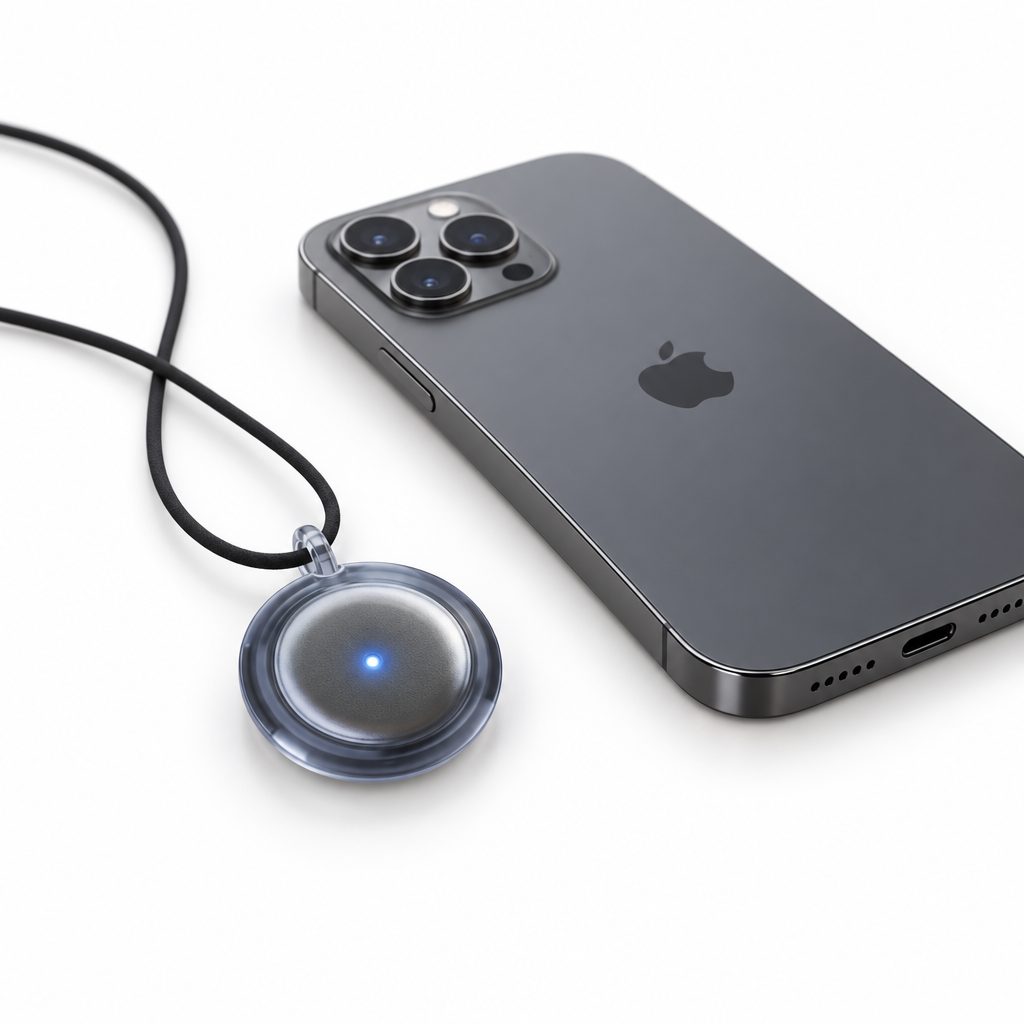
Inside you'll find the Omi device, a metal chain, a wrist band, a silicone case, and the charging dock with its cable. The dock works like a smartwatch charger: the device sits on top and the cable plugs into any standard USB power source, like a phone charger or your computer.
Step 1: Get the app ready
Download the Omi app from the App Store or Google Play and create your account. Follow the sign-up screens, allow the permissions it asks for, and pick your name and language.
Use the same login everywhere you use Omi, like your phone and your Mac. That keeps your conversations and memories in sync across devices.
Step 2: Try it with your phone first
You don't need the device to see how Omi works. On the Home screen, start a short recording and talk for 30 to 60 seconds. Recap your day, or talk through a problem you're working on.
When you stop talking, Omi notices the silence, closes the recording and turns it into a Conversation with a summary and key points. Open it, then check the Tasks and Memories tabs to see what Omi pulled out on its own.
Step 3: Charge your Omi
Place the device on the dock and plug in the cable. A light-red or orange light means it's charging. On the very first charge, that light can take anywhere from a few seconds to two or three minutes to appear, so give it a moment.
Step 4: Pair it with the app
- 1Press the device once to turn it on. A light or a small buzz means it's on. If nothing happens, put it back on the charger for a bit.
- 2In the Omi app, tap Connect in the top-left corner.
- 3Follow the steps on screen and keep the device close to your phone.
- 4When the light turns blue, Omi is connected and ready.
Step 5: Update the firmware
In the app, go to Settings, then Device Settings, then Update Firmware. Keep Omi charged and close to your phone until the update finishes. It's worth doing on day one, so you start on the latest version.
What the lights mean
| Light | What it means |
|---|---|
| Red | Omi is on, but not connected to the app |
| Light red or orange | Omi is charging on the dock |
| Blue | Omi is connected and ready to record |

Frequently asked questions
My Omi won't turn on. What do I do?
Press it once. If you see no light, put it on the dock and wait a few minutes for a light to appear, then try again. If it still stays off, reach out to support at help.omi.me.
Can I use Omi before the device arrives?
Yes. The app records from your phone too, so you can try conversations, summaries and Chat right away.
Can I use Omi on more than one device?
Yes. Sign in with the same account on your phone and Mac, and your conversations and memories stay in sync.