If you want an ai note taker for zoom that actually holds up in real life, it has to do more than spit out a transcript. It needs to capture clean audio, pull decisions and action items, and stay searchable weeks later when you’ve forgotten the whole call.
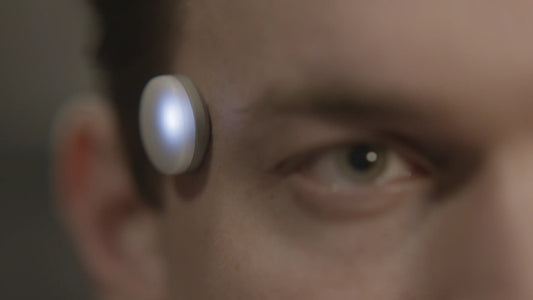
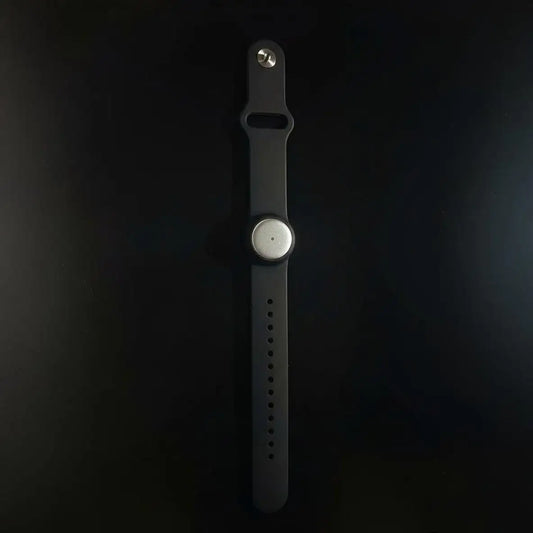
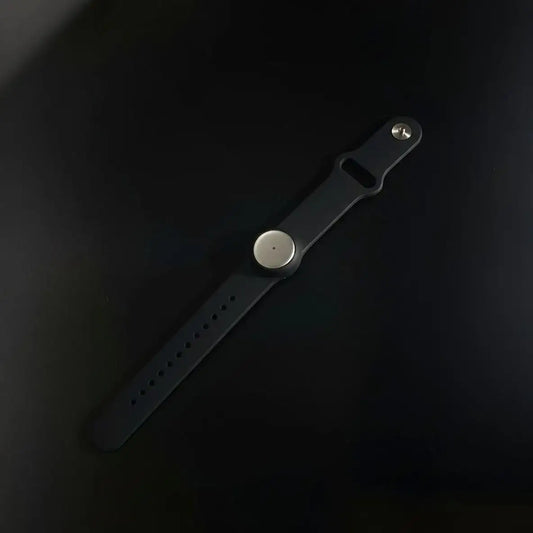
We built Omi for the bigger problem: not just Zoom meetings, but your whole day. Wear it on your neck or wrist, tuck it under your shirt, record in-person conversations, quick hallway chats, and online meetings too (Zoom, Meet, Teams, whatever) through our Mac desktop app or web app. Then you get summaries, tasks, memories, and fast sharing, all in one place.
This guide shows you how to set up a zoom ai notetaker workflow that doesn’t break when there’s a waiting room, a stubborn host setting, or an IT policy that hates bots. We’ll also compare native Zoom features and popular third-party tools.

What makes a Zoom note taker actually reliable
Zoom meetings have quirks that make “generic meeting AI” stumble. The usual failure modes are boring but painful: a waiting room blocks a bot, the host misses a recording approval prompt, the transcript language is wrong, or half the team talks over each other during the one decision that matters.
So before we touch tools, here’s the reliability checklist for any ai note taker for zoom.
- Capture that doesn’t depend on a visible bot: bot-based tools can work, but your workflow should still survive when a bot can’t join.
- Structured output, not a wall of text: decisions, action items with owners, risks, open questions, and links shared. Every time.
- Search and retrieval: “What did we commit to on that renewal call?” should be a 5-second query, not a 50-minute replay.
- Actionability: the best notes turn into tasks, messages, and updates in your actual tools, not a forgotten document.
If you only remember one thing: reliability comes from capture + structure + automation, not from a prettier summary.
Who this workflow is built for
This isn’t a “one-call-a-week” setup. It’s for people who live in meetings, or whose work depends on decisions being captured cleanly. If you want more examples across roles, we keep a full library on the use cases hub.
- Sales teams: stop losing deal context between calls and follow-ups, see sales use cases.
- Leads and founders: decision trails that are easy to review and share without re-explaining everything.
- Ops and project owners: action items with owners and deadlines, plus clean recaps for async teammates.
- IT and security teams: governance, consent norms, and a setup that doesn’t randomly invite bots into client calls.
- Anyone building workflows: if meeting notes should trigger actions, you’ll love the automation layer (more on that below).
A good zoom ai notetaker should make you feel calmer after a call, not busier.
Three ways Zoom notes get captured, and why it matters
Every tool you’re about to compare fits into one of these capture paths. Pick your capture path first, then choose the product.
| Capture path | How it works | When it’s best | Where it breaks |
|---|---|---|---|
| Local capture | Desktop app captures audio (and sometimes system audio) without adding a bot participant. | Client calls, regulated environments, bot bans, “no surprises” meetings. | Requires the right device setup and consistent habits. |
| Native Zoom capture | Zoom’s built-in features generate transcripts/summaries using Zoom settings and permissions. | Zoom-first orgs who want minimal new vendors. | Plan limitations, admin settings, breakout-room constraints, export workflows. |
| Bot-based capture | A notetaker joins as a participant, records/transcribes, then sends notes. | Personal productivity and teams with relaxed meeting policies. | Waiting rooms, host approvals, IT blocks, and “why is a bot here?” reactions. |
Our default is simple: use capture that works everywhere. Zoom today, in-person tomorrow, and a surprise “quick sync” in the hallway five minutes later. That’s the whole point.
Setup: Omi as your ai note taker for Zoom
This is the setup we recommend when you want one system that covers Zoom meetings and the rest of your day. It’s boring and consistent, which is exactly what you want from notes.
Step 1: Choose your capture mode
Pick the capture mode that matches your week:
- Zoom and other online meetings: use the Mac desktop app or web app capture while you join meetings normally.
- In-person meetings and “all day” memory: wear Omi on your neck or wrist, or tuck it under your shirt for hands-free capture.
- Hybrid days: mix both. Your memories live in one place either way.
Step 2: Standardize your summary template
Templates are the difference between “nice recap” and “usable artifact.” We recommend this structure for every Zoom call:
- Summary (2 to 3 sentences)
- Decisions (bullets)
- Action items (owner + due date)
- Risks and open questions
- Links mentioned
Step 3: Use spoken markers that turn into actions
If you want your ai note taker for zoom to be sharper, add verbal markers. They make the transcript cleaner and let automations trigger reliably.
- “Hey Omi, decision:” then restate the decision in one sentence.
- “Hey Omi, action item:” owner + deadline in the same sentence.
- “Hey Omi, follow-up draft:” what the email or message should accomplish.
When you install real-time apps, those markers can be processed live to create tasks, messages, or updates automatically.
Step 4: Turn meeting notes into outcomes with integrations
This is where the workflow becomes unfair (in the best way). Instead of copying notes between tools, we connect the systems so your recap becomes action.
- Calendar linking and meeting context: calendars integration
- Send summaries to the right place: chat integrations
- Automate follow-ups and workflows: automation with n8n, Zapier, and Make
- Connect assistants and agents through MCP: MCP with Claude and Cursor
If you want to go deeper, browse the full integrations hub and pick the stack you actually use.
Step 5: Review once, then trust it
After each Zoom call, spend 60 seconds on a quick sanity pass: confirm owners, confirm dates, and edit one ambiguous decision sentence. That tiny step makes your notes “operational truth,” not just a recap.
From there, your system stays searchable, shareable, and ready for the next meeting.
Zoom settings that decide whether your notes will be good
Even the best zoom ai notetaker can’t fix bad meeting conditions. Zoom has a handful of settings that quietly control whether transcription and capture are smooth or chaotic.
- Waiting room policies: bots can get stuck waiting, or people forget to admit them.
- Recording approvals: many tools need host approval to record, and that prompt gets ignored mid-meeting.
- Caption language mismatch: the transcript quality tanks fast if the language is wrong.
- Cross-talk: when three people talk at once, speaker labeling becomes guesswork.
| Zoom lever | What to do | Why it matters for an ai note taker for zoom |
|---|---|---|
| Caption controls | Make sure captioning is allowed when you rely on caption-driven capture. | Some notetakers depend on captions for transcript capture. |
| Waiting room | If you allow bots, decide who admits them and when. | Most “bot didn’t join” failures are waiting room related. |
| Recording permissions | Know whether your org requires host approval for recording participants. | Missing approval means missing notes. Simple as that. |
| Language | Set the right caption/transcript language for multilingual calls. | Wrong language equals wrong transcript equals weak summary. |
| Bot restrictions | If you need to block bots, use domain blocking and meeting lock practices. | Reduces surprise participants and improves compliance posture. |
If your org has strict policies, we recommend building a clear consent and governance workflow. We have a full playbook here: recording consent and governance.
Best practices that make Zoom summaries sharper
You can get better notes without changing tools. A few small meeting habits dramatically improve what any ai note taker for zoom can extract.
- Use the “decision echo”: when a decision lands, restate it once with owner and deadline.
- Separate brainstorming from committing: “ideas” and “decisions” shouldn’t share the same paragraph.
- Ask for one sentence constraints: “what are we optimizing for?” becomes searchable context later.
- Pin links as they’re shared: repeat the link name out loud (“this is the Q1 roadmap doc”).
- End with a 60-second closeout: owners confirm tasks, everyone hears the final list.
If your notes aren’t creating action, the problem usually isn’t the AI. It’s the absence of a repeatable meeting closeout.
How to turn Zoom notes into real work automatically
Notes are only “done” when they land where your team actually works. That’s why we treat meeting output as a trigger, not a document.
If you want a clear blueprint, start with our end-to-end guide: ai meeting summary workflow. It walks through capturing, structuring, and turning the recap into action.
-
Fast sharing in chat
Send a recap where your team already reads. Slack, Teams, Discord style workflows, handled through the right integration path.
-
Calendar-aware meeting context
Tie notes to the right meeting, attendees, and follow-ups. Your recap becomes easier to retrieve later.
-
Automated follow-ups
Draft an email, generate a Slack update, create tasks, and push them into your tools automatically.
-
Agent-ready memory
With MCP, assistants can search and manipulate memories and conversations to build workflows that feel personalized.
Under the hood, we support a developer-friendly stack (API and MCP) plus a growing app marketplace (currently 665+ apps). If you want to build your own automation or install one, start here:
https://docs.omi.mehttps://h.omi.me/apps
Alternatives: popular Zoom ai notetaker tools and how they differ
Sometimes you need a Zoom-only tool. Sometimes you need a bot-based assistant because you want “auto-join and email me the recap.” Below is a practical comparison by capture style.
| Tool | Capture style | Best for | Heads-up |
|---|---|---|---|
| Zoom AI Companion | Native Zoom features | Zoom-first teams who want built-in summaries | Plan and admin settings matter, and some features have limitations (like breakout rooms). |
| Otter | Bot-based (calendar or manual join) | Searchable meeting history and collaboration | Waiting room and host approval issues can block joining. |
| Fireflies | Bot-based (with Zoom integration options) | Teams who want lots of integrations | Some orgs block AI bots entirely, and policy friction is common. |
| Fathom | Zoom app / assistant | Solo users and small teams who want fast recaps | Bot optics vary by meeting policy and client expectations. |
| tl;dv | Bot-based (recording + highlights) | Clips, highlights, and async sharing | When multiple people record, bot priority rules can affect behavior. |
| Krisp | Bot-free desktop capture | Bot-free transcription and summaries | Desktop workflow required, good for strict meeting cultures. |
| Tactiq | Caption-driven extension workflow | Lightweight live transcripts | Depends on caption settings and meeting language. |
| Fellow | Native capture and botless options | Bot-free meeting capture with team workflows | Depends on connected Zoom settings and permissions. |
| Read.ai | Bot-based + analytics | Meeting metrics and coaching signals | Commonly blocked in managed Zoom environments. |
| MeetGeek / Avoma / Grain | Mostly bot-based, workflow-driven | Structured templates for sales and success calls | Great when your org allows bots and you want CRM-style workflows. |
If you’re trying to choose quickly: decide if bots are allowed, then pick based on output quality and integrations. If you need a setup that works online and offline, go with a system that captures both.
Templates you can copy for better Zoom notes
These templates work for any ai note taker for zoom, but they shine when your system can turn them into tasks and updates automatically.
Decision and action item template
Meeting:
Date:
Attendees:

Summary (2-3 sentences):
-

Decisions:
- Decision:
  Why:
  Owner:

Action items:
- Task:
  Owner:
  Due date:
  Notes:

Risks / open questions:
-

Links mentioned:
-
Voice marker cheat sheet
Use short spoken phrases to make extraction easier:
Hey Omi, decision: ...
Hey Omi, action item: [owner] will [task] by [date]
Hey Omi, risk: ...
Hey Omi, open question: ...
Hey Omi, follow-up draft: ...
Common issues and quick fixes
The notetaker bot didn’t join the Zoom meeting
This is usually waiting room related or a host approval prompt that got missed. If bots are part of your workflow, make “who admits bots” explicit in your meeting norm.
The transcript is messy or the speakers are wrong
Cross-talk is the enemy. Use the “decision echo” habit, restate decisions once, and avoid overlap during decision moments. If your calls are multilingual, double-check the meeting language.
IT is blocking meeting bots
This is common. Many orgs block domains and restrict third-party participants. If you’re in that environment, use a capture path that doesn’t depend on a bot participant and adopt a clear consent workflow. Start here: recording consent and governance.
We get notes, but nothing happens afterwards
That’s an automation problem, not a note-taking problem. Route action items to the right place (chat, tasks, calendar follow-ups). The cleanest starting point is our workflow guide: ai meeting summary workflow.
If your current tool makes you babysit it every week, your system is fragile. Fix capture first, then polish the summary.
External reading if you want more perspectives
Two solid guides that cover the broader landscape (beyond this page):
FAQ
Is Zoom AI Companion enough as a zoom ai notetaker?
If your org lives inside Zoom and you want a native path, yes, it can be enough. The moment you want cross-platform capture (Zoom plus everything else you discuss in-person) or automations that push outcomes into your stack, you’ll want a broader system.
What is the best ai note taker for zoom if bots are not allowed?
Choose a capture path that doesn’t add a participant bot. Desktop capture and native capture are the usual answers. The goal is simple: no meeting surprises, same output quality.
How do I make AI notes more accurate on Zoom?
Fix the meeting inputs first: better mic habits, fewer interruptions during decisions, correct caption language when relevant, and a 60-second meeting closeout where owners repeat tasks and deadlines.
Can I connect meeting notes to my tools automatically?
Yes. Start with integrations and automation workflows, then add agents when you’re ready. The simplest path is to route summaries and action items into calendars and chat, then automate follow-ups with tools like n8n, Zapier, or Make.
How do I keep this compliant and respectful?
Always follow local laws and company policy. Be explicit about recording and give people a clean way to opt out. If you need a full governance playbook, we have one: recording consent and governance.
Quick takeaway
- Pick your capture path first: local, native Zoom, or bot-based.
- Standardize your summary template: decisions, action items with owners, risks, and links.
- Use spoken markers: “decision” and “action item” phrases improve extraction.
- Automate follow-through: route outcomes to chat, calendars, and tasks using integrations.
- If you want one system for Zoom plus real life: capture online meetings and in-person conversations in one searchable memory layer.

 www.omi.me