Quick summary
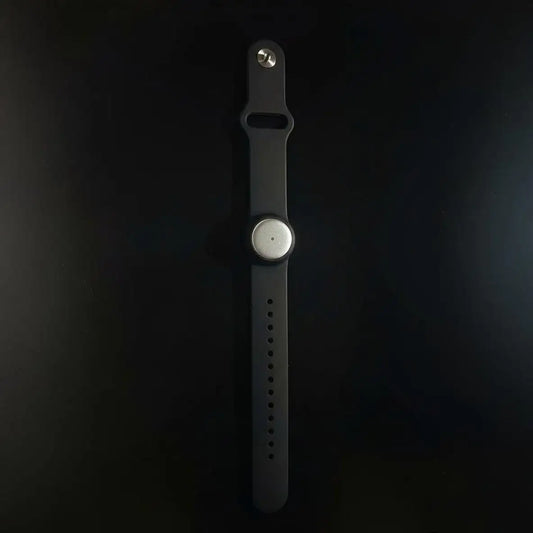
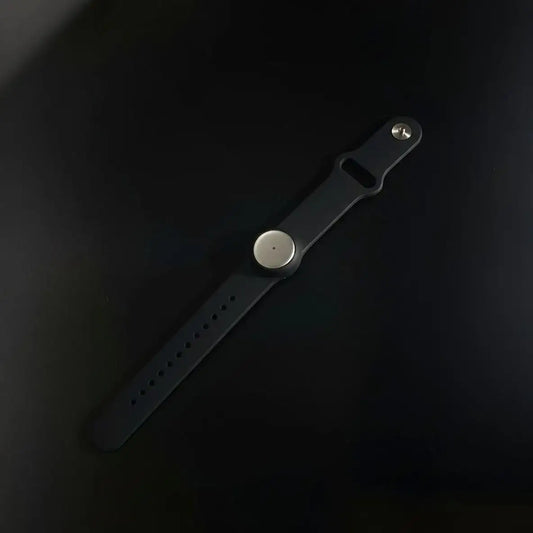
Omi captures what you say and hear, then turns it into transcripts, structured summaries, tasks, and searchable memories. The official Omi MCP server makes that context available to any MCP client, so your AI tools can retrieve the right parts on demand, then write back durable “truths” (like decisions) as memories.
- Best outcome: your AI stops guessing and starts referencing what actually happened (decisions, constraints, prior attempts).
- Most common win: faster prep, cleaner handoffs, fewer “did we already decide this?” loops.
- Best habit: retrieve first, then generate. Write back only what becomes stable truth.
- Voice layer: use “Hey Omi” commands for short actions (check, add, update, share). Require confirmations for risky actions (delete, external sharing).
| Status | What it means for this guide |
|---|---|
| Integration status | Official Omi MCP server (hosted SSE or local Docker), plus community apps and build-your-own paths via Omi Apps, Chat Tools, and the Developer API. |
| Updated | February 25, 2026 |
| Tested on | [Fill: your setup, example: macOS + Claude Desktop + Docker, or Cursor + hosted SSE] |
What this integration unlocks (in plain terms)
Think of Omi as your context layer, and MCP as the wire that lets other tools pull that context precisely when needed. The Omi MCP server exposes tools to read and manipulate memories and to browse full conversation transcripts (including structured summaries and metadata).
- AI writing that stays consistent: your weekly update, spec, or client email matches what you said last week, because the assistant can retrieve it first.
- Engineering work that stops drifting: “why did we do it this way?” becomes retrieval, not debate.
- Better agent outcomes: your agent can ground itself in real constraints (budget, policy, decisions), not a fresh blank prompt.
- Portable personalization: you bring the same context into Claude, Cursor, Poke, or any MCP client.
Mini “input → output” example:
- Input: You record a sprint retro with Omi, and Omi creates a memory with decisions and action items.
-
Retrieval: In your MCP client, you ask: “Pull the last retro decisions and open risks for Project X.” The client calls
get_memoriesandget_conversations. - Output: You get a tight retro recap, plus a decision log that you can save back as a single “truth” memory.
The best way to integrate (pick your lane, fast)
The “right” lane depends on what you’re optimizing for: speed, control, or governance. Most people should start with the hosted MCP endpoint or a marketplace app, then build only what’s missing.
| Lane | Effort | Control | Best for |
|---|---|---|---|
| Hosted Omi MCP (SSE) | Low | Medium | You want results today in any MCP client, minimal setup. |
| Local Docker MCP (Claude Desktop) | Medium | Medium-High | You want local debugging, clean logs, and stable dev workflows. |
| Self-hosted backend + custom API base URL | High | High | You need full control over infra and endpoints. |
| Marketplace apps (h.omi.me) | Low | Medium | You want “voice to action” fast (GitHub, Slack, Linear, OpenClaw) without building. |
| Build your own Omi app (webhooks, prompts, chat tools) | Medium-High | High | You need custom routing, strict governance, special formats, or your own action verbs. |
| Developer API (direct HTTP) | Medium | High | Dashboards, batch jobs, exports, and deep automation without an MCP client. |
Default recommendation: start with hosted MCP for retrieval, then add one action app (GitHub or Slack) and one sync/archive app (Notion Data Sync). Build later if you hit real limits.
What you need before you start (so you don’t regret it later)
This integration gets powerful quickly, which means it’s worth doing two tiny decisions up front: what counts as “truth,” and what actions are allowed by voice.
Requirements
- Omi MCP API key: generate it in the Omi app (Settings → Developer → MCP).
- Docker (optional): needed only if you run the MCP server locally.
- Your MCP client: Claude Desktop, Cursor, Poke, or any MCP-compatible tool. (Cursor supports MCP to connect to external systems and data.)
Compatibility notes
- Offline moments: Omi supports Local Sync to save snippets when you lose connectivity, then sync later. Great for real life.
- Teams: MCP is easy for a single user. “Team mode” needs governance, especially when actions exist. (We’ll cover that.)
Two decisions that prevent chaos
- Default taxonomy: decide your memory categories and naming rules before you scale.
- Voice action policy: define “safe by voice” actions vs “requires confirmation.”
Setup guide (step by step, in the order that works)
This is the clean sequence: connect, verify tools, then add your prompt patterns and voice actions.
Step 1: generate your Omi MCP key
In the Omi app: Settings → Developer → MCP, then generate a key that starts with omi_mcp_.
Step 2: choose hosted SSE or local Docker
Hosted (easiest): use https://api.omi.me/v1/mcp/sse as the server URL and your MCP key as the API key.
Local Docker (best for debugging): add this to your Claude Desktop config.
{
  "mcpServers": {
    "omi": {
      "command": "docker",
      "args": ["run", "--rm", "-i", "-e", "OMI_API_KEY=your_api_key_here", "omiai/mcp-server"]
    }
  }
}
Step 3: confirm the tools are visible
You should see Omi tools like get_memories, create_memory, edit_memory, delete_memory, plus conversation tools like get_conversations and get_conversation_by_id.
Step 4: run a “trust check” prompt (retrieval first)
Ask your MCP client for something you can verify easily. Example: “List my 10 most recent memories, grouped by category, with short titles.” This forces retrieval before generation.
Step 5: debug fast if anything feels off
Omi docs recommend MCP Inspector for debugging and show where to check logs for Claude Desktop.
# MCP inspector (debug the server)
npx @modelcontextprotocol/inspector uvx mcp-server-omi

# Claude Desktop logs (example path from docs)
tail -n 20 -f ~/Library/Logs/Claude/mcp-server-omi.log
Step 6: (optional) self-hosted Omi backend
If you run a self-hosted Omi instance, you can point the MCP server to your backend via OMI_API_BASE_URL.
export OMI_API_BASE_URL="https://your-backend-url.com"How to organize your context so it stays searchable later
MCP retrieval is only as good as your memory hygiene. The goal is not “more memory.” The goal is fewer, better truths.
Naming conventions (examples you can steal)
- [project] decision, [topic], [YYYY-MM-DD] (best for durable retrieval)
- [customer] snapshot, pains + next steps (best for sales and CS)
- [team] weekly snapshot, priorities + blockers (best for exec ops)
Tags and categories that keep retrieval clean
- Categories: projects, customers, personal, hiring, ops, legal, finance
- Tags: decision, risk, action-item, follow-up, policy, consent
- One rule: tags describe the type of truth, categories describe the domain.
Simple mapping table (where things come from, where they end up)
| Source | Stored as | Used for |
|---|---|---|
| Meeting transcript | Conversation + structured summary | Proof, quotes, exact wording |
| Outcome / decision | Decision memory | Fast retrieval, avoids re-deciding |
| Next steps | Action items (or tasks in your external system) | Execution, follow-through |
| Weekly alignment | Weekly snapshot memory | Updates, planning, prioritization |
If your memories feel noisy, use a prompt-based Omi app to extract only decisions, risks, and action items after each conversation. Prompt-based apps are designed for that “no server required” layer.
Role playbooks (where MCP becomes unfair advantage)
Below are role-specific patterns with internal links you can use to build a tighter hub experience across your site.
Executives
- Generate weekly updates grounded in real decisions and commitments, then save the final as a weekly snapshot memory.
- Before any leadership meeting, pull “current truth” plus the last 3 decisions, so you stop reopening resolved topics.
- Use voice to capture a decision in the moment, then share a short recap safely.
Links: executives · weekly OKR check-in · AI meeting summary
Project managers
- Create a decision log memory after every vendor call, sprint retro, or planning session.
- Turn sprint retros into a consistent “themes + actions” artifact, then push tasks into your tracker via an app or integration backend.
- Use MCP retrieval to build status updates that match the last 2 weeks of reality.
Links: project managers · sprint retrospective to improvement · vendor procurement meeting
IT, QA, and incident response
- During an incident, capture the calls, then use MCP retrieval to build a clean timeline and postmortem starter.
- Use voice actions to update ticket status or add a comment while you’re still in the context.
- Save the “root cause hypothesis” as a memory, then refine it after the postmortem.
Links: IT · QA · incident response to postmortem
Sales and customer success
- Before a call, retrieve a customer context pack (pains, objections, commitments, next steps).
- After a call, write back a “customer snapshot” memory and push action items into your system.
- Use voice to schedule follow-ups in the moment so deals don’t die in inboxes.
Links: sales · AI sales summaries · customer success
Marketing and content
- Turn real customer conversations into messaging briefs that sound like humans, not personas.
- Use MCP retrieval to keep positioning consistent across campaigns.
- Save your evolving “voice and style” rules as memories, then reuse them across tools.
Links: marketing · content creators · content ideation to publish
HR and hiring
- Save hiring decisions and calibration notes as memories so you can audit later.
- Use MCP retrieval to build consistent debrief docs and avoid “vibes-only” conclusions.
- For sensitive contexts, keep deep detail in Omi and share only safe summaries outward.
Links: human resources · interview to hiring workflow · recording consent and governance
Team mode (governance, consistency, and fewer accidental leaks)
When it’s a team, not a person, your default should be: shared outputs are short, safe, and linked back to Omi for deep context.
Shared destinations vs private context
- Private: full transcripts, sensitive details, raw notes.
- Shared: summaries, decisions, action items, and safe links back to the source.
Permissions and visibility
- Keep a strict allowlist for “who can trigger actions” by voice or chat tools.
- Require confirmation for deletes, external sharing, and bulk updates.
Maintenance routine that keeps trust alive
- Weekly: review top decision memories and clean duplicates.
- Monthly: rotate keys, audit integrations, and verify “off” works as well as “on.”
Build it yourself (three layers, from easy to serious)
Omi has a clean ladder: start with apps, then build custom behaviors, then build webhooks and tools when you need exact control.
Layer 1: install ready-made apps (fastest path)
- Vibe Kit: uses MCP to turn Omi notes into real GitHub projects. Open
- GFunnel Connector: extracts tasks, decisions, SOPs, formats them for API hub and MCP server integration. Open
- GitHub (voice actions): “Feedback Post” or “Create Issue” posts an issue to your repo. Open
- Slack (voice actions): “Send Slack message to X channel…” sends the message hands-free. Open
- Linear (voice actions): create issues, update statuses, add comments by voice. Open
- OpenClaw (agent control): manage your OpenClaw instance via Omi for real-time control. Open
- Notion Data Sync: stores all your conversations into a Notion database. Open
- Notion (chat access): ask Omi chat about any Notion page. Open
Practical rollout: one context app, one action app, one archive/sync app. Then build only what’s still missing.
Layer 2: prompt-based apps (custom behavior, no backend)
Prompt-based apps let you customize how Omi thinks and how memories are extracted, without hosting anything. Great for “extract only decisions + risks + action items” memory processors.
Layer 3: integration apps (webhooks for real sync)
Integration apps send Omi data to your webhook endpoints. You can trigger on memory creation, process real-time transcript, or even stream audio bytes for custom pipelines.
# Example: memory-trigger webhook receives the full memory object (simplified)
POST /your-endpoint?uid=user123
{
  "id": "memory_abc123",
  "transcript_segments": [{ "text": "Let's discuss the project timeline.", "speaker": "SPEAKER_00" }],
  "structured": {
    "title": "Project Timeline Discussion",
    "overview": "Brief overview...",
    "category": "work",
    "action_items": [{ "description": "Send proposal by Friday", "completed": false }]
  }
}
That payload includes transcript, structured summary, action items, and metadata, which is why this lane is so useful for “live sync.”
Layer 4: chat tools (turn “Hey Omi” into real actions)
Chat Tools let you define custom functions that become available inside Omi chat when users install your app. Tools are discovered via a manifest endpoint, and Omi calls your tool endpoints with fields like uid, app_id, and tool_name.
# Tool endpoint receives a POST with standard fields (simplified)
{
  "uid": "user_id",
  "app_id": "your_app_id",
  "tool_name": "create_ticket",
  "title": "Bug: checkout fails",
  "priority": "high"
}
Layer 5: developer API (direct HTTP, batch ops)
If you’re building dashboards, exports, or batch automation, use the Developer API. It supports memories, conversations, action items, and API key management.
# Example: fetch recent memories (from docs)
curl -H "Authorization: Bearer omi_dev_your_key_here" \
  https://api.omi.me/v1/dev/user/memories?limit=5
Live sync + voice commands
Live sync is how you avoid the “we’ll document later” trap. The easiest version is: voice as tiny operations, plus a safe action set you repeat until it’s boring.
High-confidence “Hey Omi” actions (good defaults)
- Capture a decision from the current conversation (then save as a decision memory).
- Add an action item with owner and date (or push to Linear/GitHub).
- Check task or job status (especially with an agent like OpenClaw).
- Share a recap internally (Slack is a good reference pattern).
- Update due date or status (Linear is built for this by voice).
Actions that should require confirmation
- Delete anything (memories, tasks, tickets).
- Share externally (outside your org, outside your allowlist).
- Bulk updates (easy to mess up, hard to unwind).
A good voice command sounds like a verb, not a paragraph. “Create issue.” “Send recap.” “Mark done.” You want low ambiguity, fast feedback, and logs.
Privacy, security, and control
MCP and tool-based assistants create a real execution boundary. That’s great for productivity, and also a place where prompt injection and indirect injection matter. Microsoft has published mitigation guidance for MCP implementations, and it’s worth treating this like “running code,” not “chatting.”
What goes to your MCP client vs what stays in Omi
- Omi MCP tools: expose memories and conversations through tool calls, the client retrieves what it asks for.
- Safe default: keep full transcripts and sensitive detail inside Omi, share short summaries and link back for depth (especially for HR, legal, clinical).
Practical safety checklist
- Least privilege: only install MCP servers you actually trust, and keep an allowlist for teams.
- Confirmation gates: require confirmation for delete, external sharing, and high-impact agent actions.
- Logs for every action: treat tool calls like audit events, especially with Chat Tools and webhooks.
- Key hygiene: rotate keys, never commit secrets, test “off” like you test “on.”
Troubleshooting
If something breaks, it’s usually boring. Here’s the fastest diagnosis order.
Tools don’t appear in your MCP client
- Confirm your MCP key is correct and active.
- If local: confirm Docker is running, then re-open the client.
- Use MCP Inspector to validate the server.
- Check logs (Claude Desktop path shown in docs).
Retrieval feels incomplete or irrelevant
- Your taxonomy is drifting: fix naming and categories first.
- Stop saving everything: save decisions, rules, snapshots. Leave the rest as transcripts.
- Use a prompt-based memory processor app to extract only what you actually want.
Voice actions are inconsistent
- Reduce the action set to high-confidence verbs.
- Add confirmation for risky actions (delete, external share).
- Prefer “find then update” patterns to avoid duplicates (especially for tasks and calendar events).
FAQ
Is there an official Omi MCP server, or is this all community?
There’s an official Omi MCP server with a hosted SSE endpoint and a local Docker option. It provides tools to read and manage memories and access conversations.
When should I use MCP instead of copy-pasting Omi summaries?
Use MCP when retrieval quality matters and your AI tool supports MCP. It lets the assistant query Omi memories and conversations directly, which is better than manual copy-paste for recurring work.
Can I build my own “Hey Omi” actions?
Yes. The practical path is Chat Tools (manifest + tool endpoints) and/or an Integration App backend for webhooks. Keep actions small, validate parameters, require confirmations for risky actions, and log everything.
What’s the fastest path to real execution (not just retrieval)?
Start with marketplace apps like GitHub, Slack, Linear, or OpenClaw. Study their short-command-to-action patterns, then build your own only when you need tighter governance or custom actions.
Can I use Cursor with MCP?
Yes. Cursor documents MCP as a way to connect to external systems and data, which makes it a strong fit for “coding with real context” workflows.
How do I revoke access?
Rotate or revoke keys, disable the app or MCP setup, and confirm “off” behavior. For integrations built as Omi apps, disable the app in Omi and revoke credentials in the connected service. For custom servers, disable endpoints and rotate tokens.
Next steps (internal linking you should add)
- Use cases hub: use cases
- Workflows hub: workflows
- Best related workflows: AI meeting summary · weekly OKR check-in · incident response to postmortem
- Build your own: MCP docs · building apps for Omi · integration apps · chat tools · developer API
- Marketplace: browse apps (start with action apps and sync/archive apps)
Mini glossary
- MCP (model context protocol): a standard way for AI clients to call tools and fetch context from external systems.
- Omi MCP server: the official MCP server that exposes tools for memories and conversations.
- SSE (server-sent events): the hosted connection style used by the easiest Omi MCP setup.
- Memory: a saved “truth” you want to retrieve later (decisions, snapshots, rules).
- Conversation: the transcript plus structured summary and metadata from a recording.
- Integration app: a webhook-based Omi app that sends data to your backend (memory triggers, real-time transcript, audio streaming).
- Chat tools: custom functions exposed to Omi chat via a manifest endpoint, used to turn voice/chat into actions.
- Developer API: direct HTTP API for programmatic access, best for dashboards and batch automation.
- Live sync: keeping external systems current using webhooks + voice “tiny operations,” so updates happen while context is warm.
Quick takeaway
- Use Omi to capture reality, then use MCP so your AI tools can retrieve it on demand.
- Start simple: hosted MCP for retrieval, one action app (GitHub/Slack/Linear), one archive app (Notion Data Sync). Build later if you hit real limits.
- Make it compound: write back decisions and weekly snapshots as memories.
- Use voice for tiny operations: check, add, update, share. Require confirmations for deletes and external shares.
- If you need custom workflows: build Omi apps (prompts, webhooks) and Chat Tools for reliable “Hey Omi” actions.

 www.omi.me